Búsqueda y visualización de estudios de pacientes en 3DICOM
Resumen
Esta guía te muestra cómo buscar el registro de un paciente y ver sus estudios utilizando la plataforma 3DICOM. Aprenderás a usar la búsqueda global, aplicar filtros y abrir los estudios del paciente en el Visor 3DICOM.
Instrucciones paso a paso
Abrir la búsqueda global
Paso 1. Haz clic en el campo de búsqueda global en la parte superior de la interfaz para abrir el panel de búsqueda.
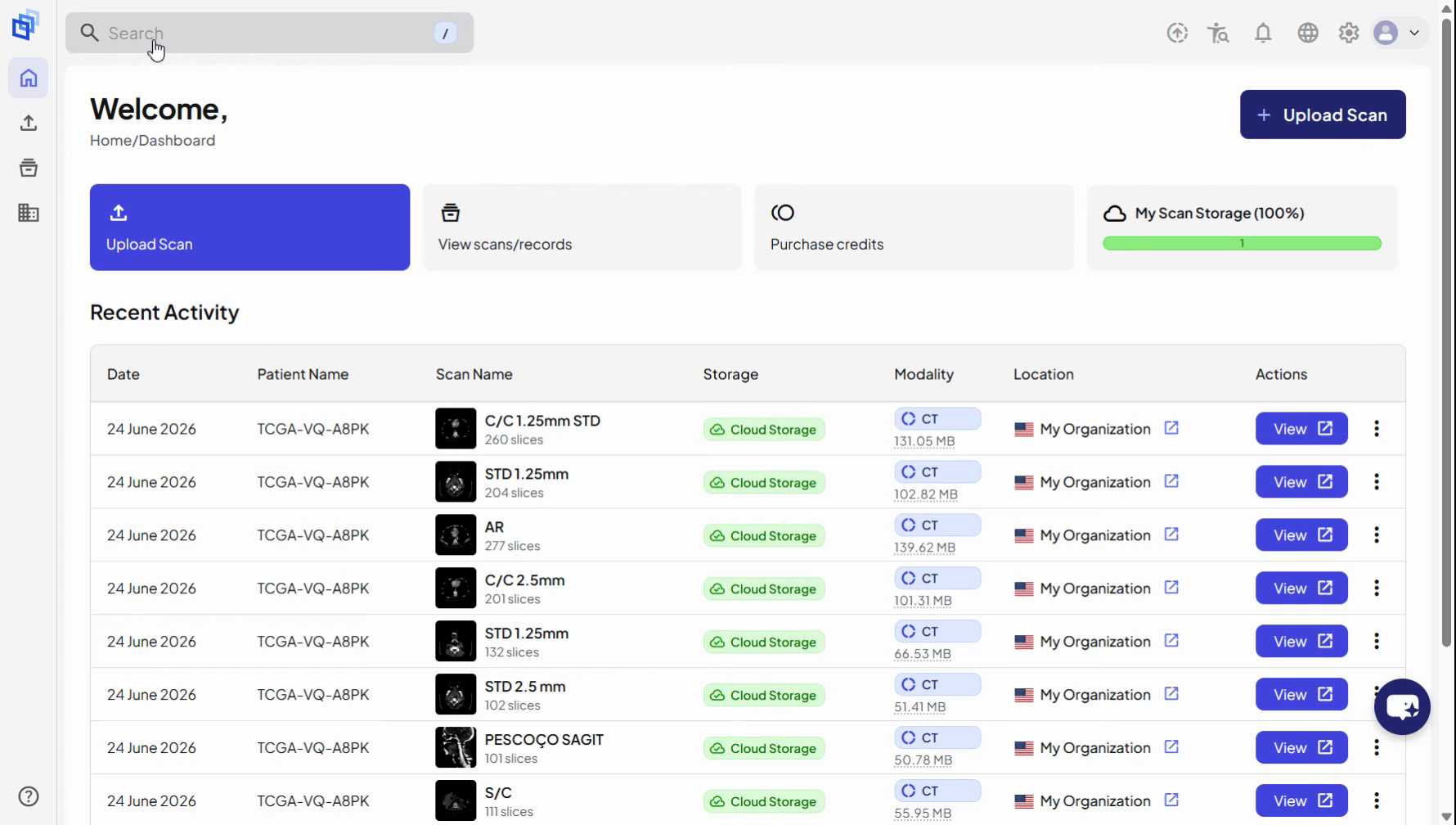
Buscar paciente
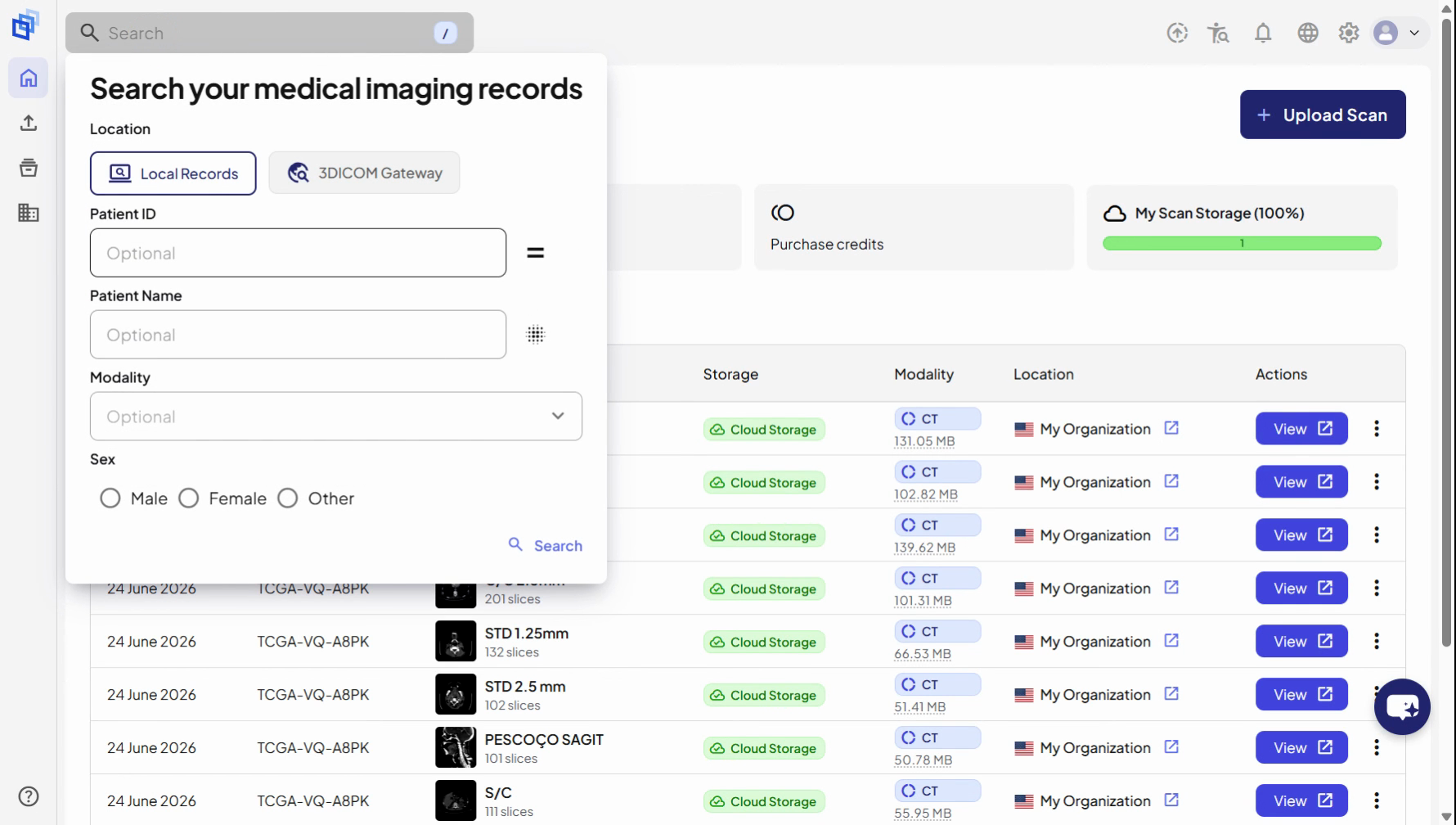
Paso 2. Haz clic en el ID del paciente campo de entrada e ingrese la ID del paciente para el registro que desea revisar.
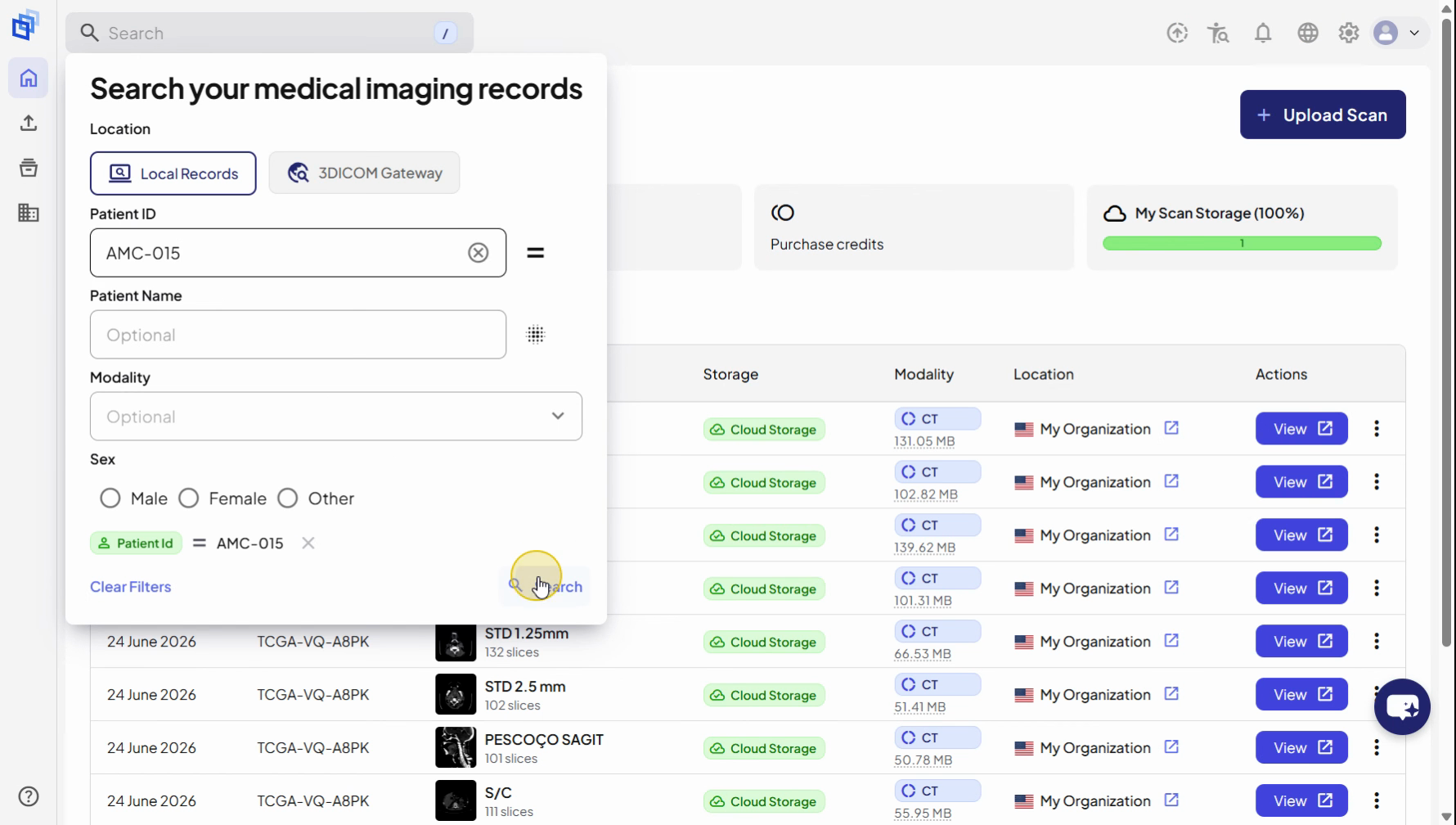
Paso 3. Clic Buscar para ejecutar la consulta.
Filtra y selecciona el expediente del paciente
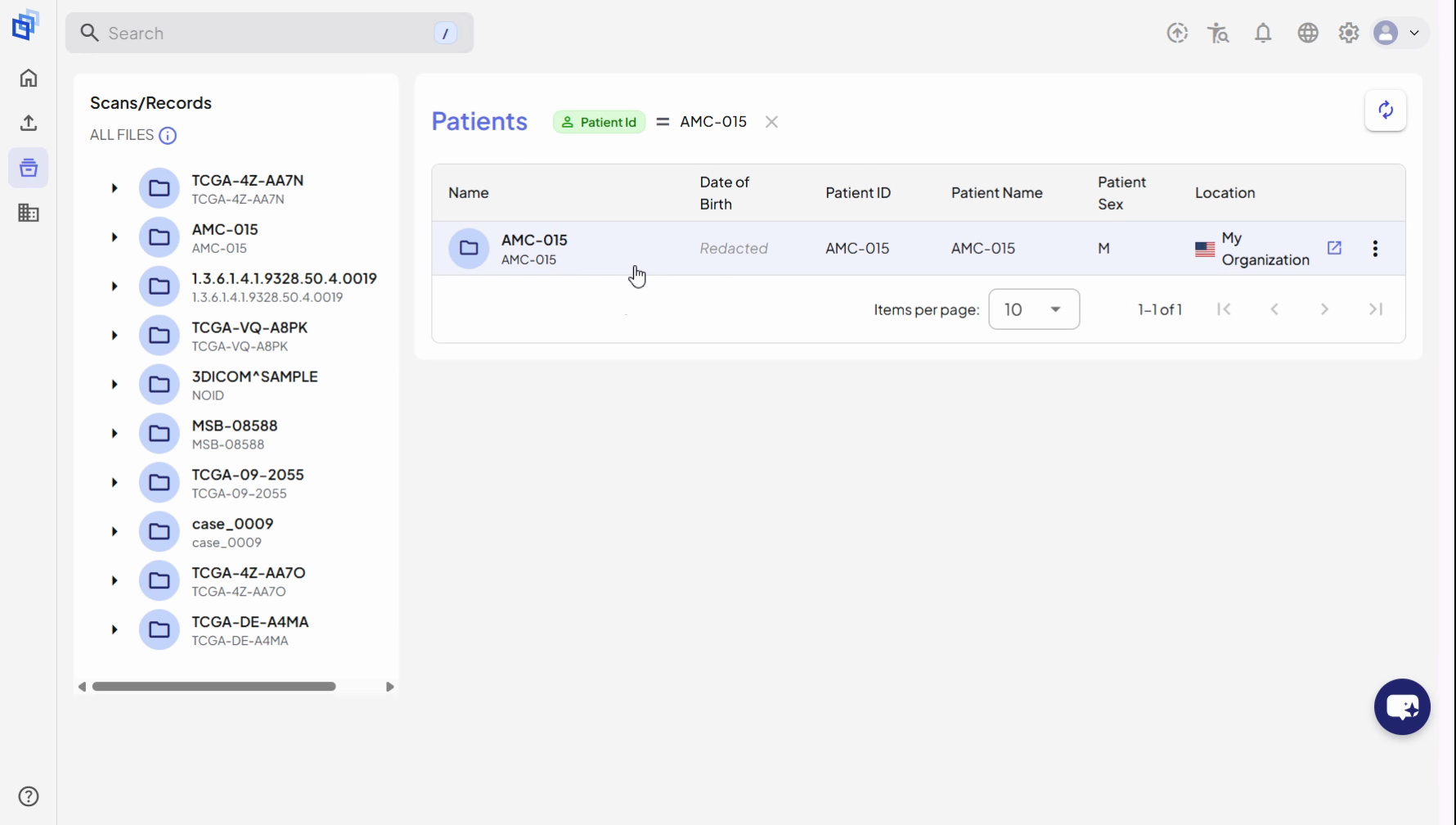
Paso 4. Después de la búsqueda, se le redirigirá a la Escaneos y registros página. El Pacientes La tabla mostrará únicamente los registros que coincidan con tus criterios de búsqueda.
Paso 5. Revisa los filtros aplicados, que se muestran como etiquetas removibles encima de la tabla. Puedes eliminar estos filtros en cualquier momento para ajustar tu búsqueda.
Abrir estudios asociados
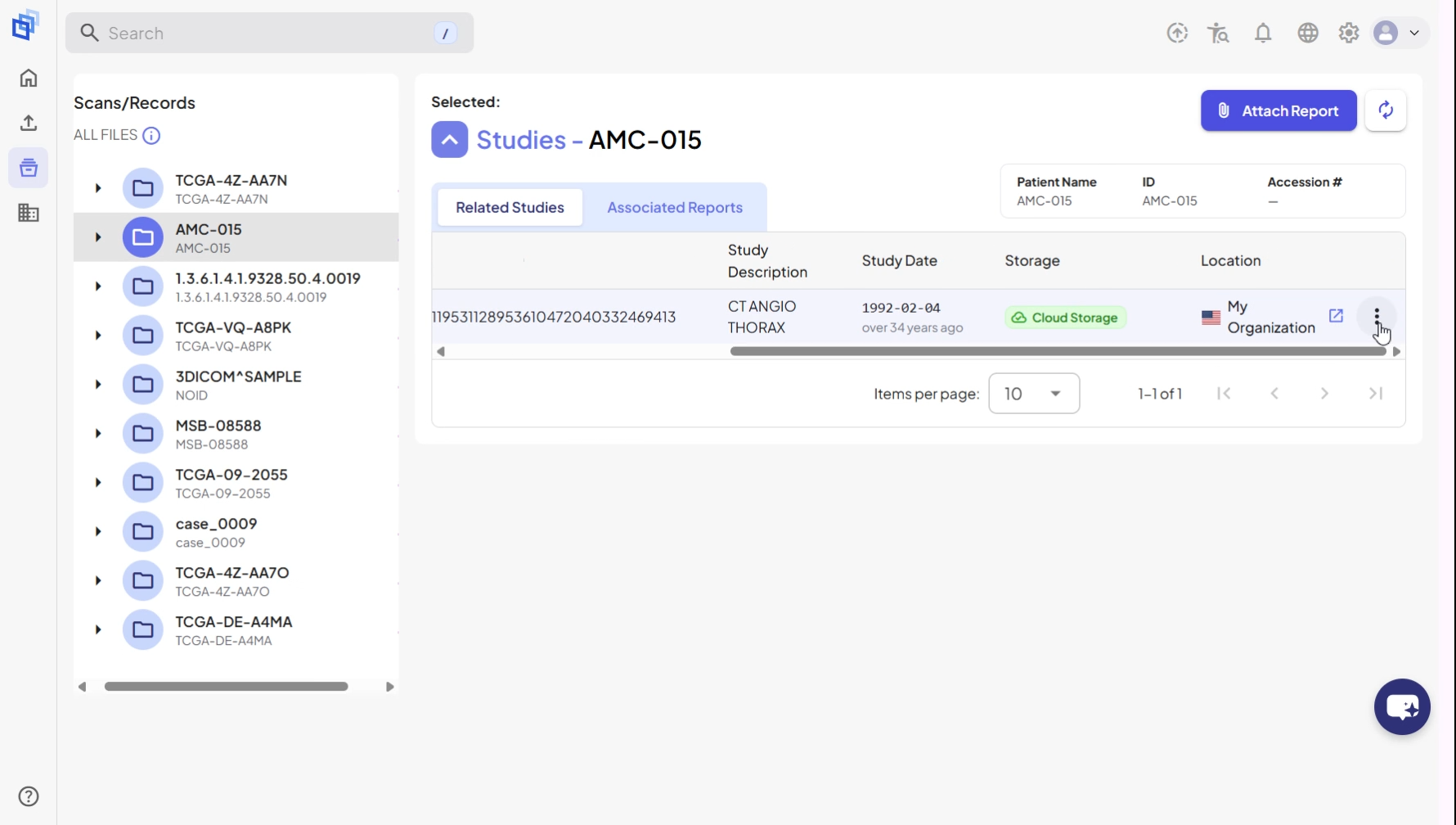
Paso 6. Haz doble clic en el registro del paciente que coincida con tu búsqueda para ver los estudios asociados.
Paso 7. En la lista de estudios, busca el estudio que quieres revisar.
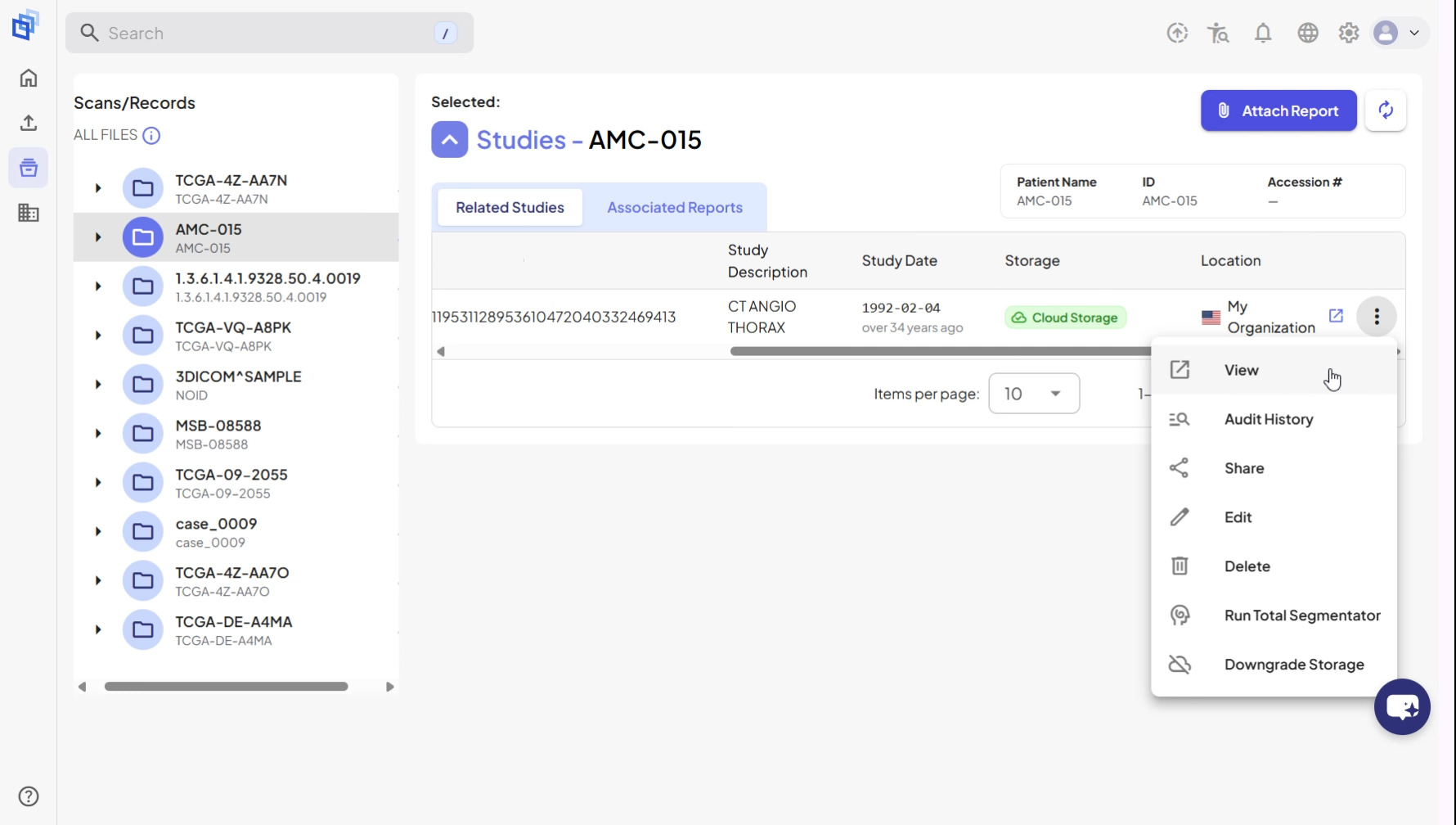
Paso 8. Haz clic en el menú contextual de los tres puntos que se encuentra a la derecha de la entrada del estudio.
Paso 9. Seleccionar Ver en el menú para abrir el estudio en el visor 3DICOM.
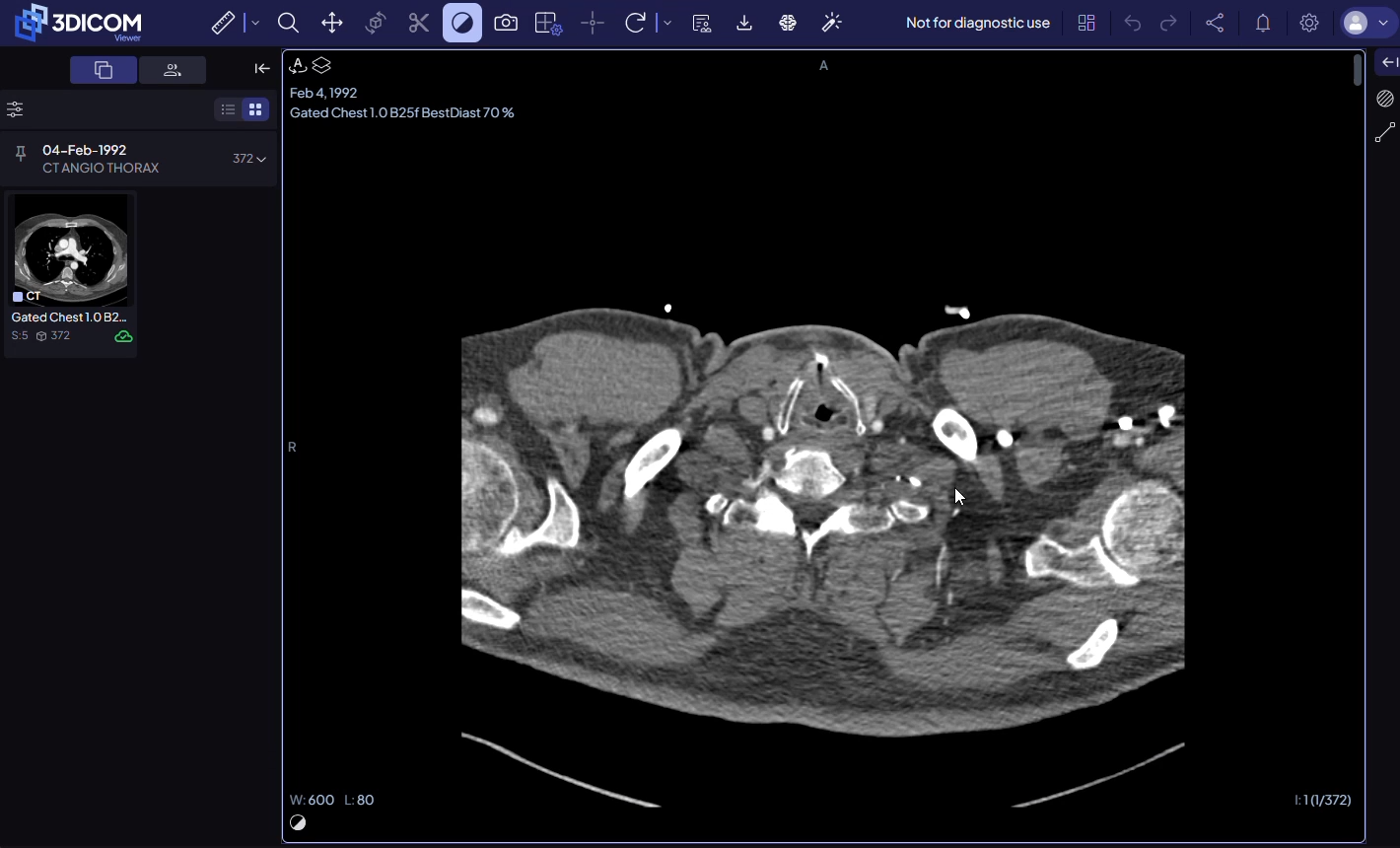
Paso 10. El estudio seleccionado se abrirá en el visor 3DICOM.
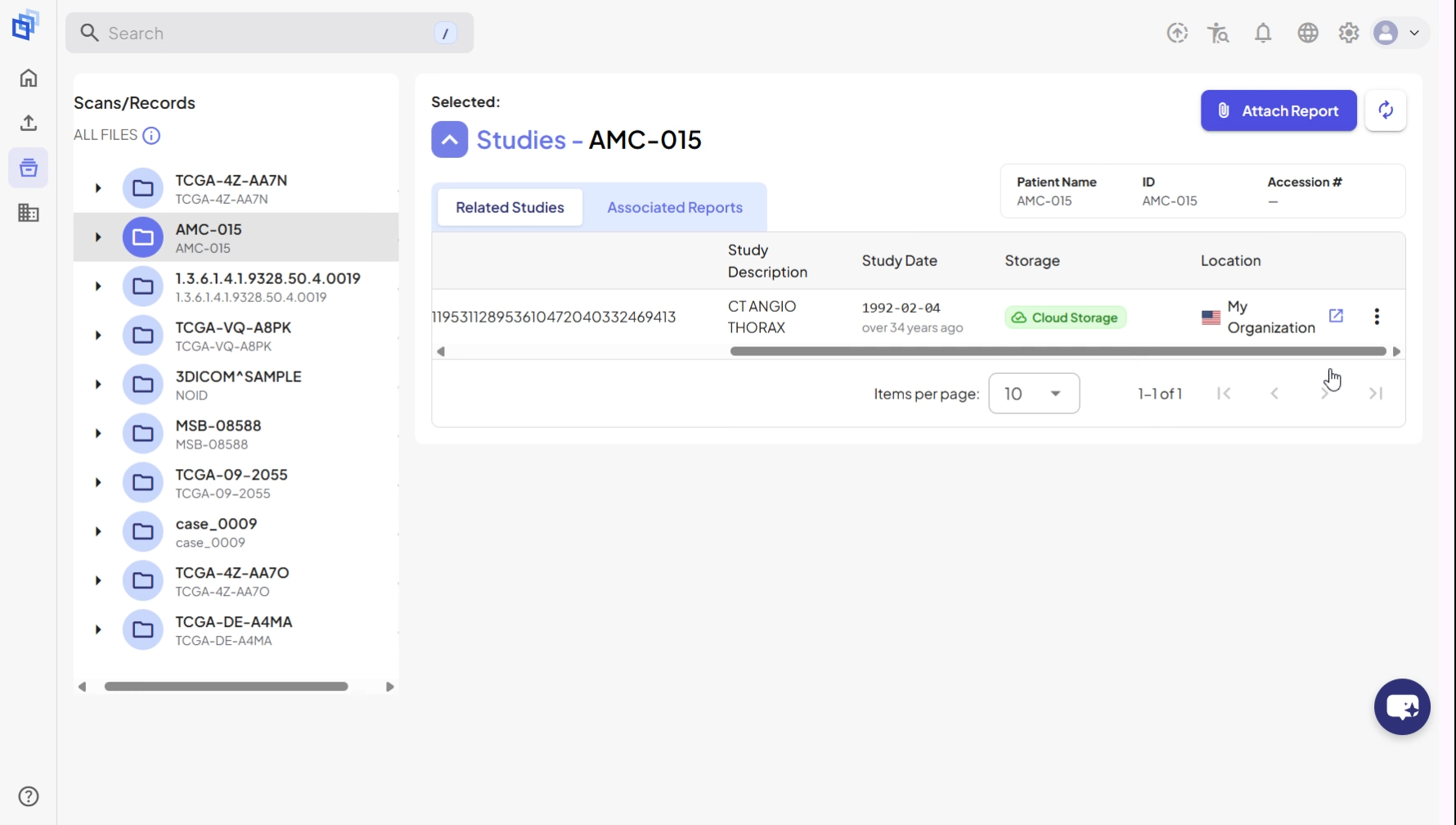

Resultado
Después de completar estos pasos, has buscado con éxito un registro de paciente y has abierto un estudio para verlo en la plataforma 3DICOM.