Usando segmentación e interactuando con modelos anatómicos en 3DICOM
Resumen
Esta guía muestra cómo cargar archivos de segmentación, interactuar con estructuras anatómicas y usar la herramienta IA de Annotiva tanto en vistas 2D como 3D dentro de 3DICOM. Siga los pasos exactos que se muestran en el video tutorial del producto.
Instrucciones paso a paso
Cargar un archivo de segmentación (SEG)
Paso 1. En la barra lateral izquierda, busca y haz doble clic en el SEG archivo o arrástralo y suéltalo en el visor central.
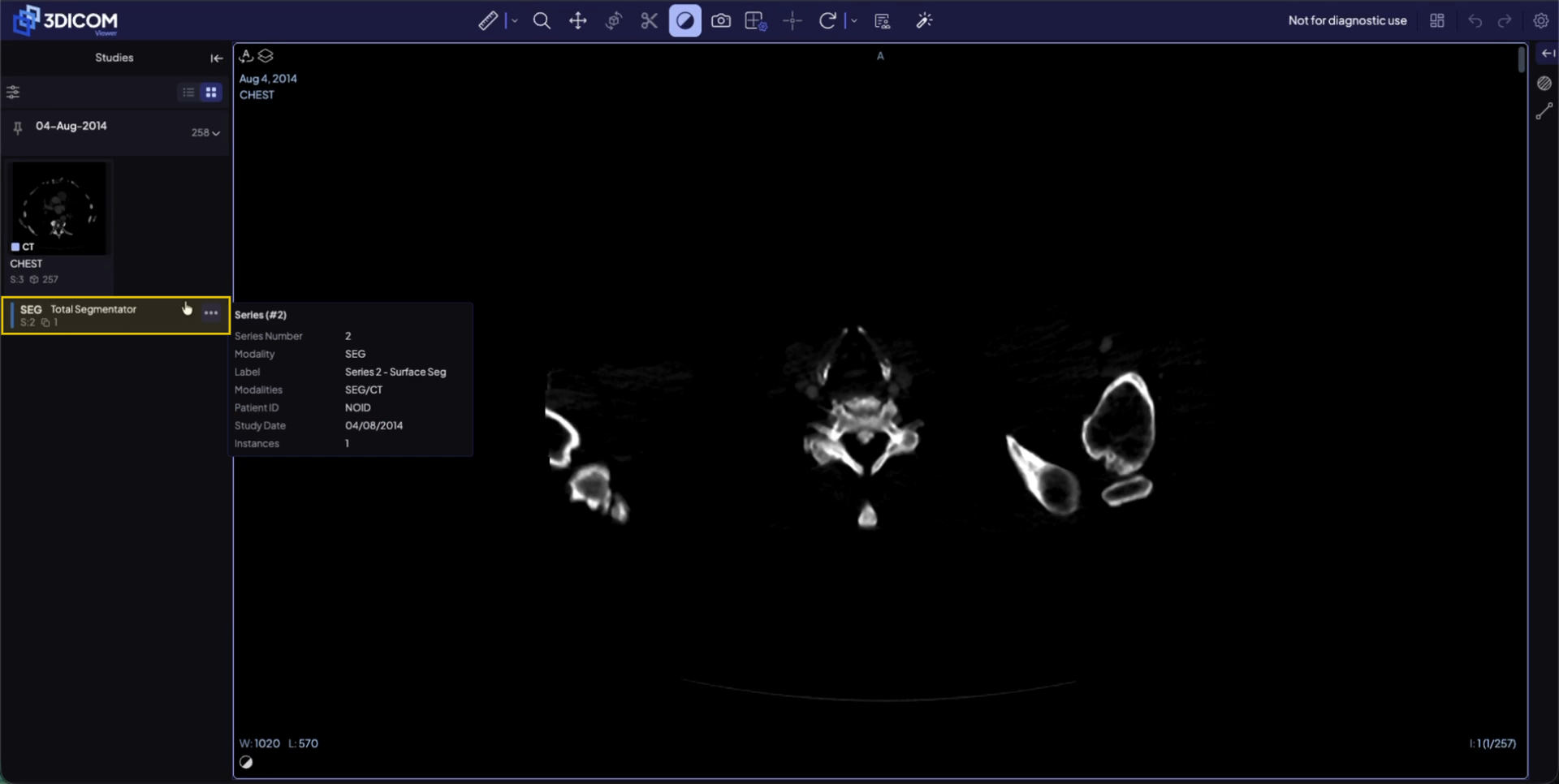
Paso 2. Espera a que todos los segmentos terminen de cargarse en el escaneo.
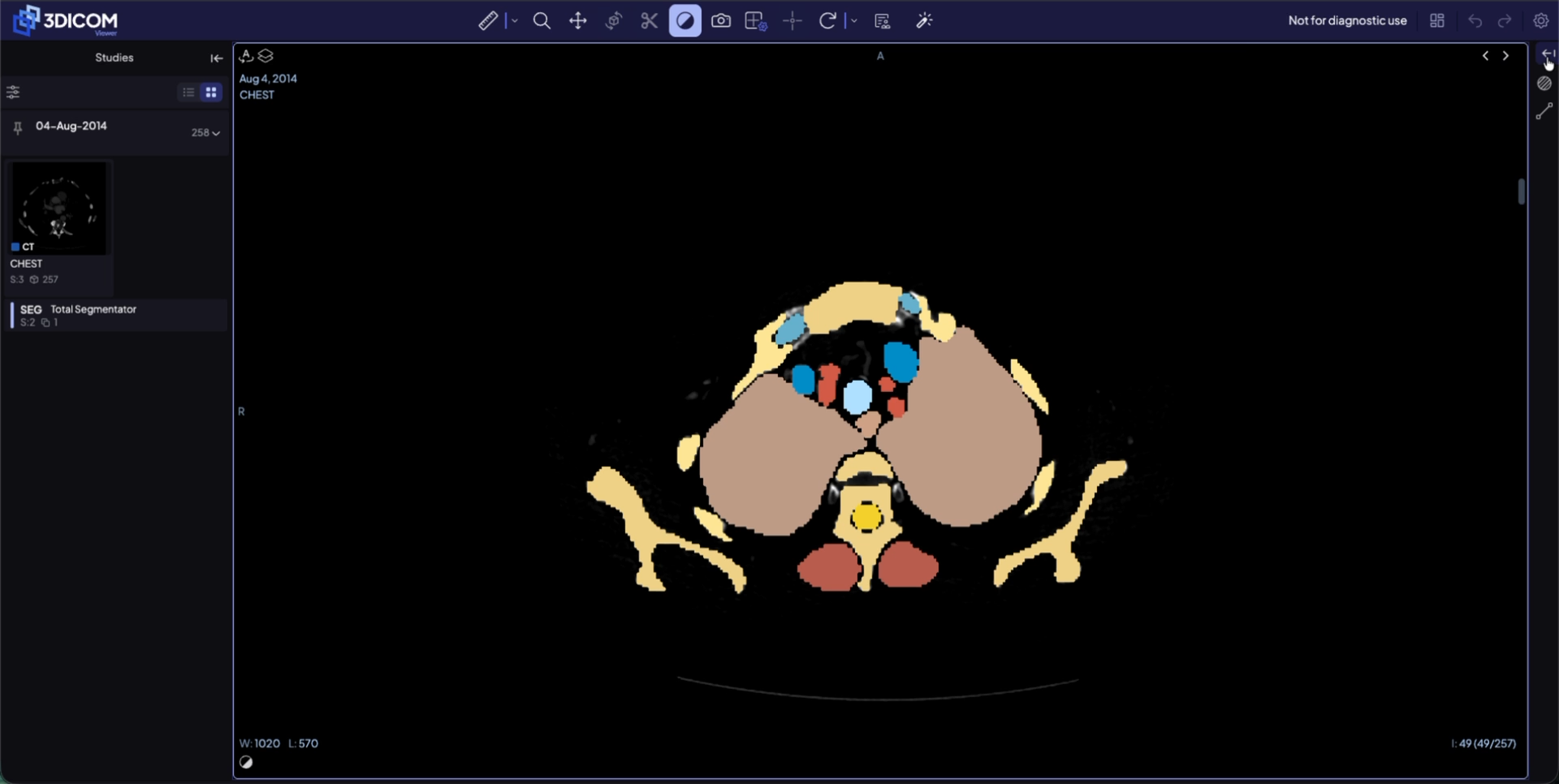
Explore segmentos anatómicos
Paso 3. Haz clic en el botón en la barra de herramientas superior derecha para abrir el panel lateral derecho.
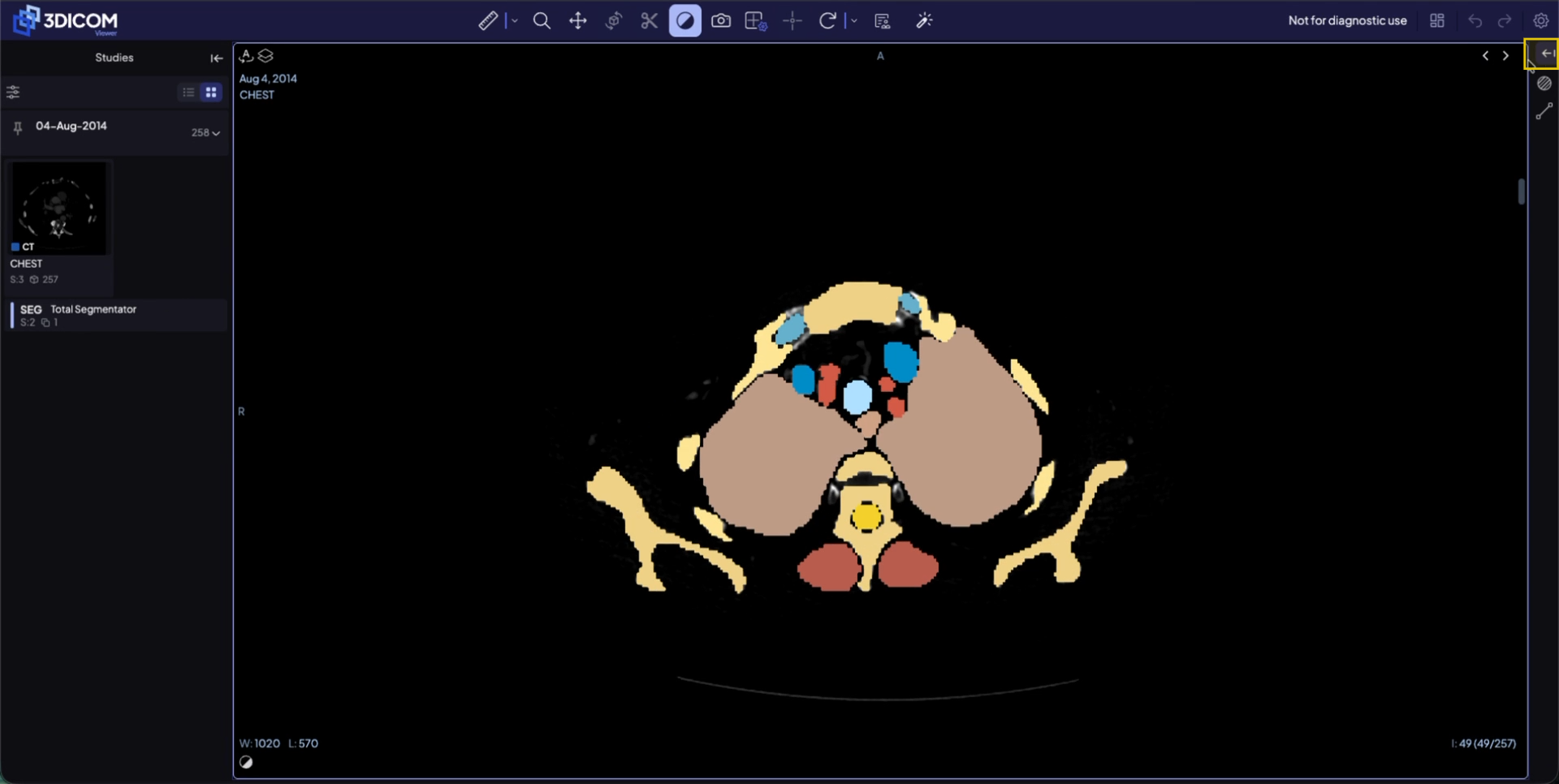
Paso 4. Desplázate dentro del escaneo o del panel lateral derecho para ver los segmentos disponibles.
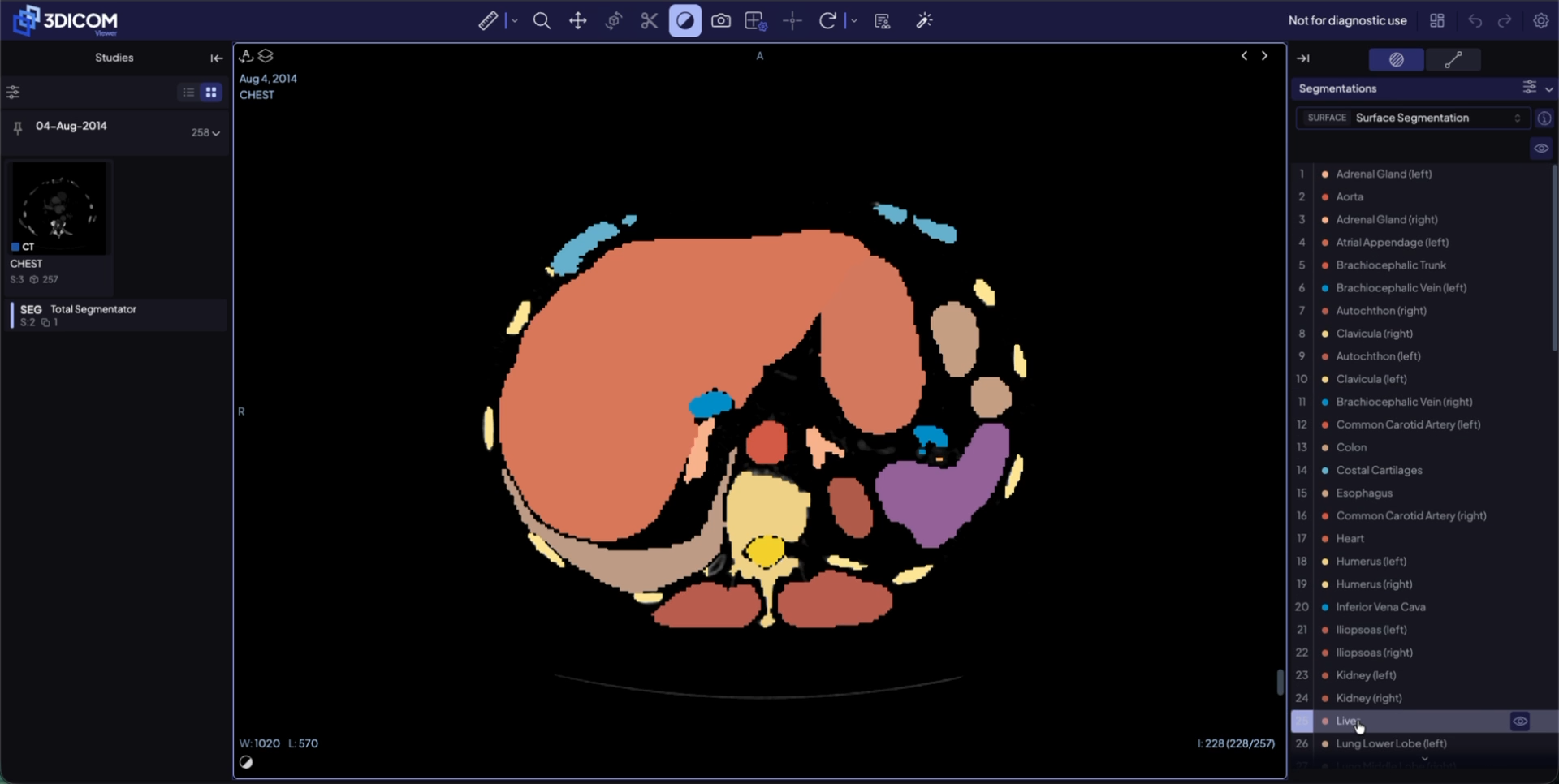
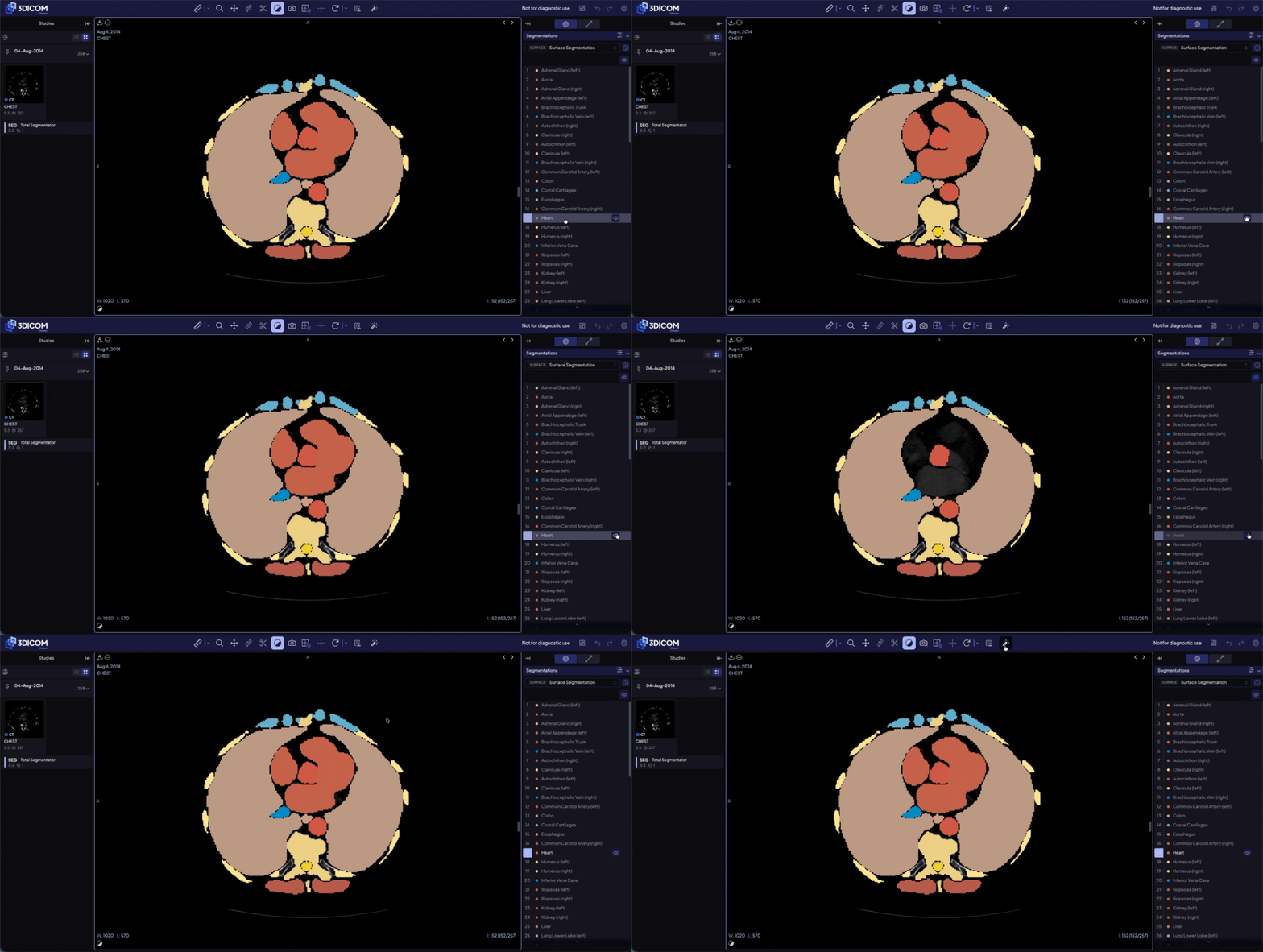
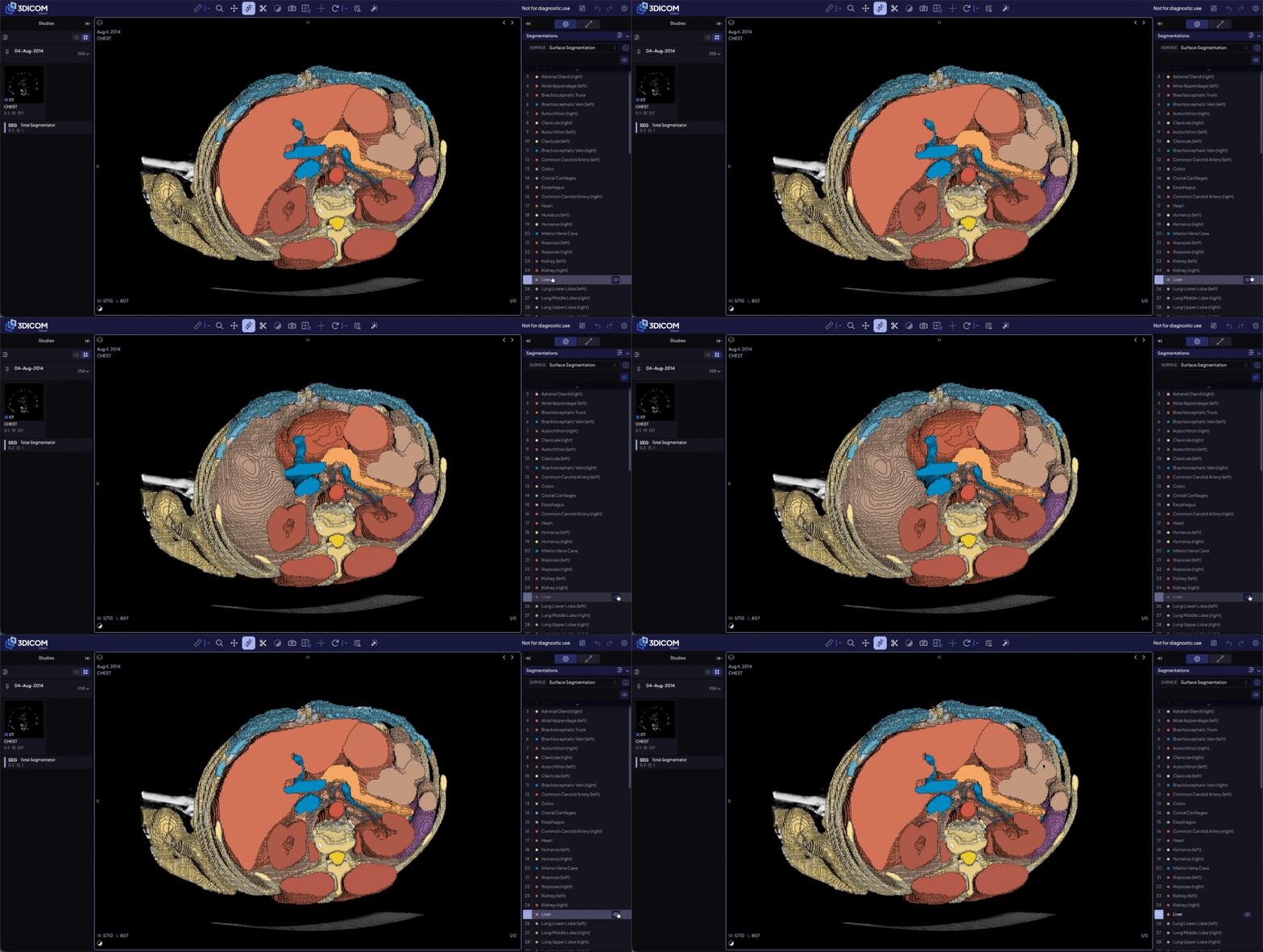
Paso 5. Haz clic en un nombre de segmento (por ejemplo, Hígado) en el panel derecho para traerlo a la vista y haz clic en el icono del ojo junto a cualquier segmento para ocultarlo o haz clic de nuevo para mostrar el segmento.
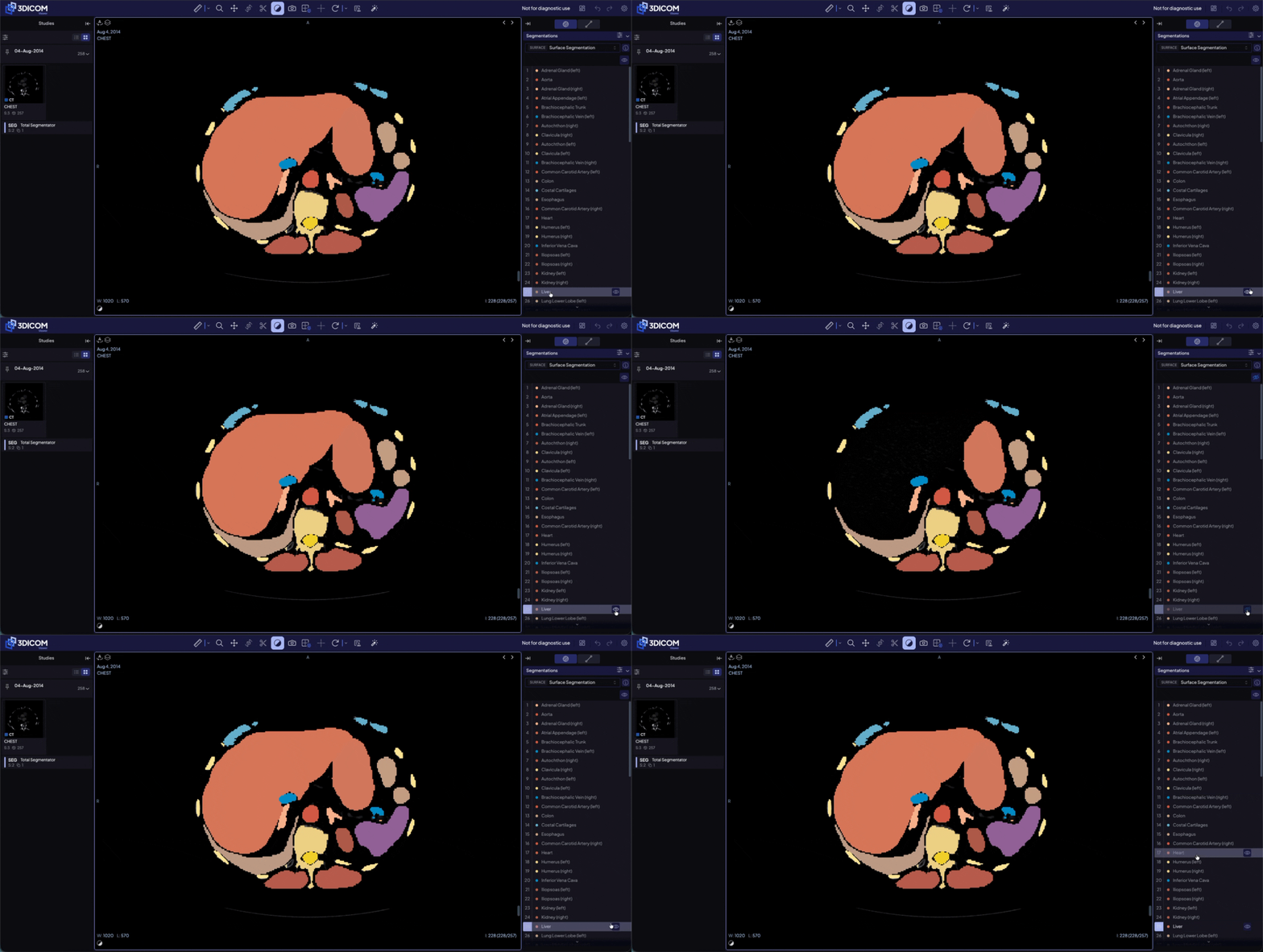
Paso 6. Haz clic en otras estructuras anatómicas en el panel derecho para ver cada órgano o estructura, y observa su codificación de colores distintiva.
Utiliza la herramienta Annotiva AI en 2D
Paso 1. En la barra de herramientas superior, haz clic en el ícono de varita mágica para abrir Annotiva IA.
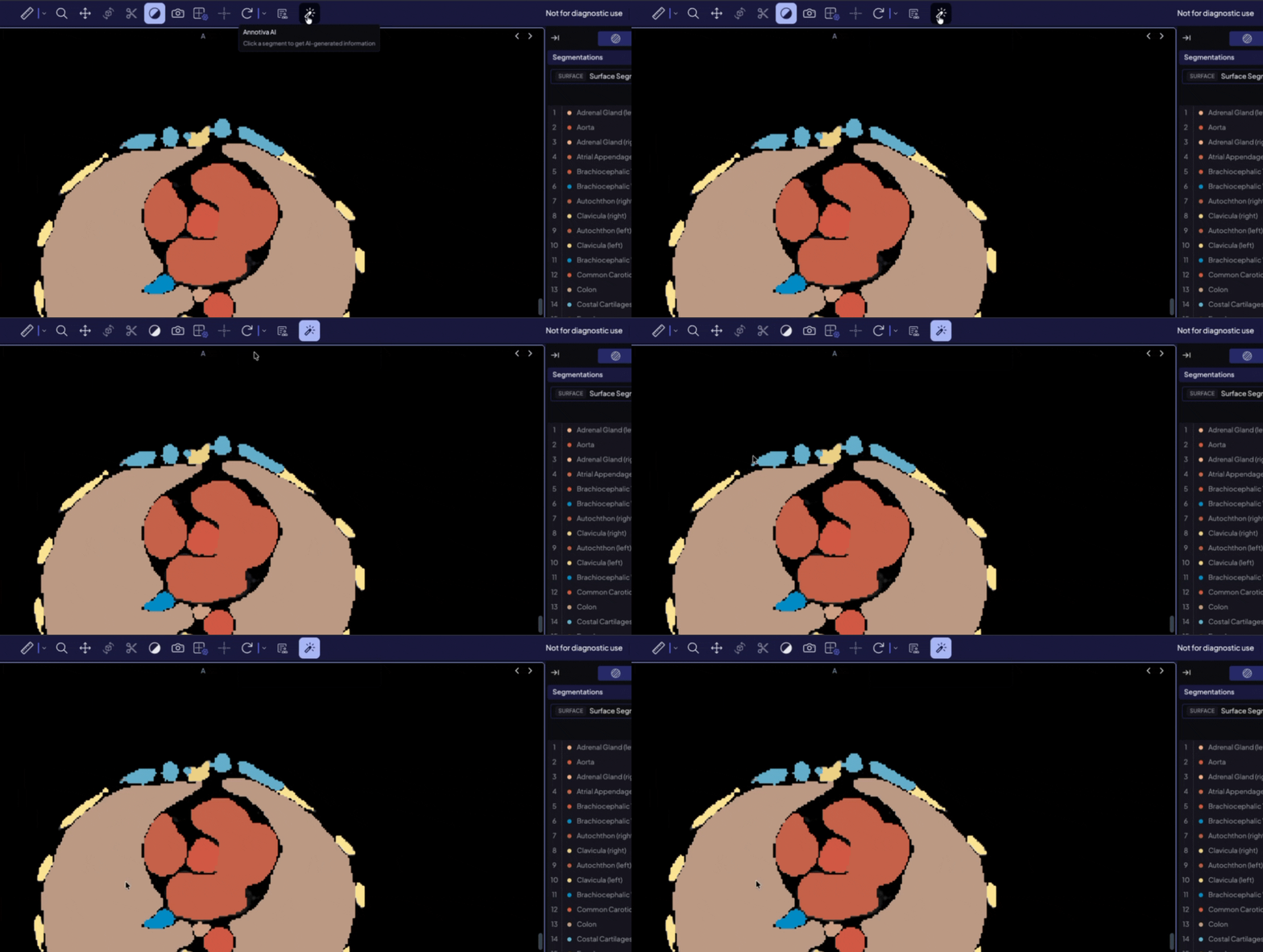
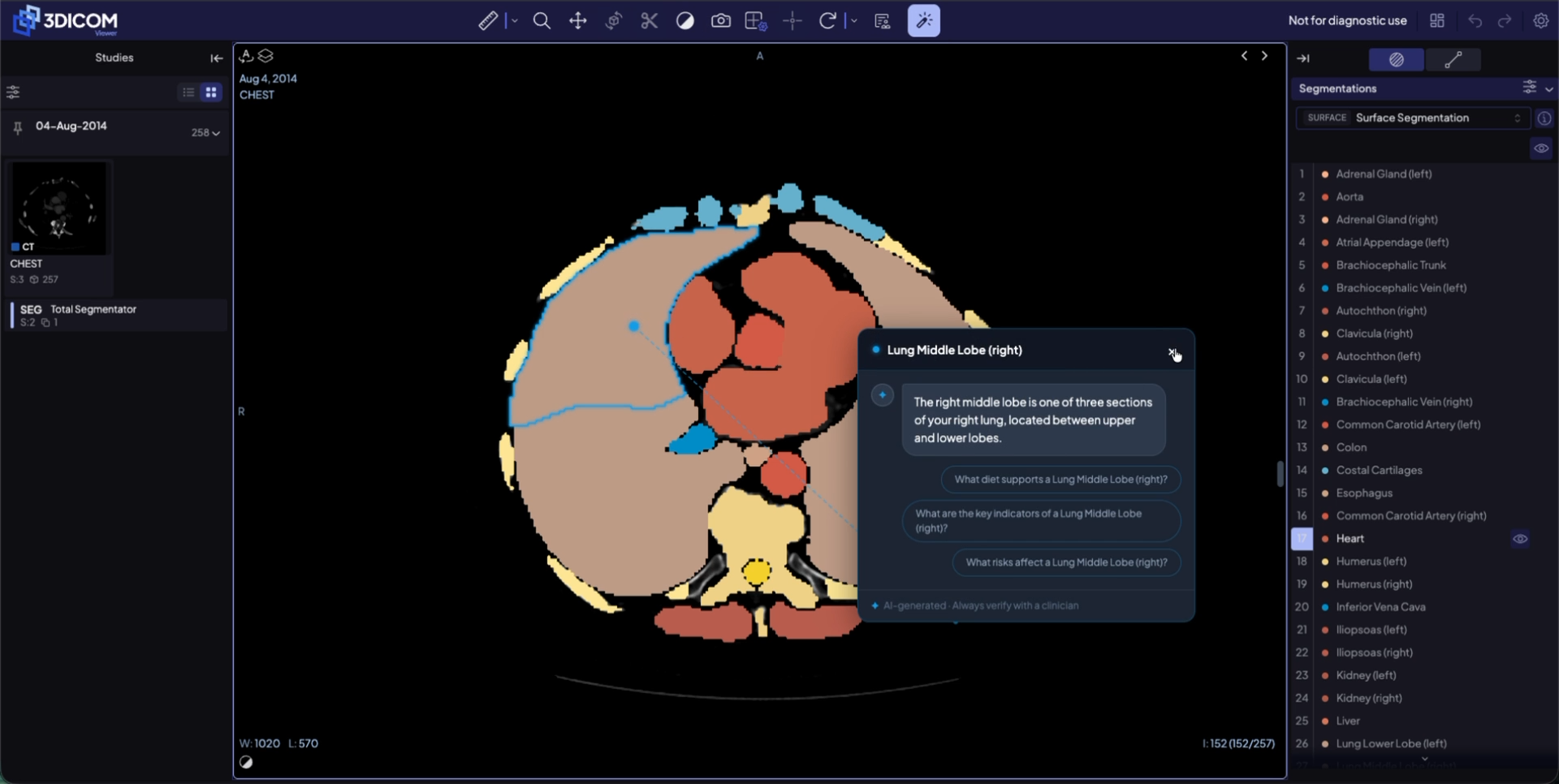
Paso 2. Con Annotiva AI activada, haz clic directamente en cualquier segmento visible en la vista para obtener más información sobre esa región (por ejemplo, selecciona el lóbulo medio del pulmón).
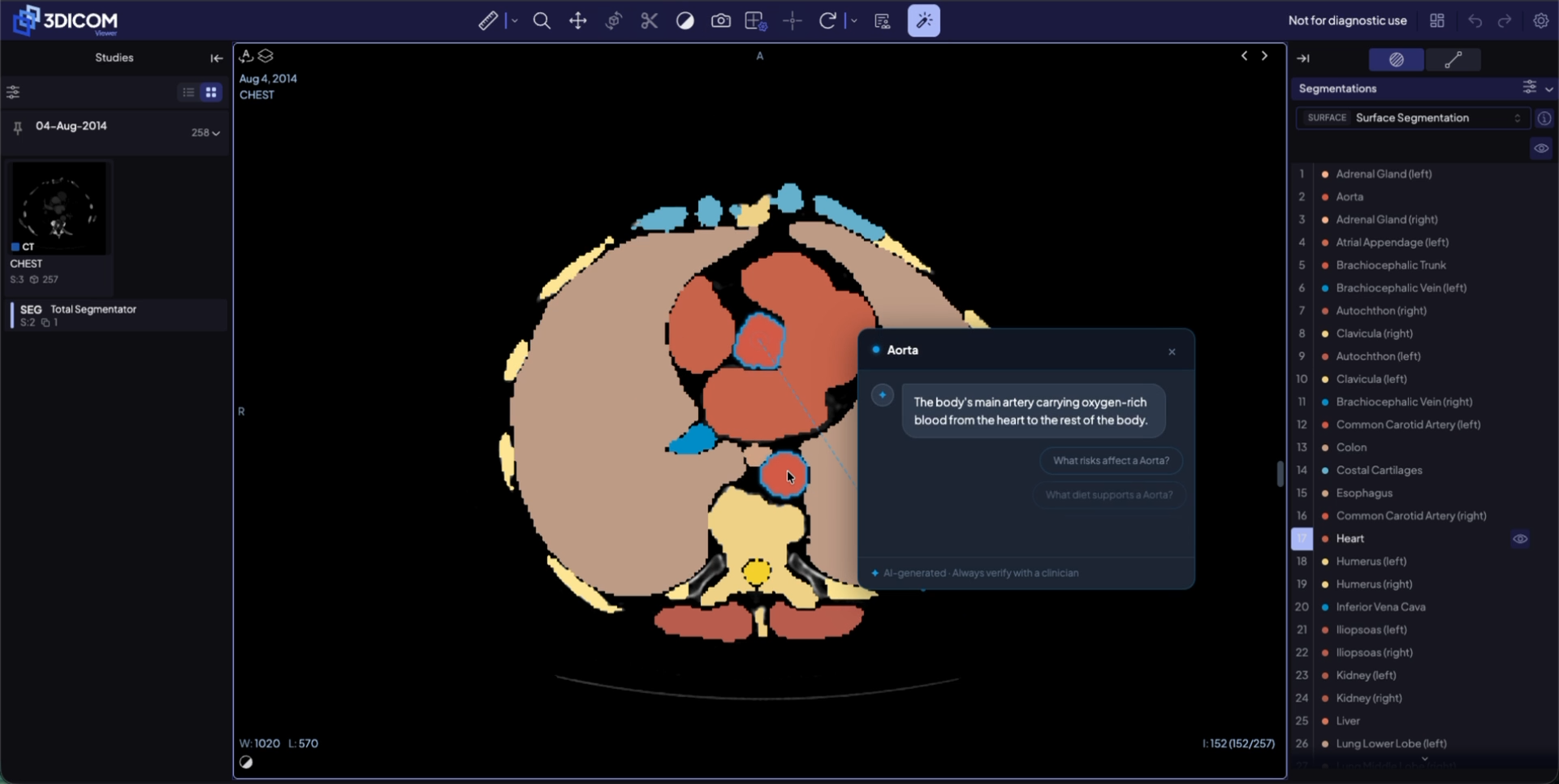
Paso 3. Navega a un segmento diferente y haz clic para abrir otro panel de información.
Cambia a vista 3D e interactúa con los modelos
Paso 1. En la barra de herramientas superior, haz clic en Cambiar diseño y seleccionar Solo 3D.
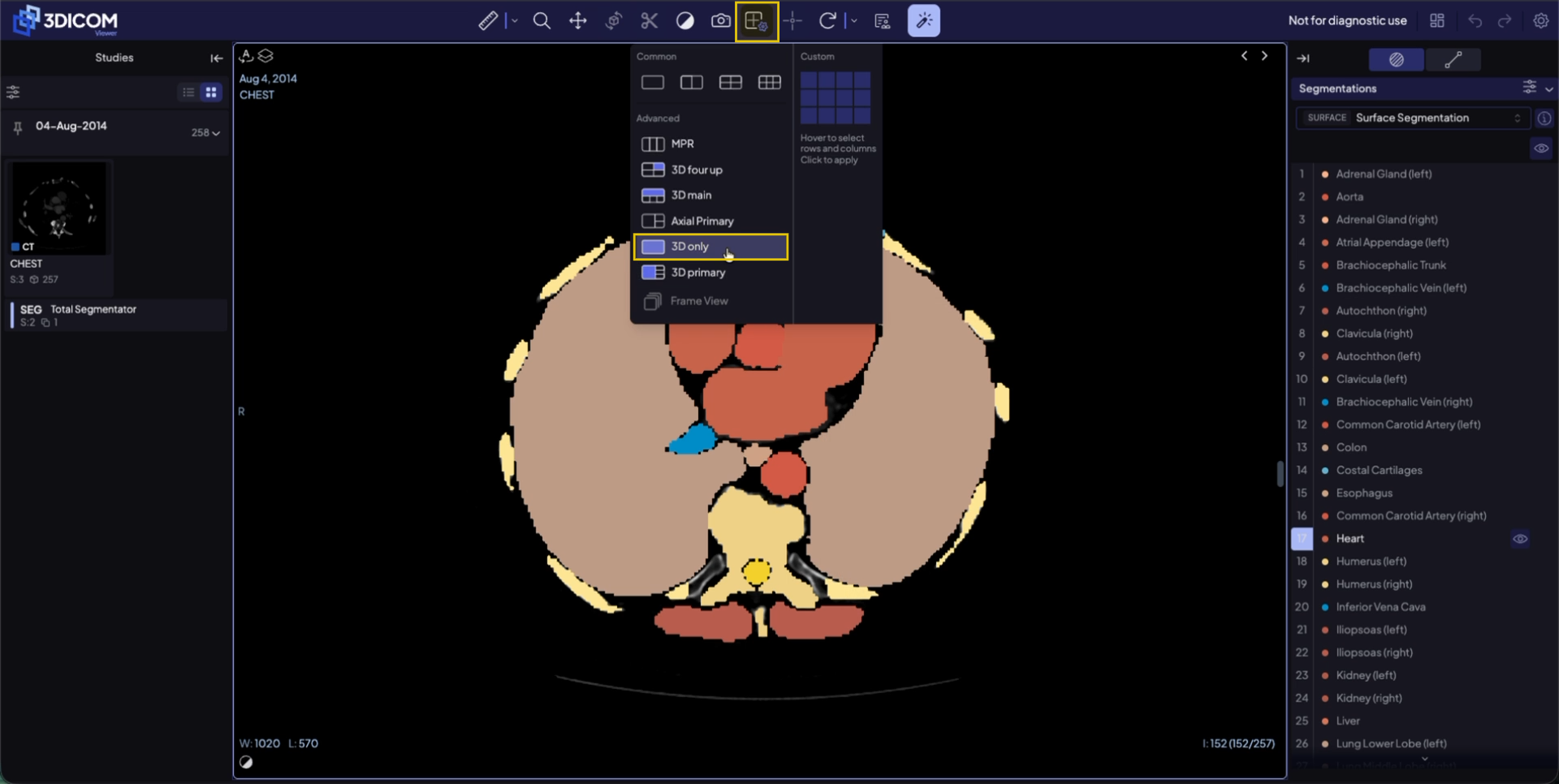
Paso 2. Abrir el Ajustes preestablecidos de renderizado panel en la parte inferior izquierda de la ventana gráfica para mejorar la visibilidad del segmento.
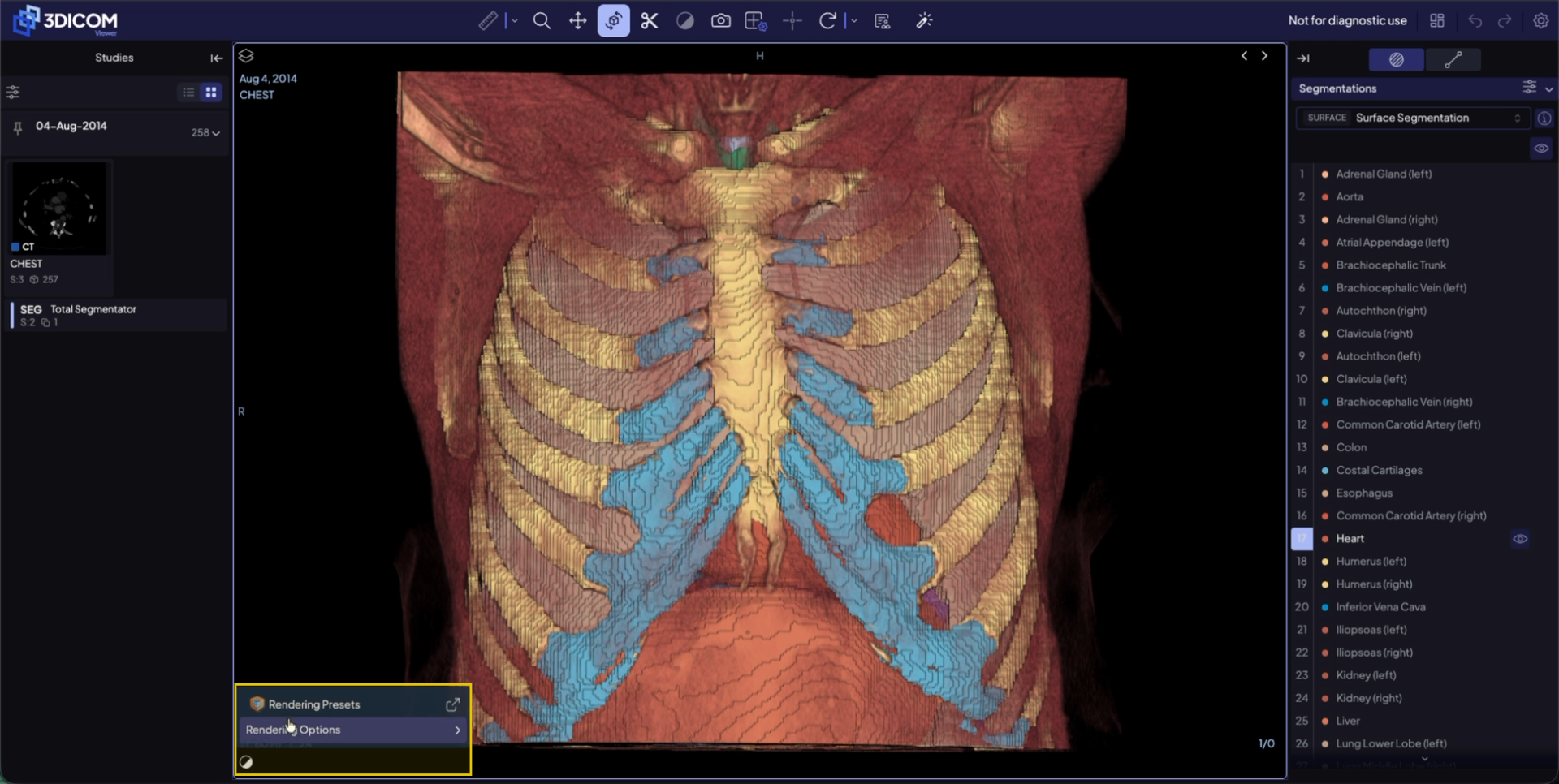
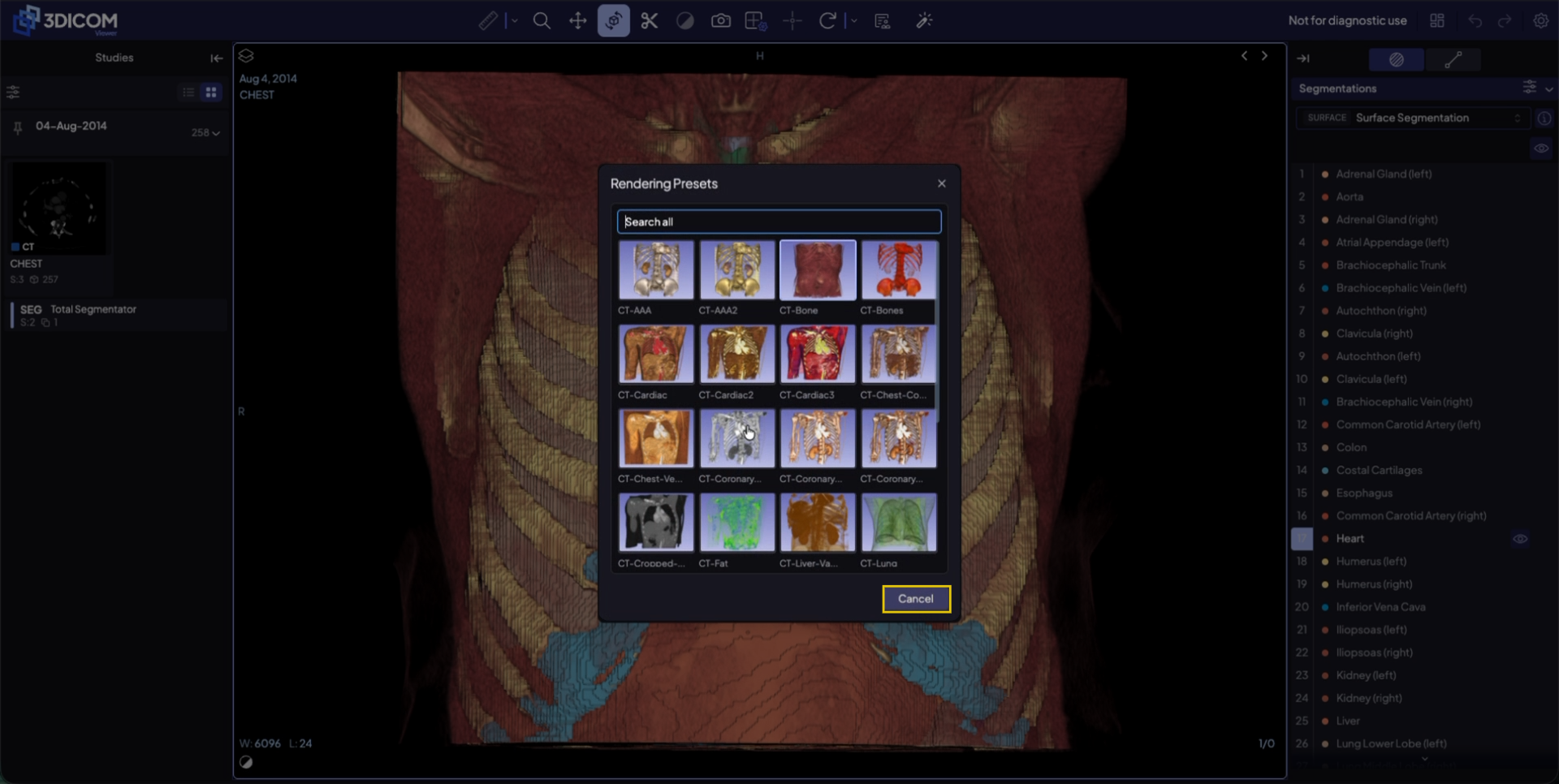
Paso 3. Navega por las opciones de miniaturas preestablecidas disponibles, luego haz clic en Cancelar para regresar a la vista predeterminada.
Paso 4. Interactúa directamente con el modelo 3D rotándolo para verlo desde diferentes perspectivas.
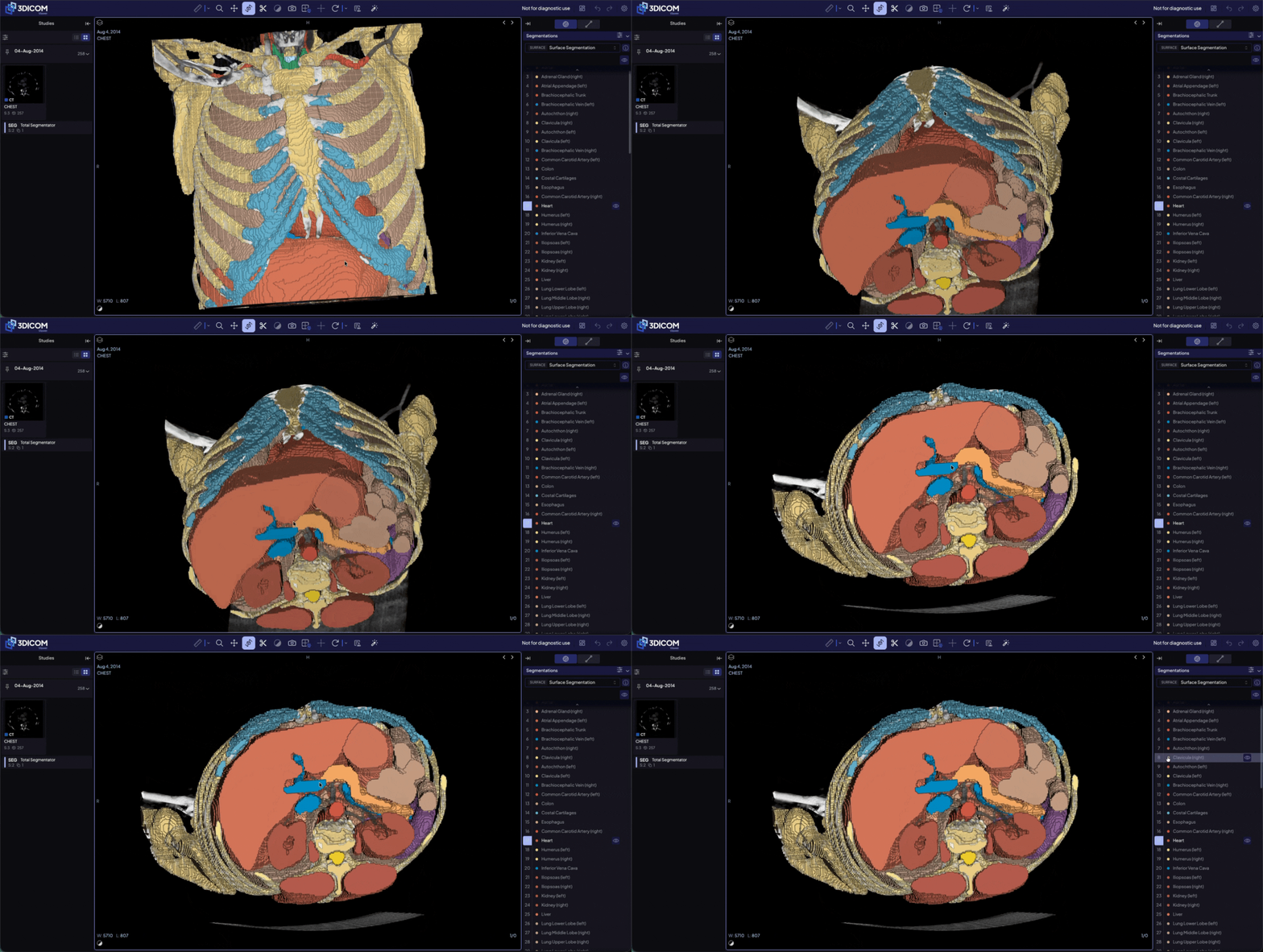
Paso 5. Por ejemplo, selecciona Hígado en el panel derecho para resaltar y ubicar esta estructura en el modelo 3D.
Paso 6. Con la herramienta Annotiva AI, haz clic en un segmento 3D (por ejemplo, la glándula tiroides) para obtener información detallada sobre esa región.
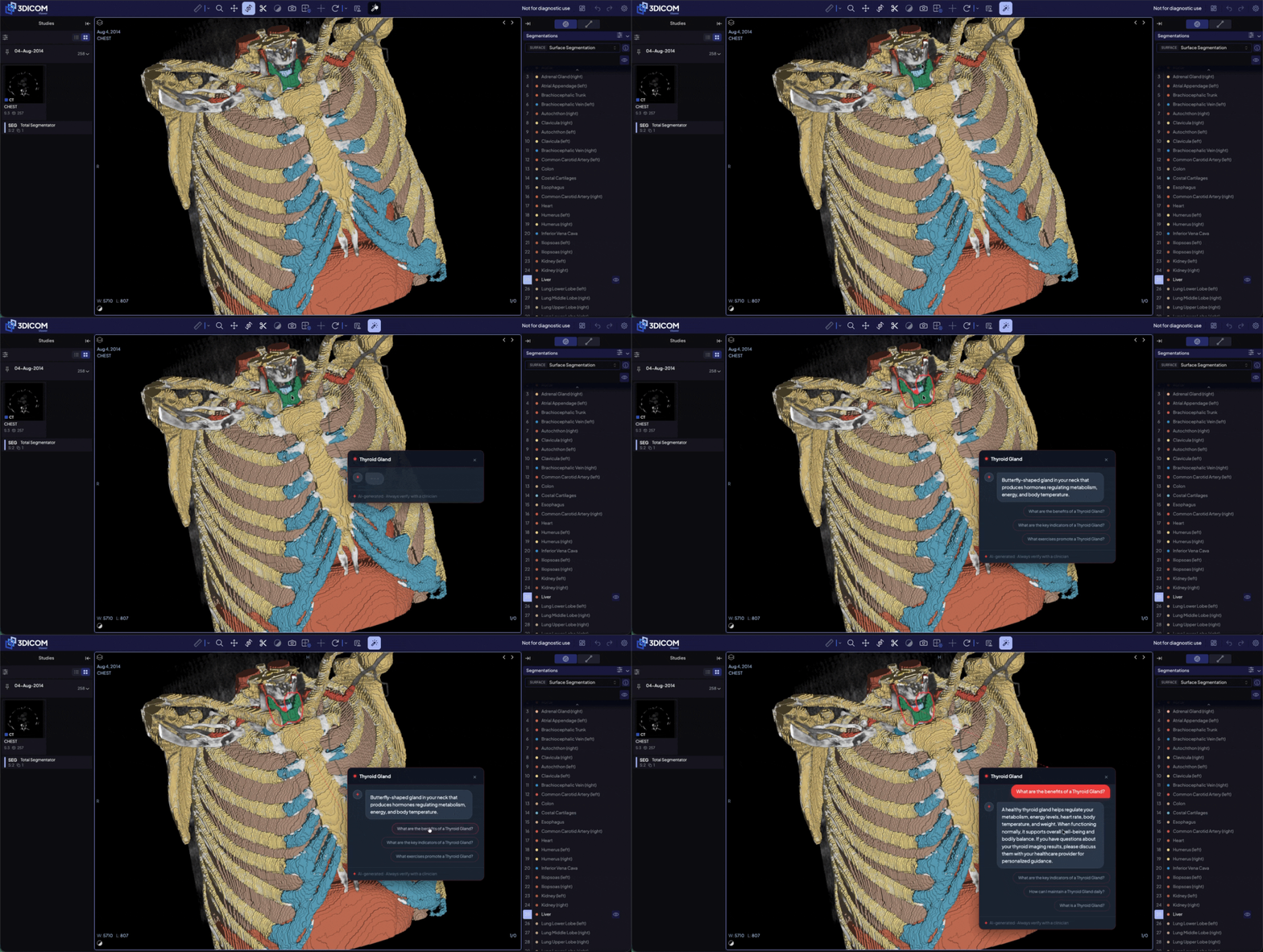
Repite este proceso en cualquier segmento de la lista para explorar detalles anatómicos.
Ocultar o mostrar todos los segmentos
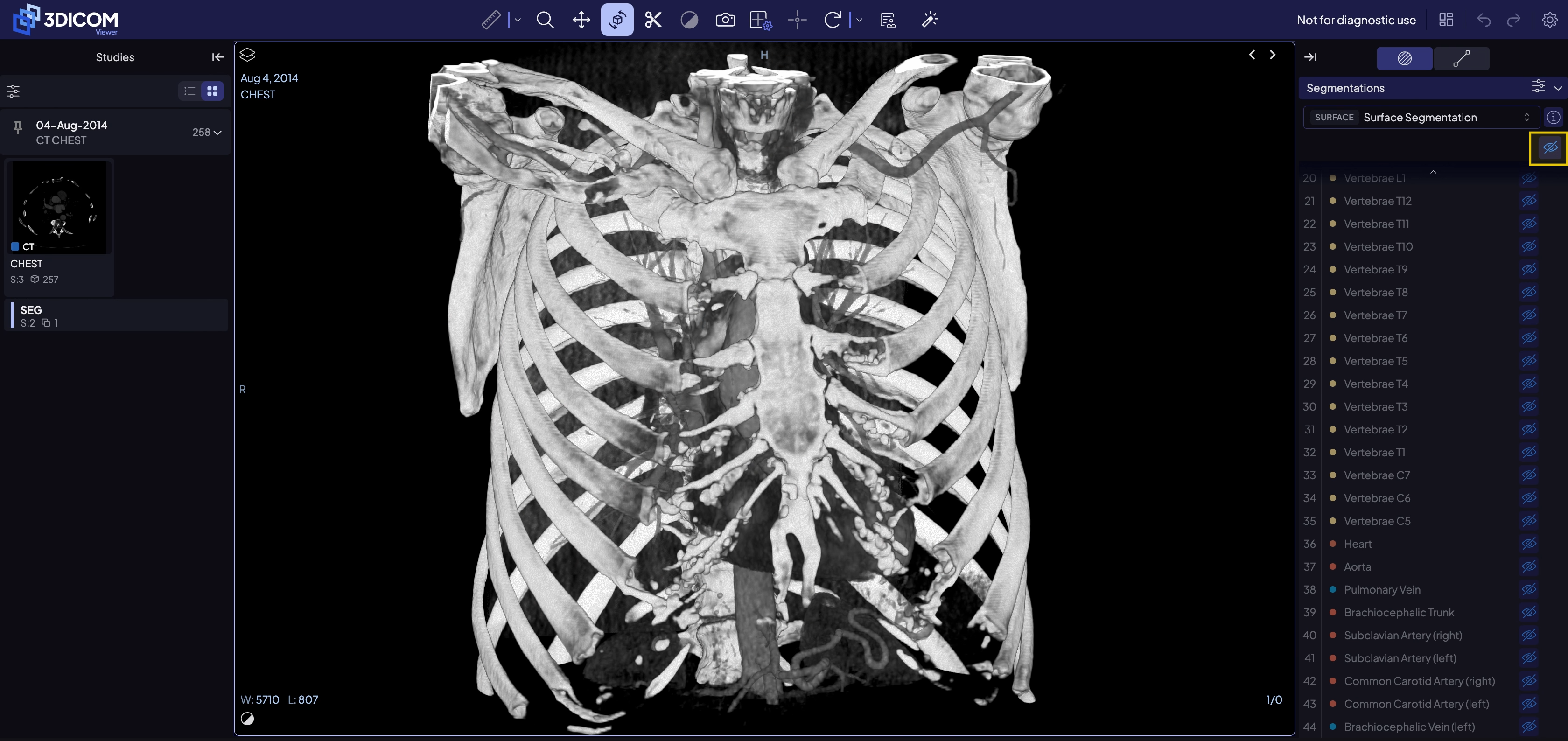
Paso 1. Para ocultar todos los segmentos a la vez, haz clic en el ícono del ojo en la barra lateral derecha.
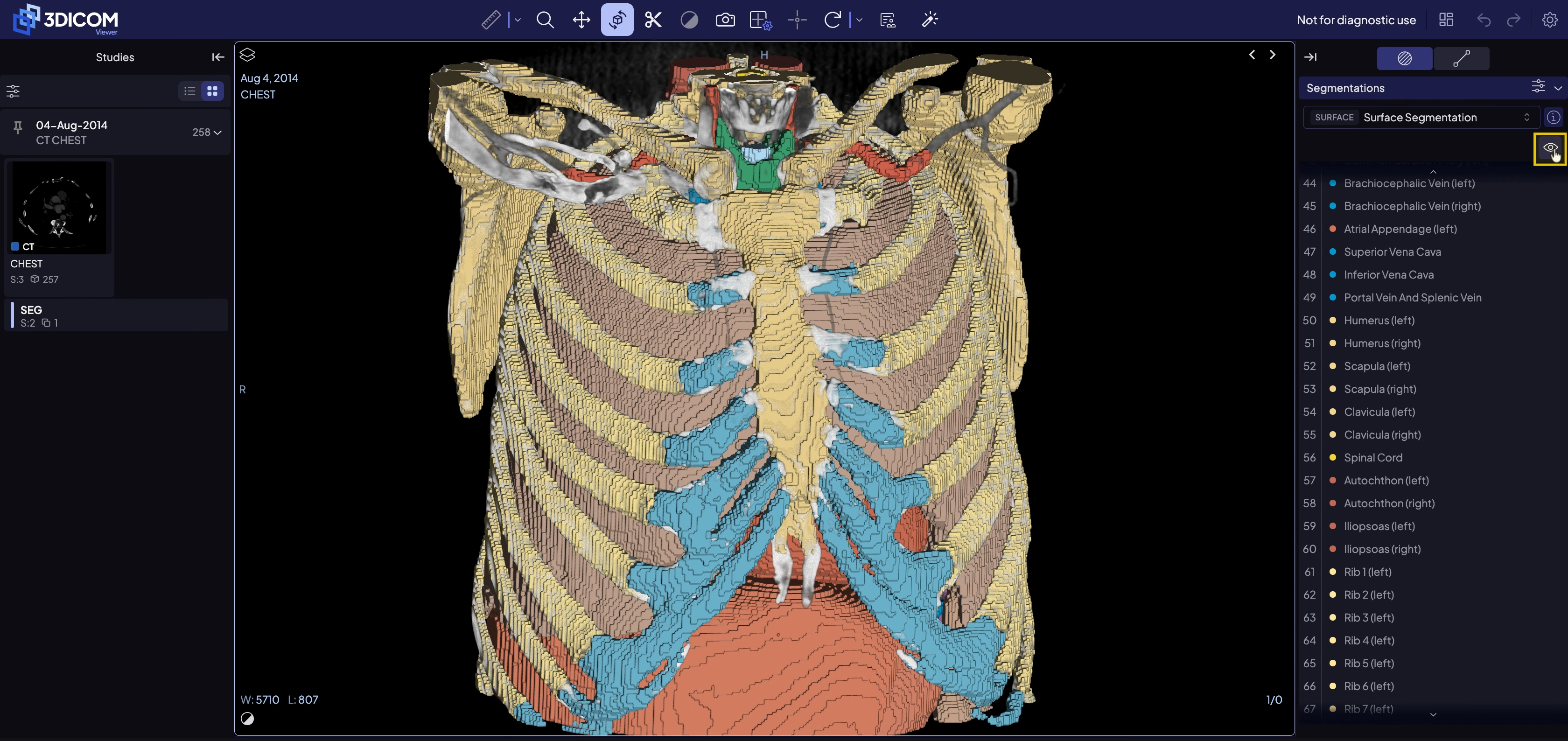
Paso 22. Vuelve a hacer clic en el ícono del ojo para mostrarlos de nuevo.
Resultado
Después de seguir estos pasos, habrá cargado un archivo de segmentación, explorado y manipulado estructuras anatómicas en 2D y 3D, y utilizado Annotiva AI para obtener información detallada sobre regiones específicas.