Abrir un estudio compartido en tu navegador
Resumen
Esta guía explica cómo abrir un enlace de estudio médico compartido directamente en su navegador usando 3DICOM, verlo en una sesión de solo lectura y mostrar cualquier medida o anotación existente proporcionada con el estudio.
Instrucciones paso a paso
Abrir el estudio compartido
Paso 1. Abrir una nueva pestaña en el navegador.
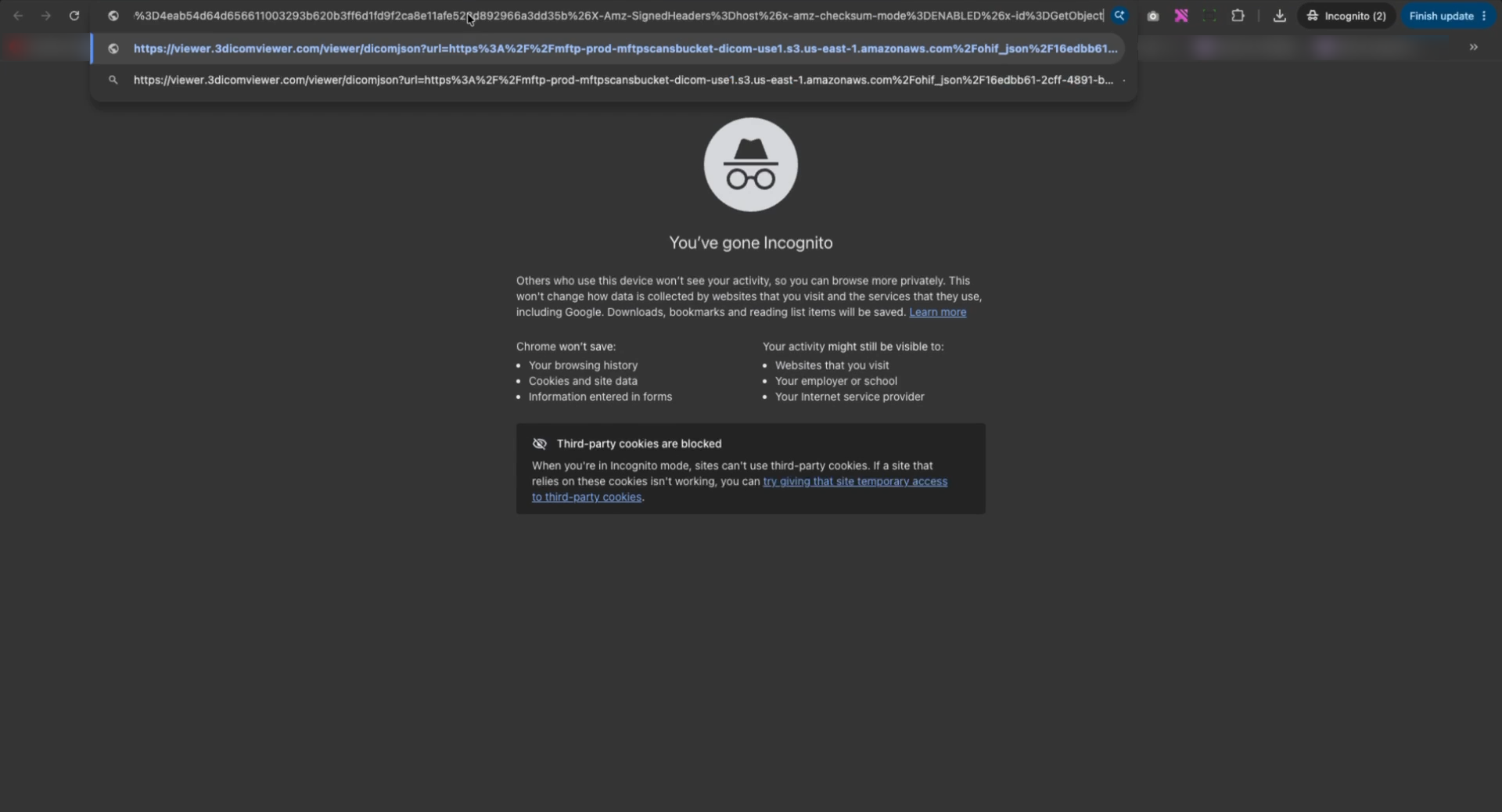
Paso 2. Pega el enlace del estudio compartido en la barra de direcciones y presiona Enter.
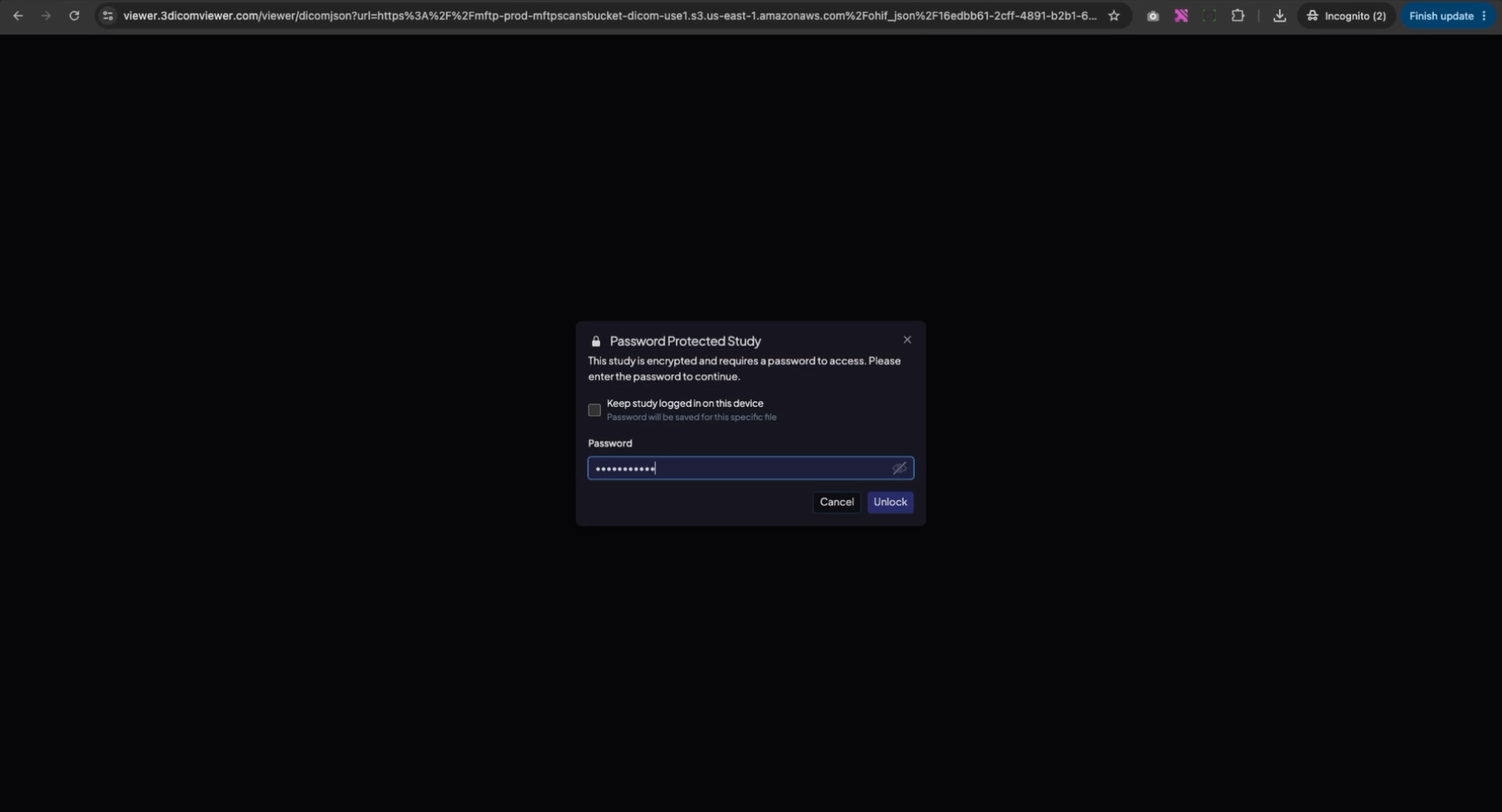
Paso 3. Introduce la contraseña proporcionada cuando se te solicite y haz clic en Desbloquear para acceder al estudio.
Ver el estudio y cargar anotaciones
Paso 4. Una vez que el estudio se carga, se abre en modo de solo lectura. Las mediciones y anotaciones no son visibles por defecto.
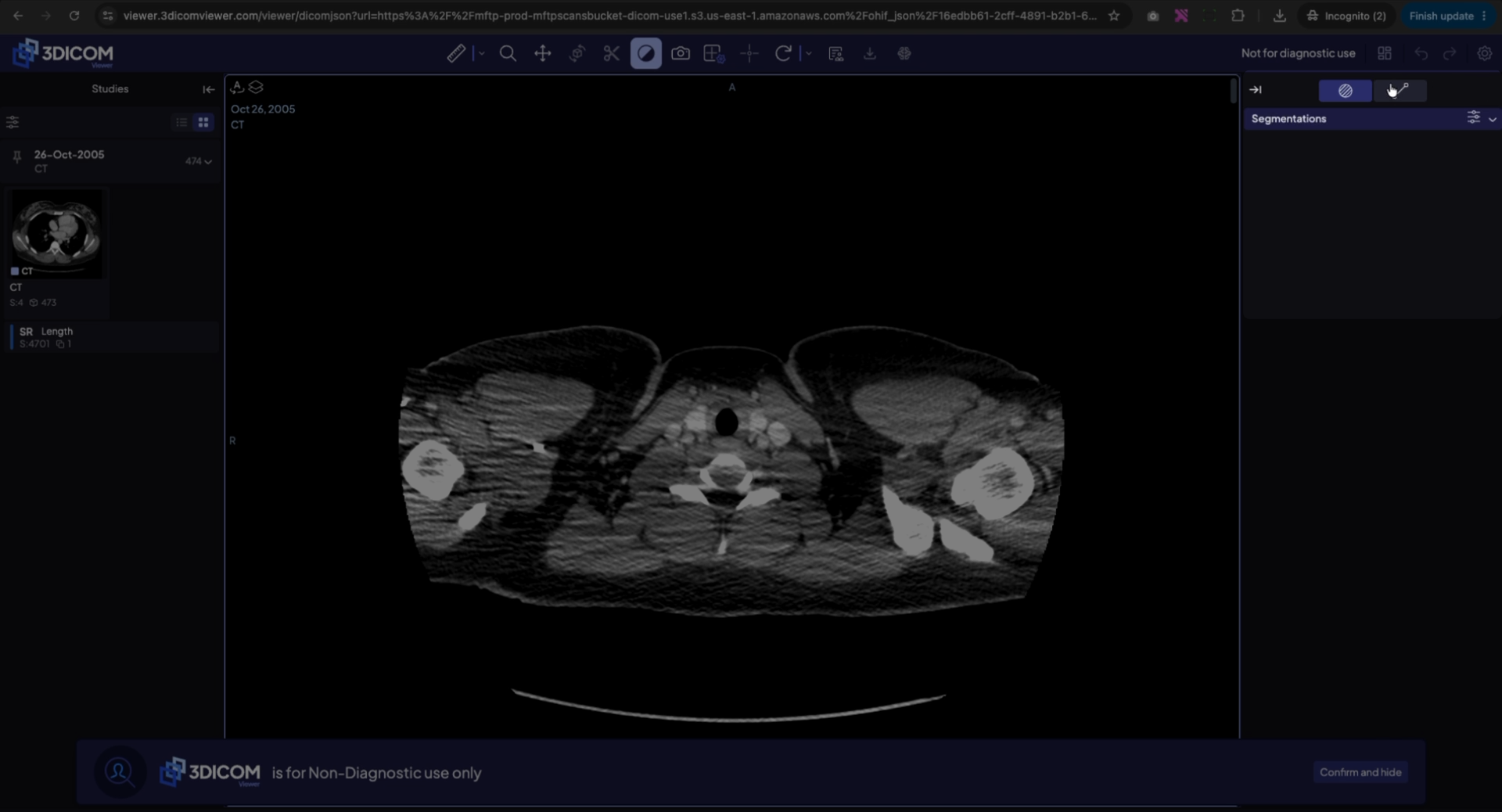
Paso 5. Navega al panel izquierdo para encontrar el reporte estructurado.
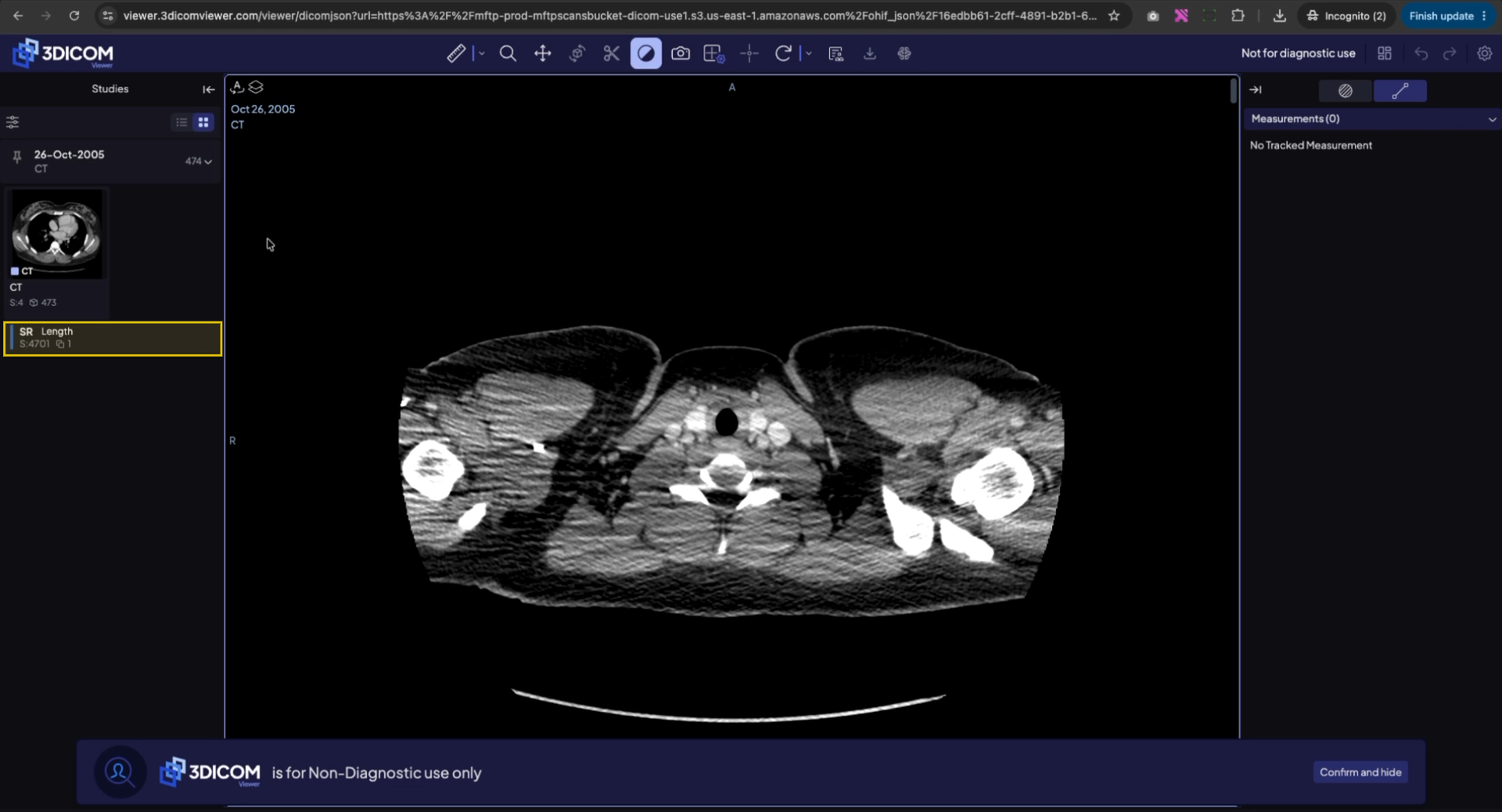
Paso 6. Haz clic derecho en el informe estructurado y selecciona Agregar como capa.
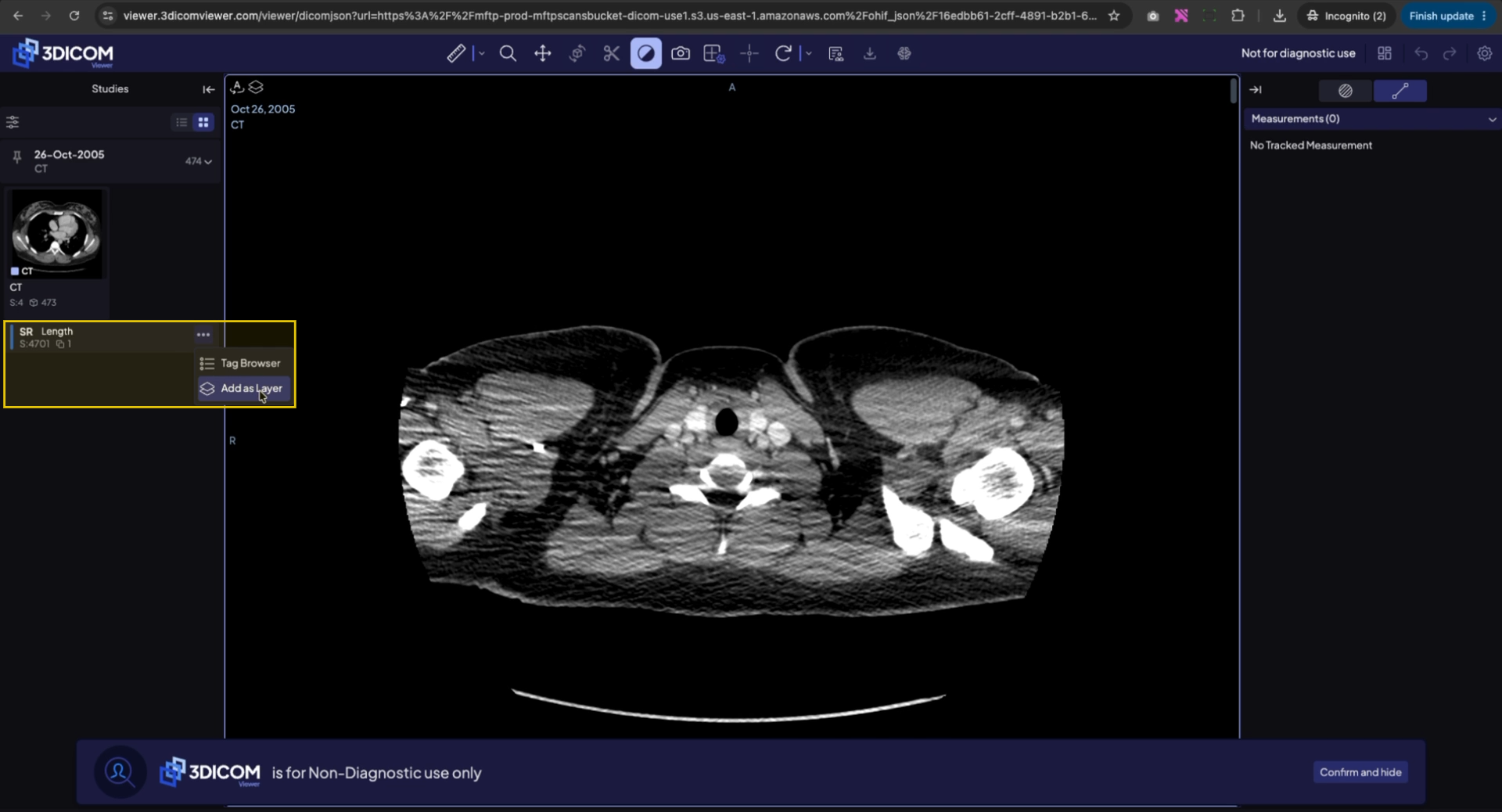
Paso 7. En el cuadro de diálogo de confirmación, haz clic Sí para mostrar las mediciones y mantener un registro de ellas en el escaneo.
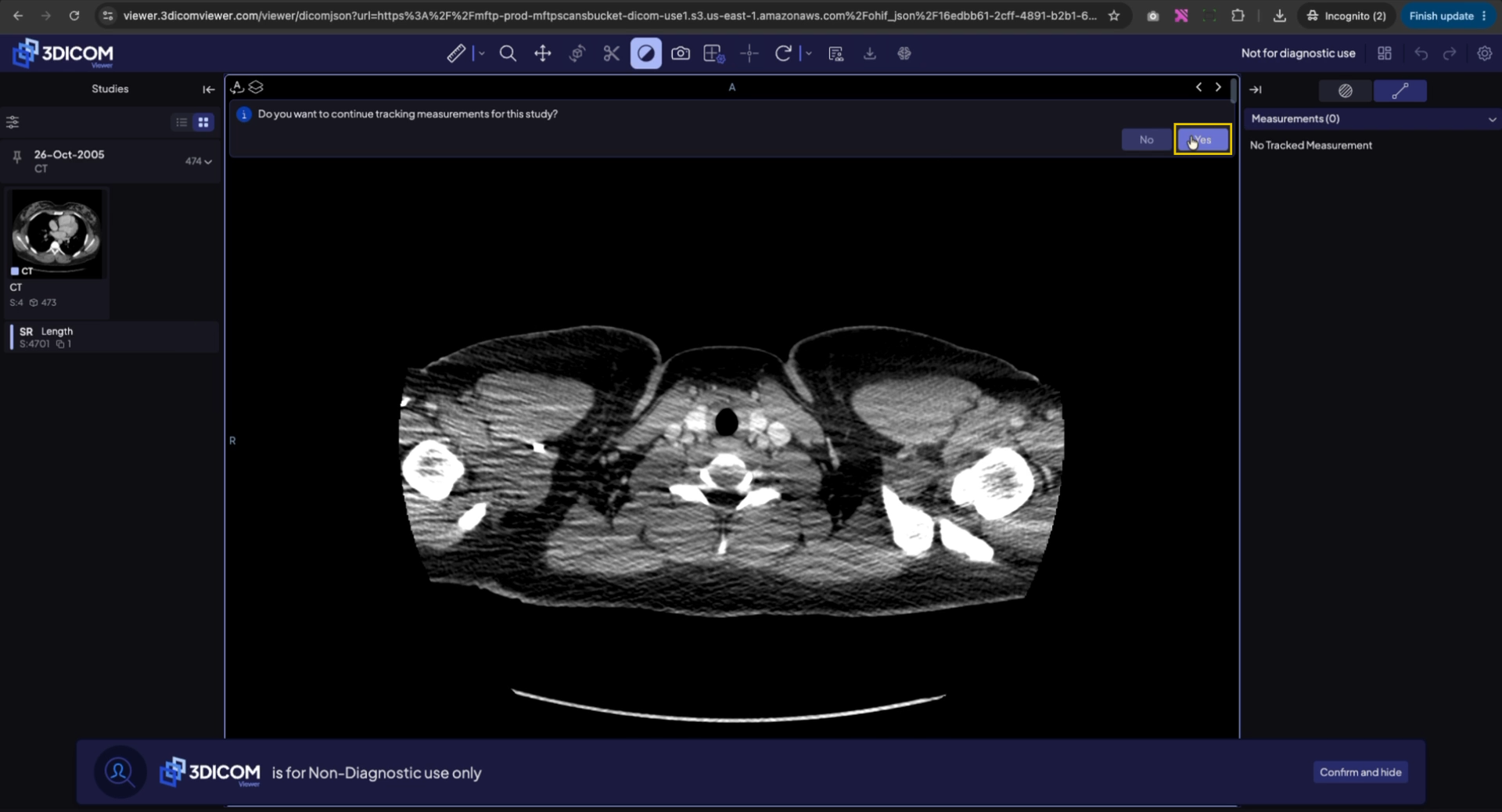
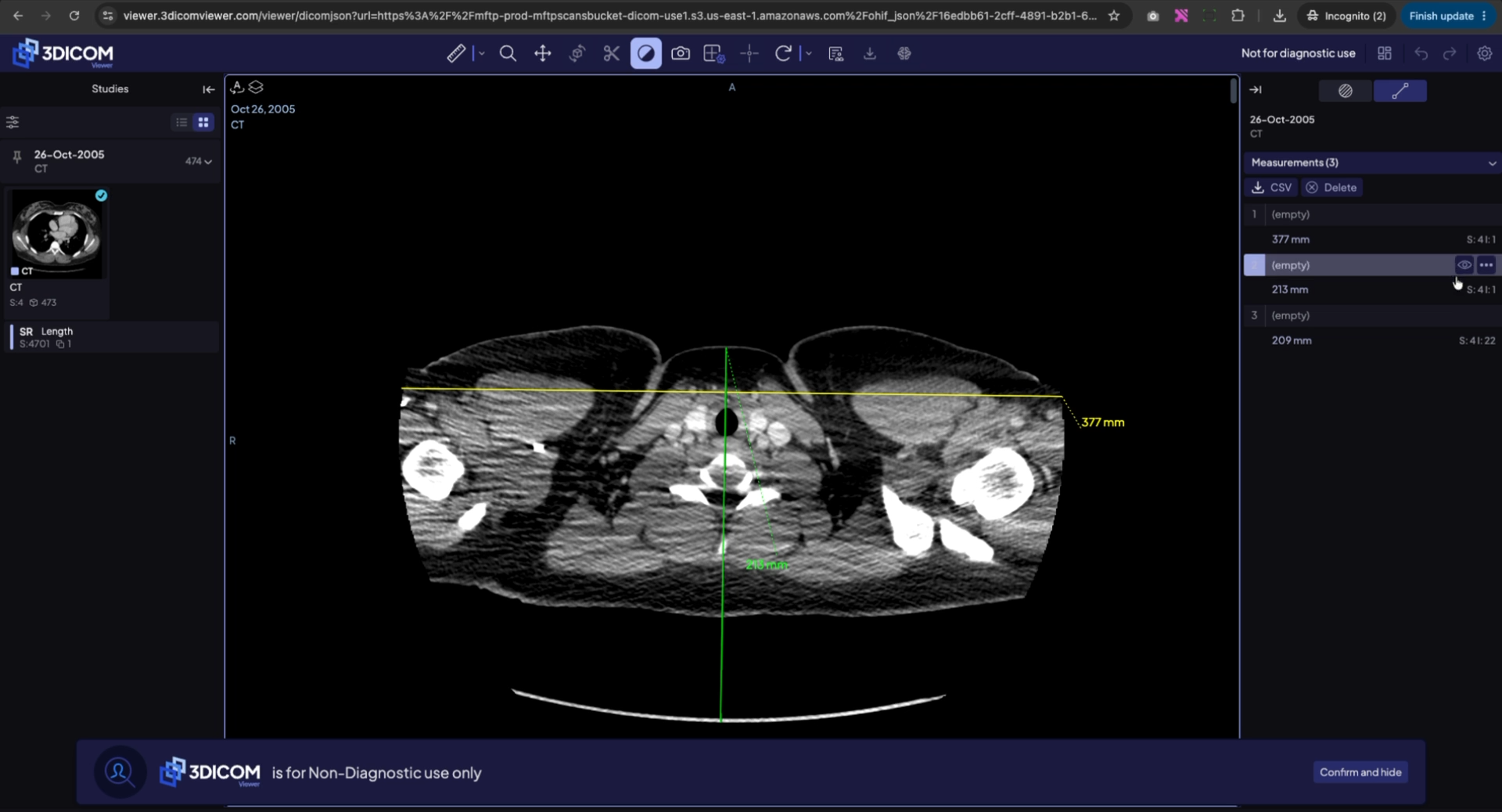
Paso 8. El escaneo ahora mostrará todas las mediciones y anotaciones existentes como superposiciones.
Resultado
Después de seguir estos pasos, podrás ver el estudio compartido y todas las mediciones y anotaciones incluidas, como se demuestra en el video.