Searching & Viewing Patient Studies in 3DICOM
Overview
This guide shows you how to search for a patient record and view their studies using the 3DICOM platform. You’ll learn how to use the global search, apply filters, and open patient studies in the 3DICOM Viewer.
Step-by-step instructions
Open the global search
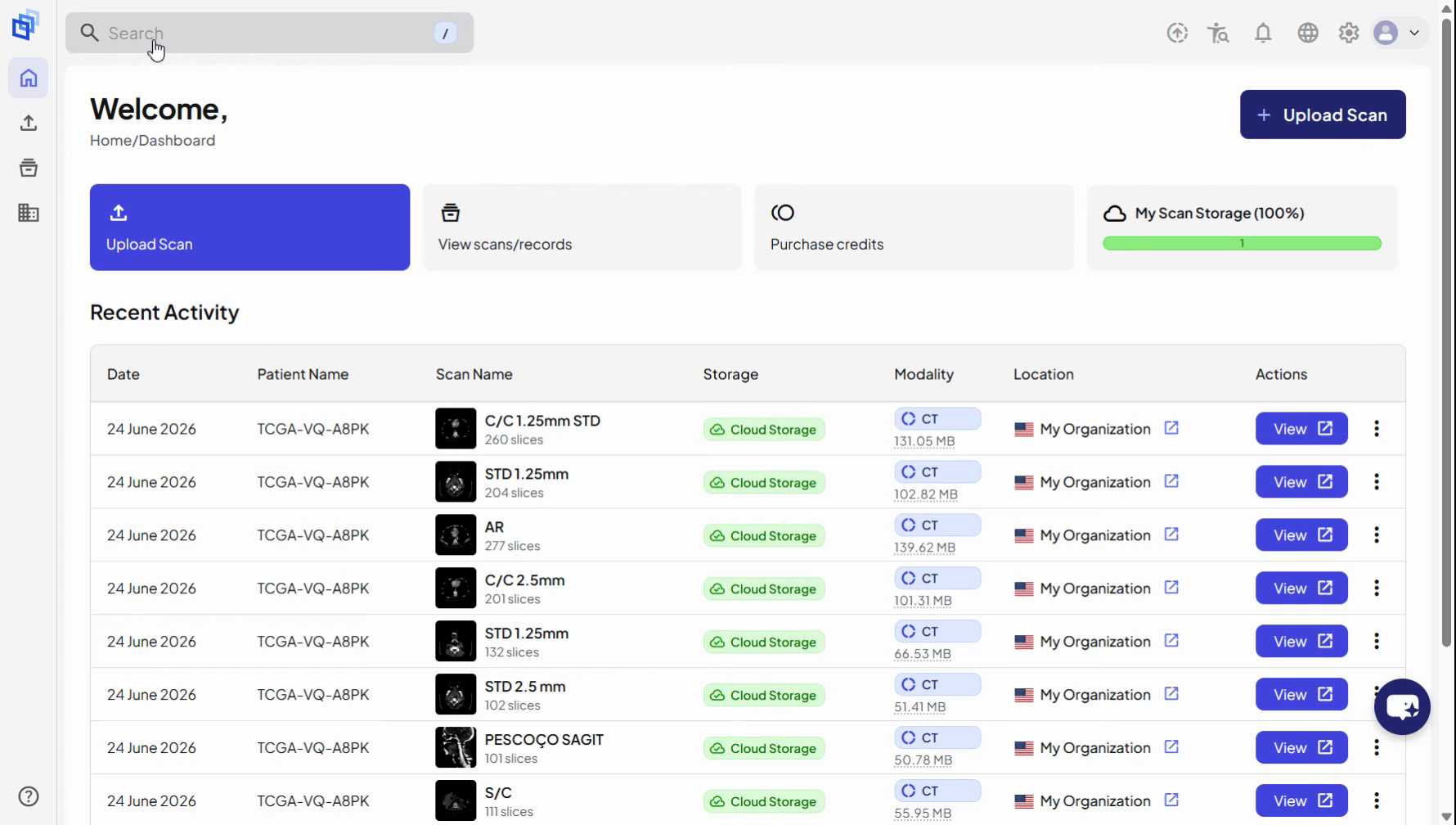
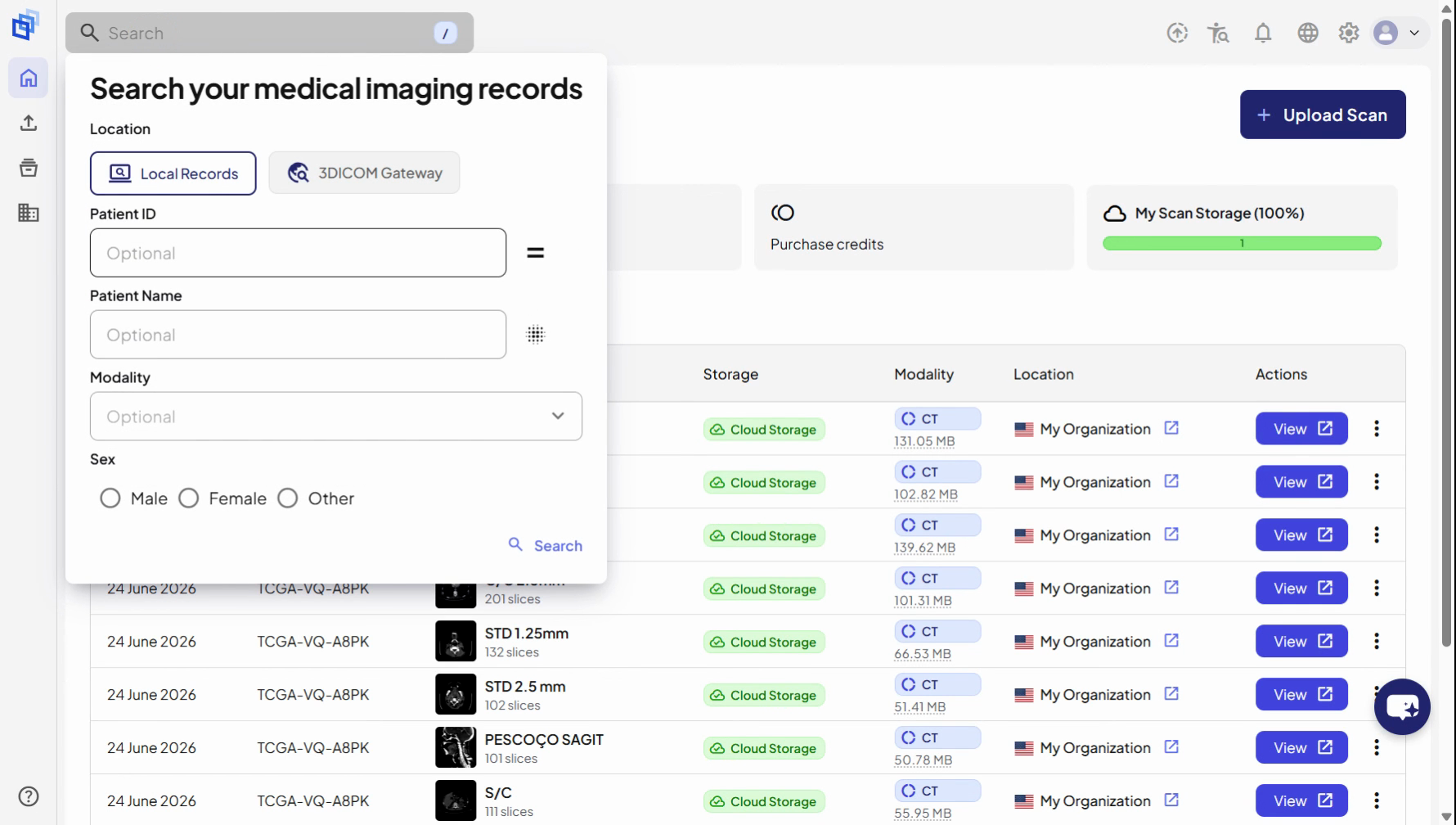
Step 1. Click into the global search field at the top of the interface to open the search panel.
Search for a patient
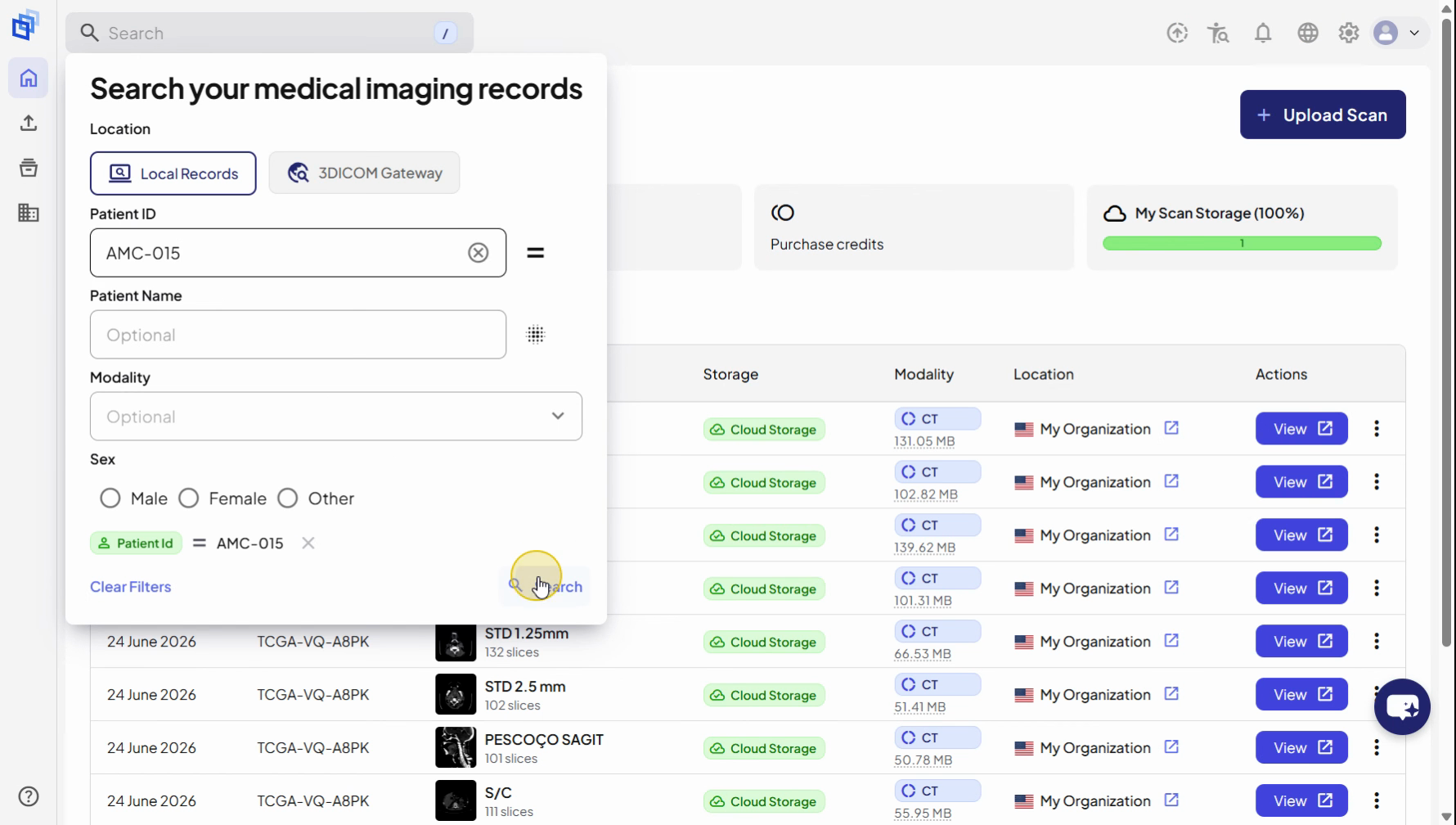
Step 2. Click into the Patient ID input field and enter the Patient ID for the record you want to review.
Step 3. Click Search to run the query.
Filter and select the patient record
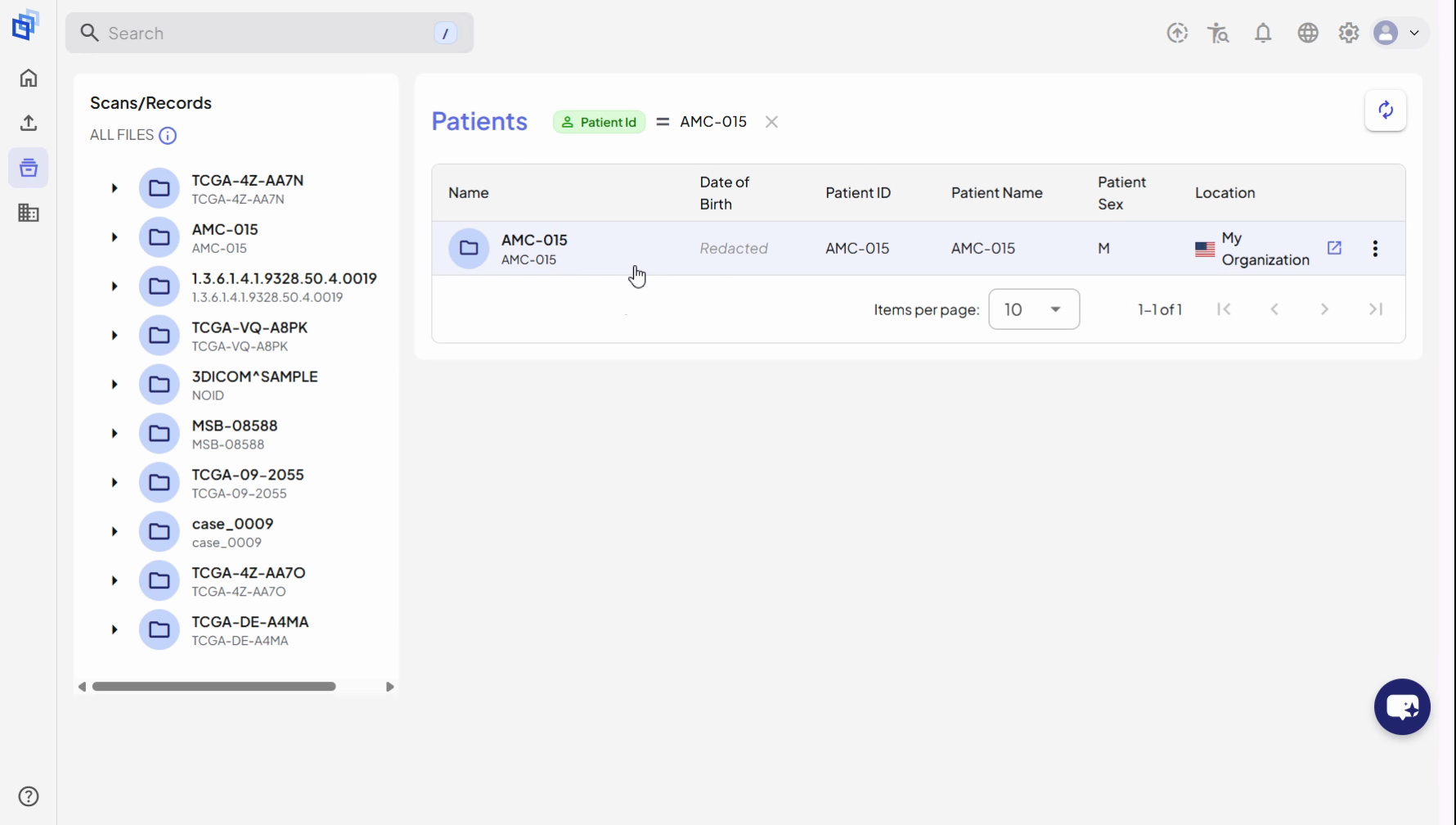
Step 4. After the search, you will be taken to the Scans & Records page. The Patients table will display only the records matching your search criteria.
Step 5. Review the applied filters, which are shown as removable tags above the table. You can remove these filters at any time to adjust your search.
Open associated studies
Step 6. Double-click the patient record that matches your search to view the associated studies.
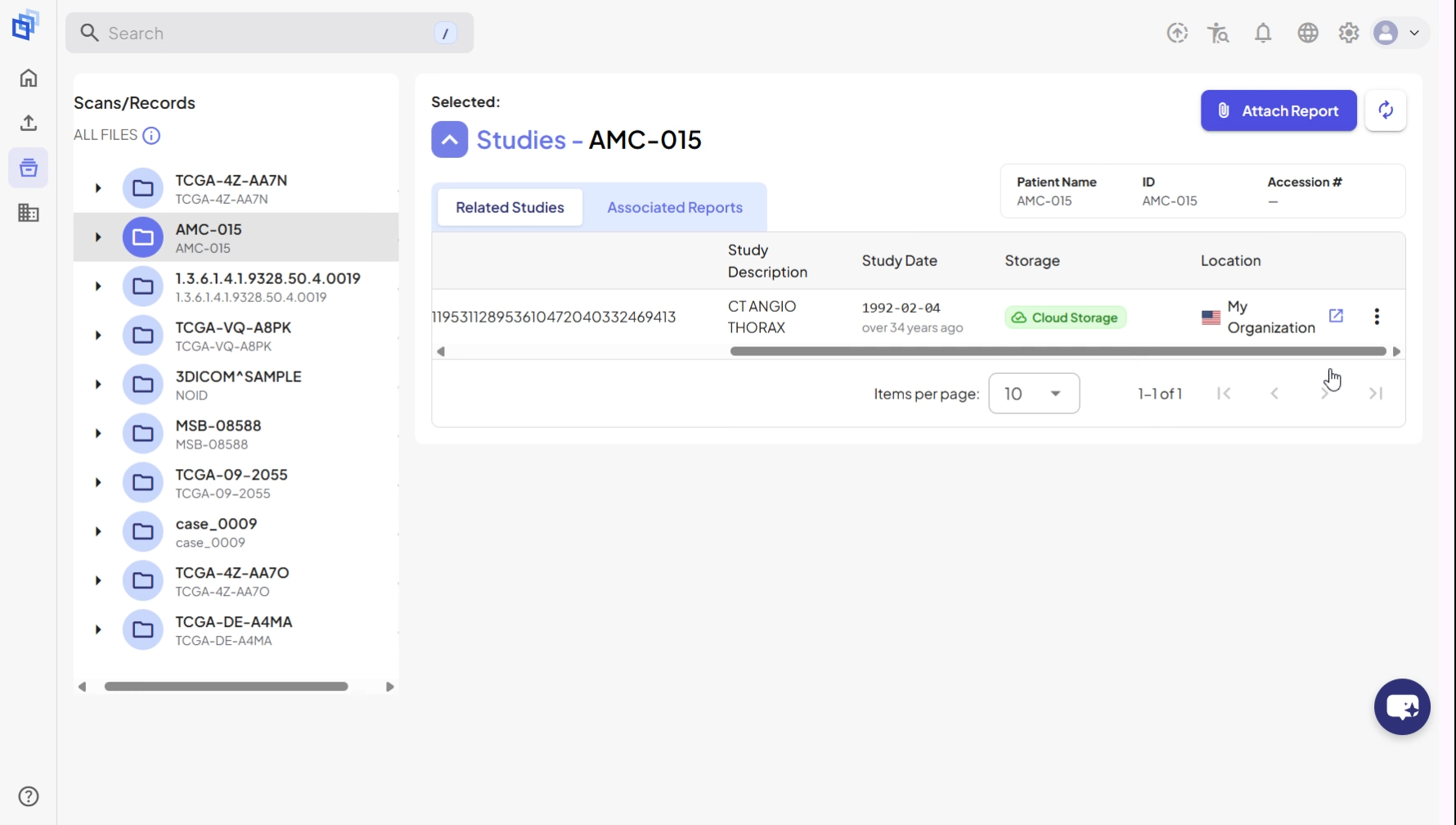
Step 7. In the studies list, find the study you want to review.
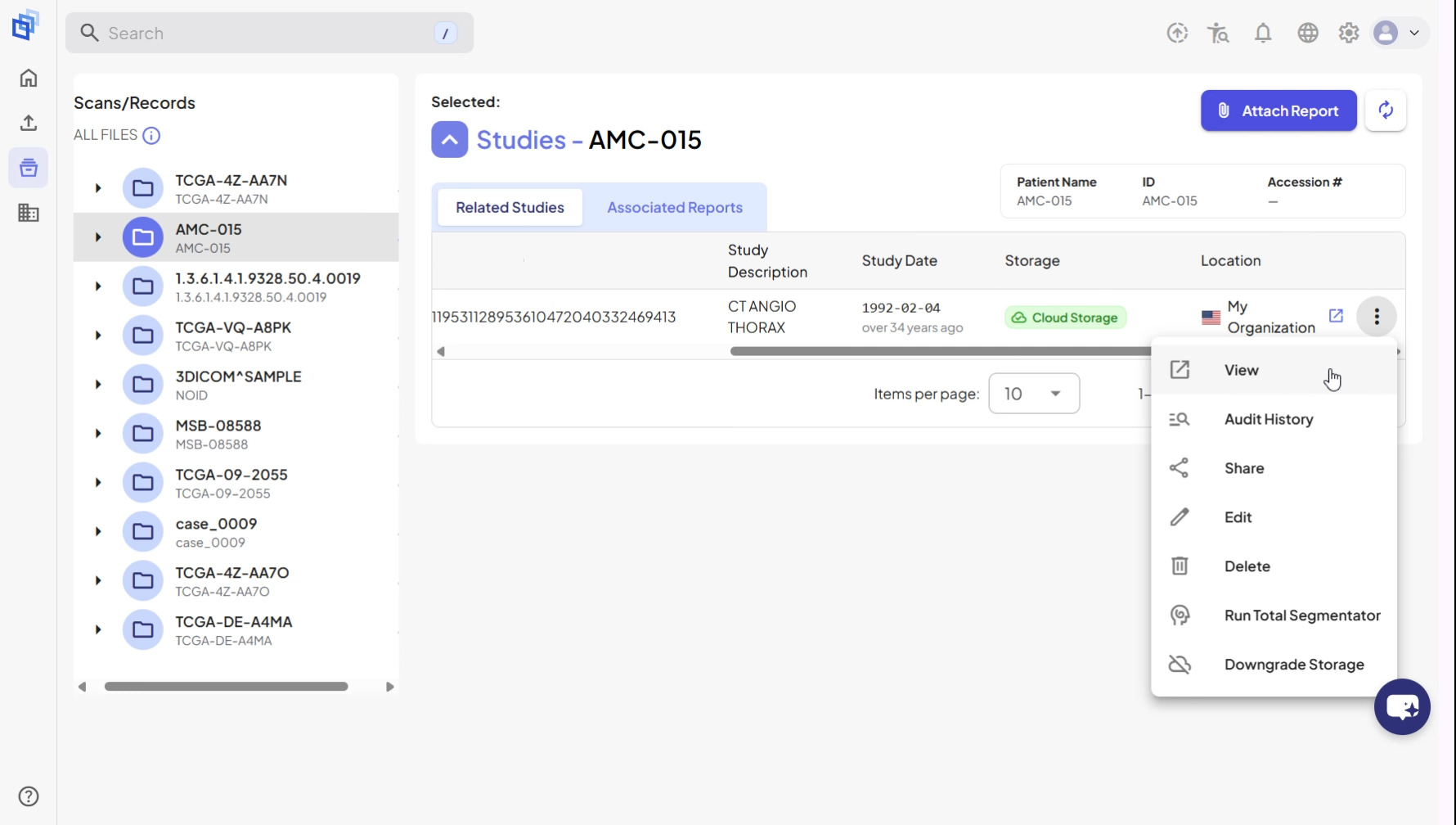
Step 8. Click the three-dot context menu on the right side of the study entry.
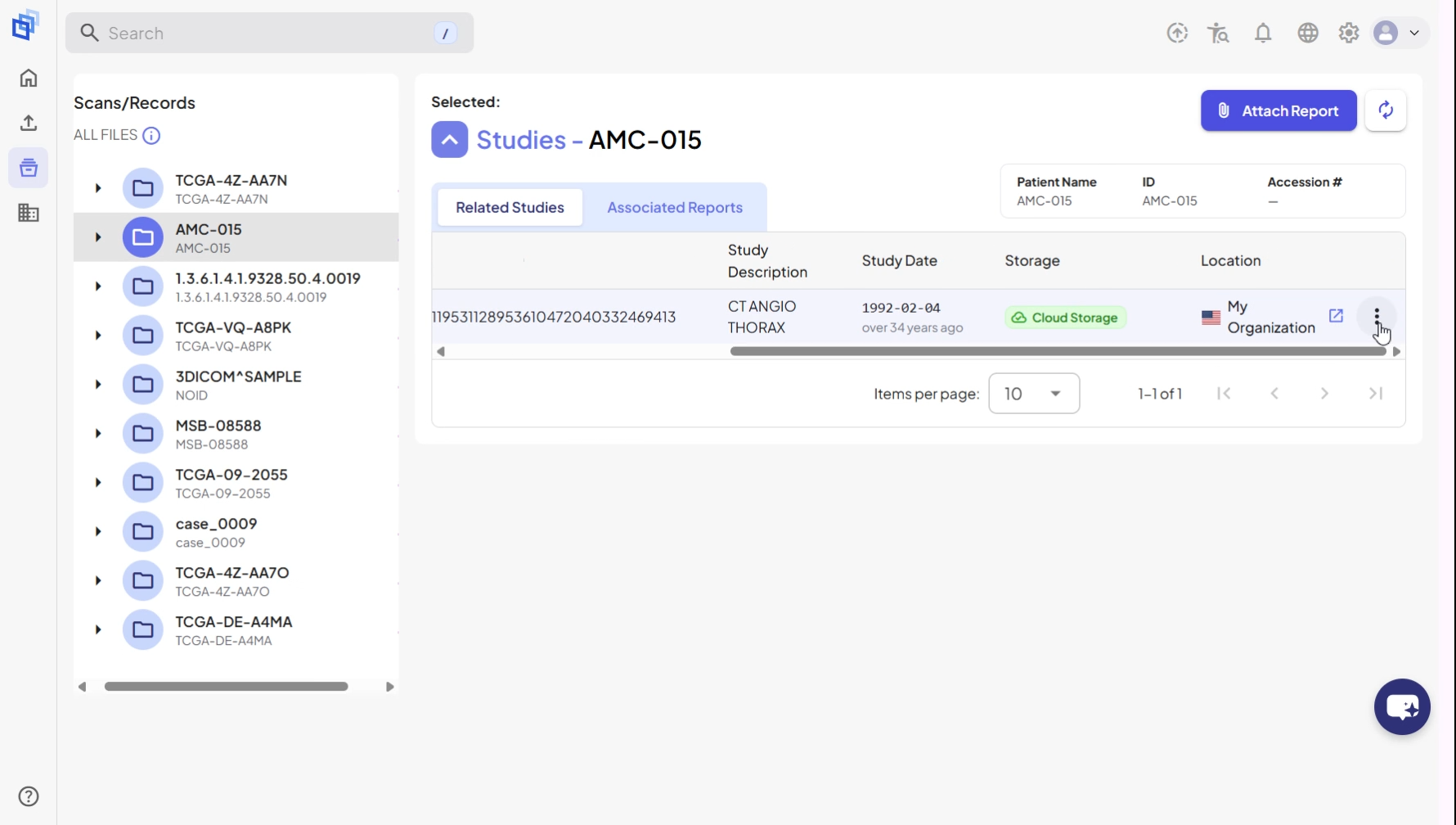
Step 9. Select View from the menu to open the study in the 3DICOM Viewer.
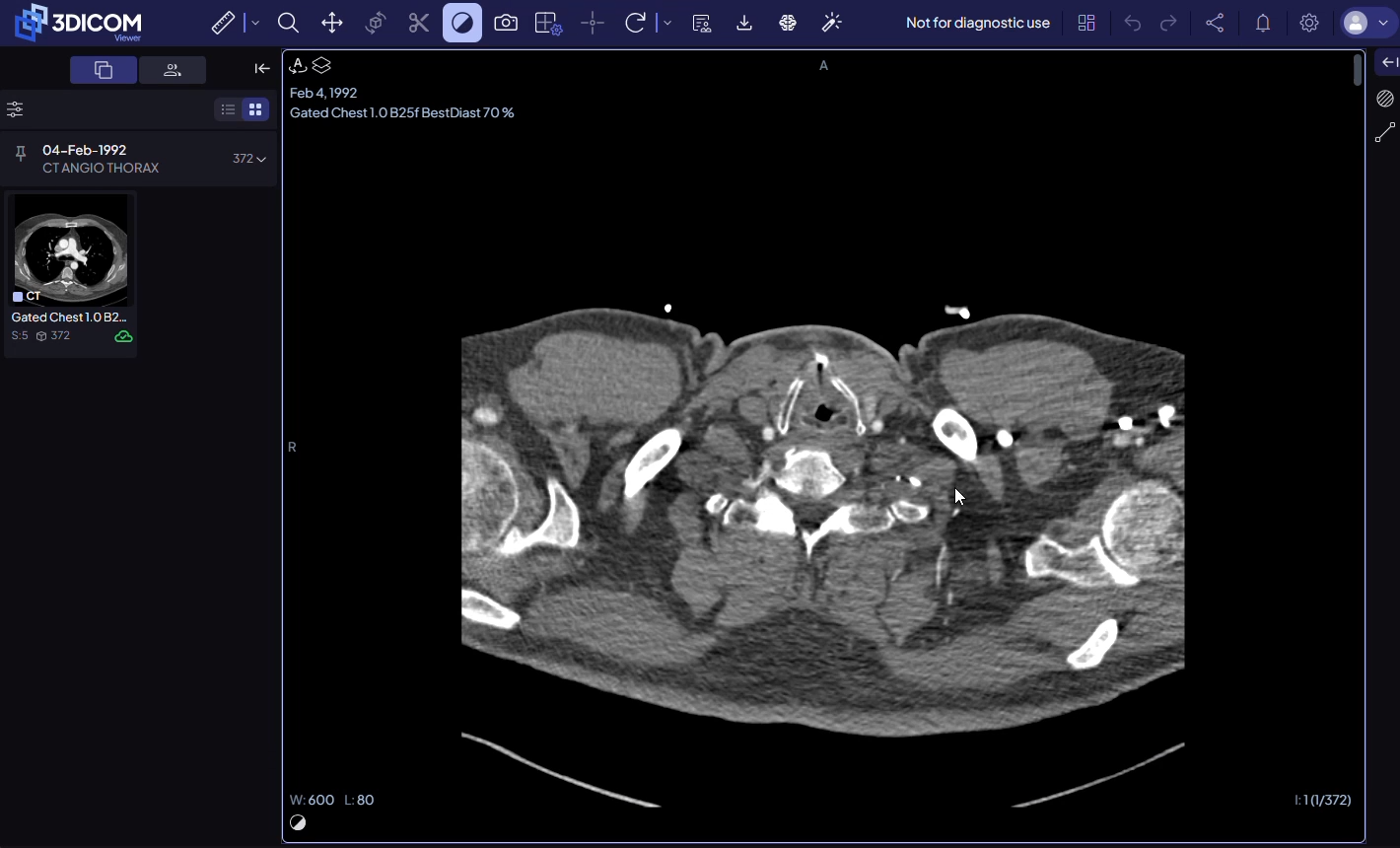
Step 10. The selected study will open in the 3DICOM Viewer.

Result
After completing these steps, you have successfully searched for a patient record and opened a study for viewing in the 3DICOM platform.