Deleting a TotalSegmentator Result from a Series
Overview
This guide explains how to delete an AI-generated TotalSegmentator segmentation result from a series in 3DICOM. You will use the Scans & Records panel to locate and remove the segmentation file.
Step-by-step instructions
Open Scans & Records
Step 1. Go to Scans & Records.
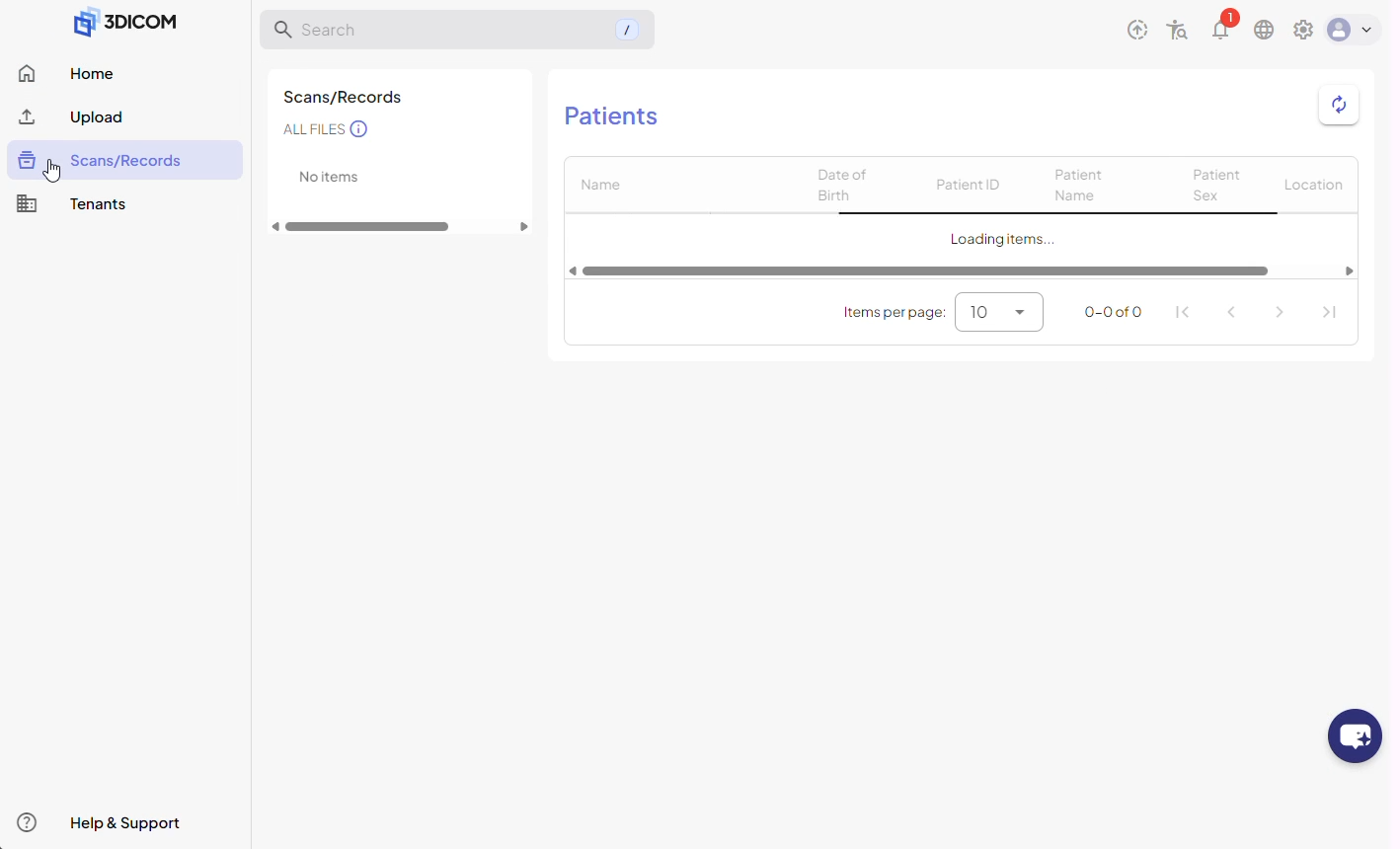
Step 2. Navigate to the series that contains the TotalSegmentator result you want to delete.
Delete the segmentation file
Step 3. Find the TotalSegmentator file in the series list. Click the three-dots menu next to the file.
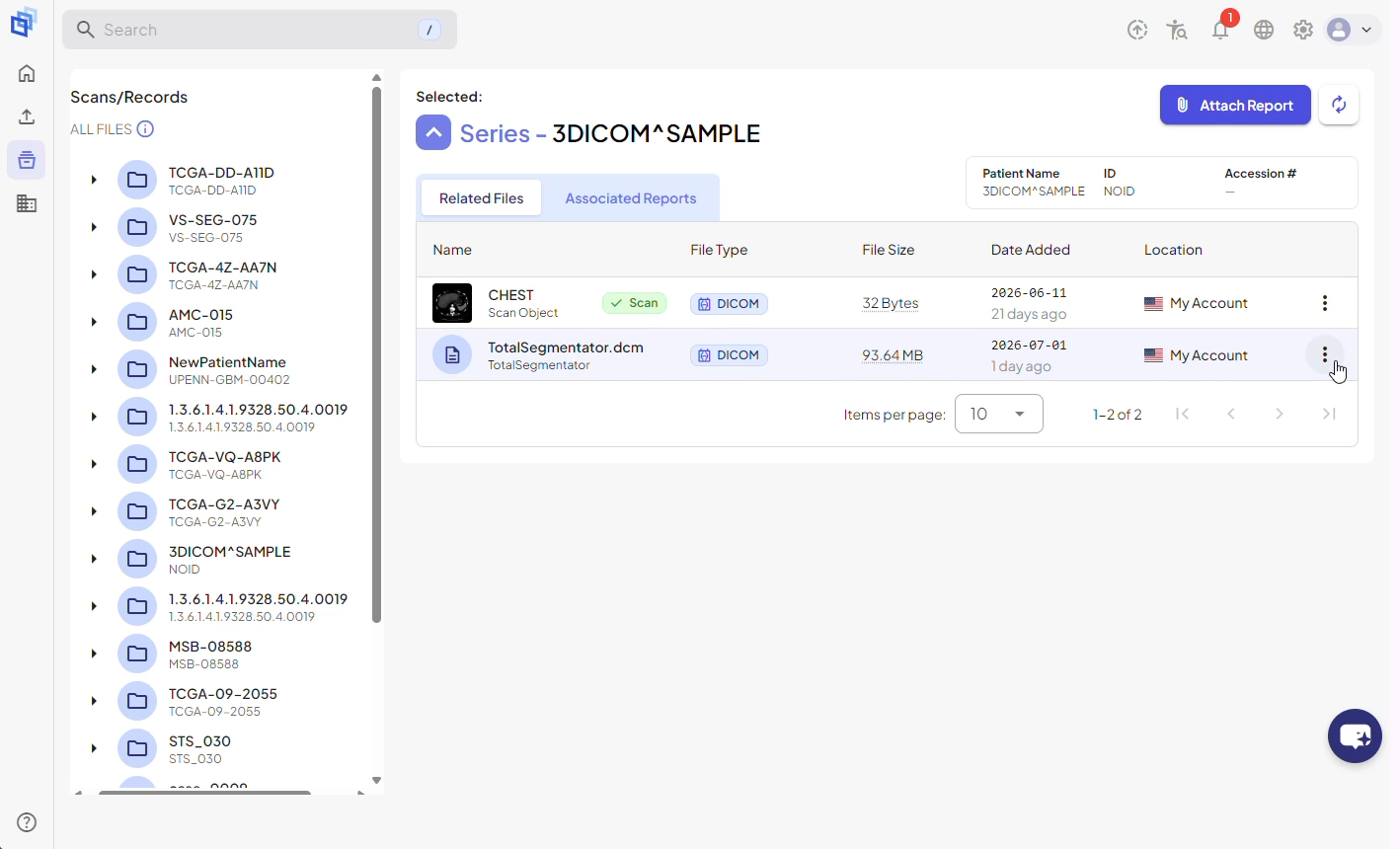
Step 4. From the drop-down, select Delete.
Confirm deletion
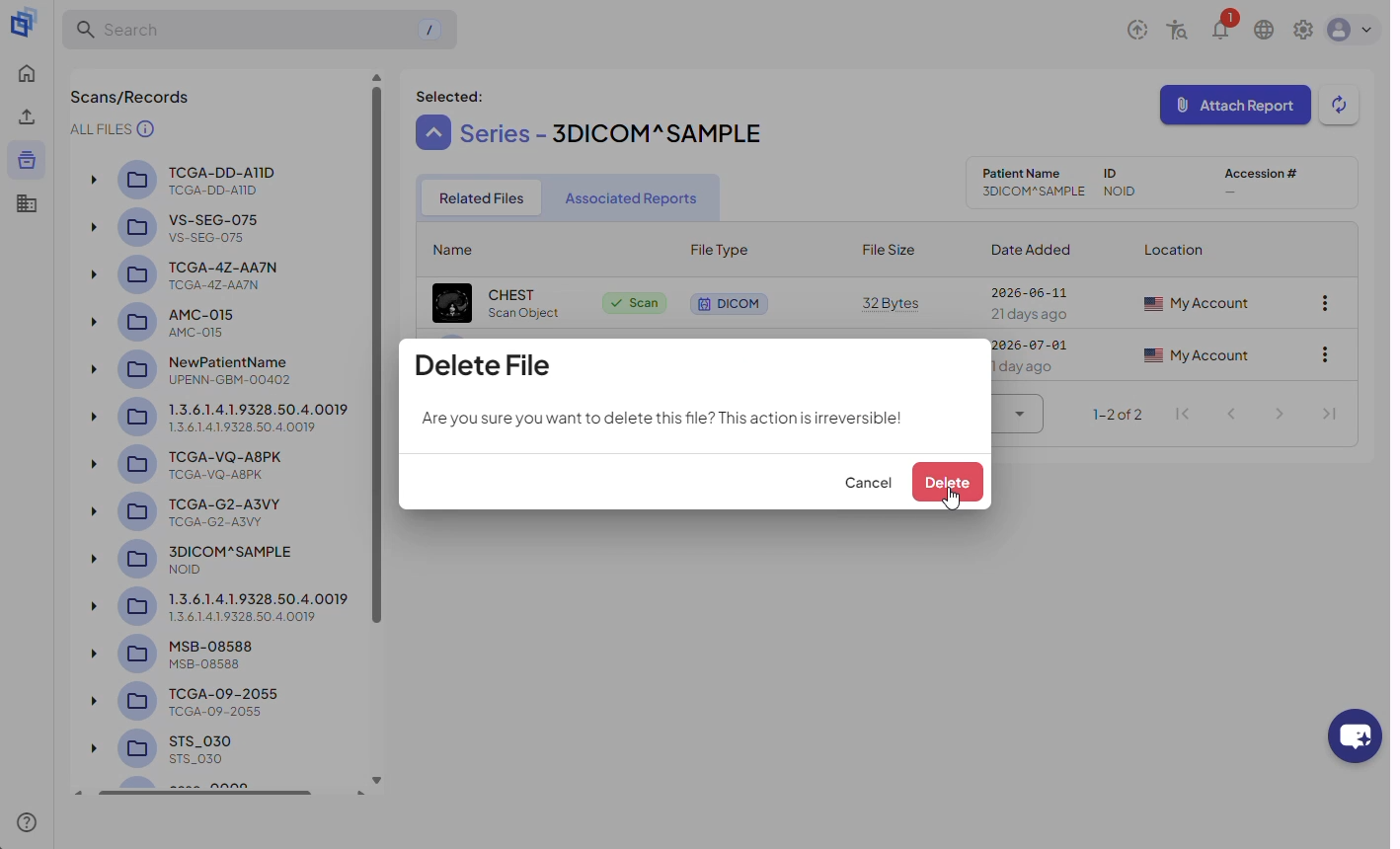
Step 5. When prompted, confirm by clicking Delete again in the confirmation dialog.
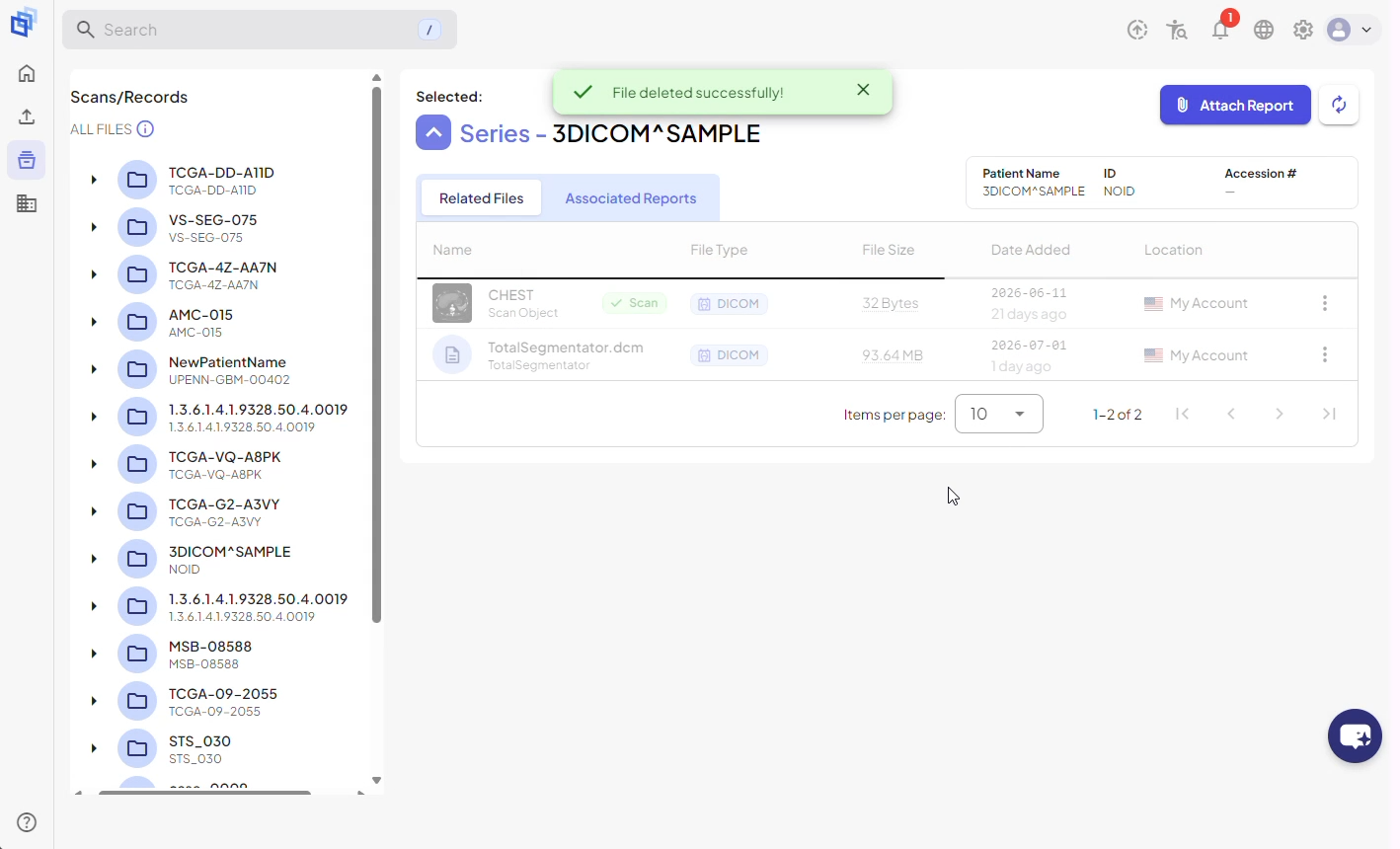
Step 6. After deletion, a success message will appear at the top of the screen.
Result
You have successfully removed the TotalSegmentator output from the selected series in 3DICOM.