¿Qué es TotalSegmentator?
TotalSegmentator es un modelo de IA que identifica, segmenta y etiqueta automáticamente estructuras anatómicas en estudios compatibles de TC y RM.
Cómo ejecutar y cargar las salidas de TotalSegmentator
Resumen
Esta guía explica cómo ejecutar el modelo de IA TotalSegmentator en el 3DICOM Viewer y revisar sus resultados de segmentación para estudios de TC y RM. Aprenderá a lanzar el modelo, monitorear el procesamiento y ver e interactuar con los segmentos anatómicos generados.
Antes de empezar
Confirme que tiene imágenes de alta calidad que cubren la anatomía completa.
Evite usar series con cortes faltantes o de baja calidad de imagen, ya que estos pueden afectar la precisión de la segmentación.
Para verificar rápidamente, previsualiza la serie en 3D en el Visor 3DICOM. Una anatomía clara y completa aumenta la fiabilidad de los resultados de la segmentación por IA.
Instrucciones paso a paso
Ejecutando el modelo de IA TotalSegmentator
Paso 1. Selecciona el ícono con forma de cerebro en la barra de herramientas para abrir el Mercado de Modelos de IA.
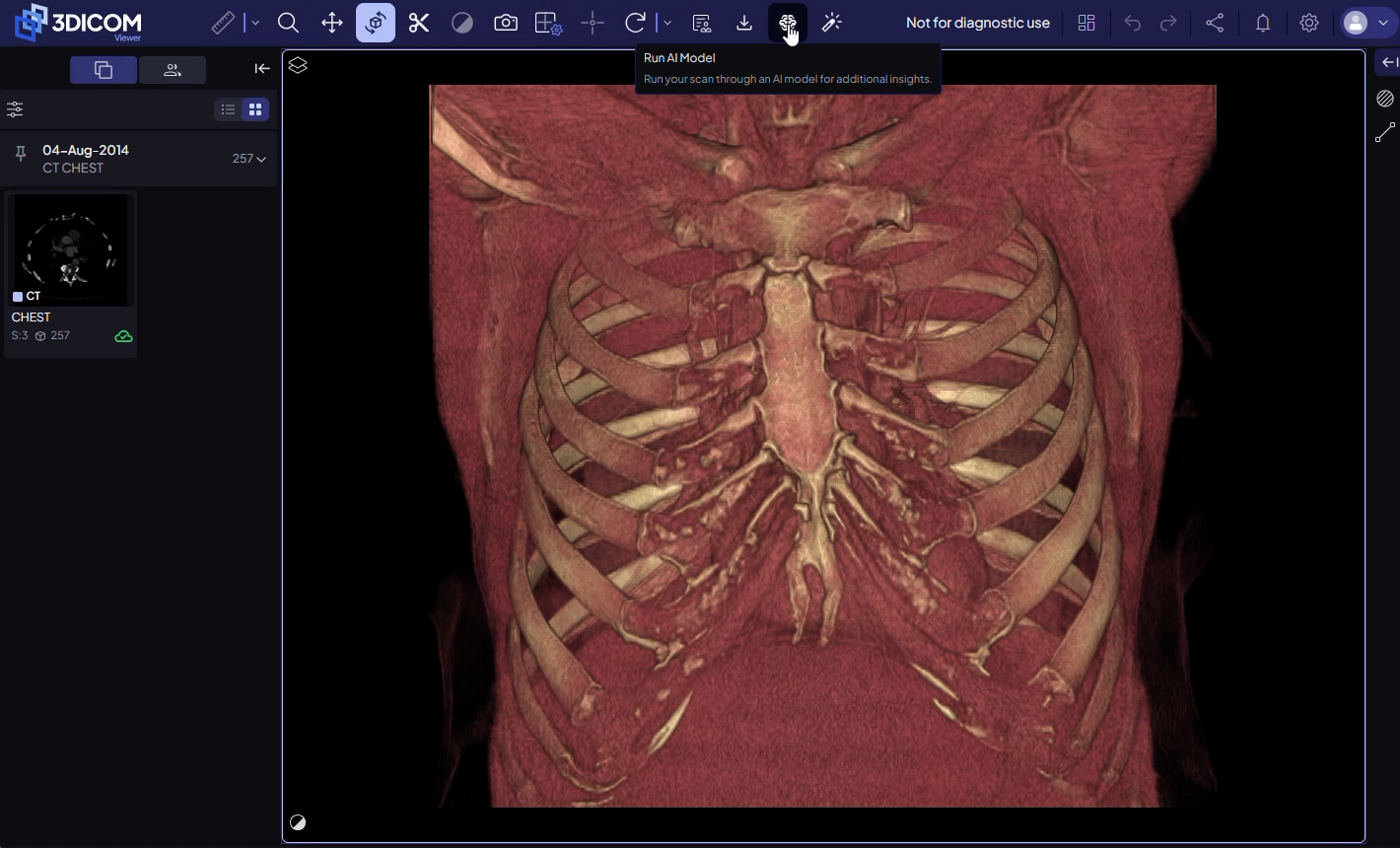
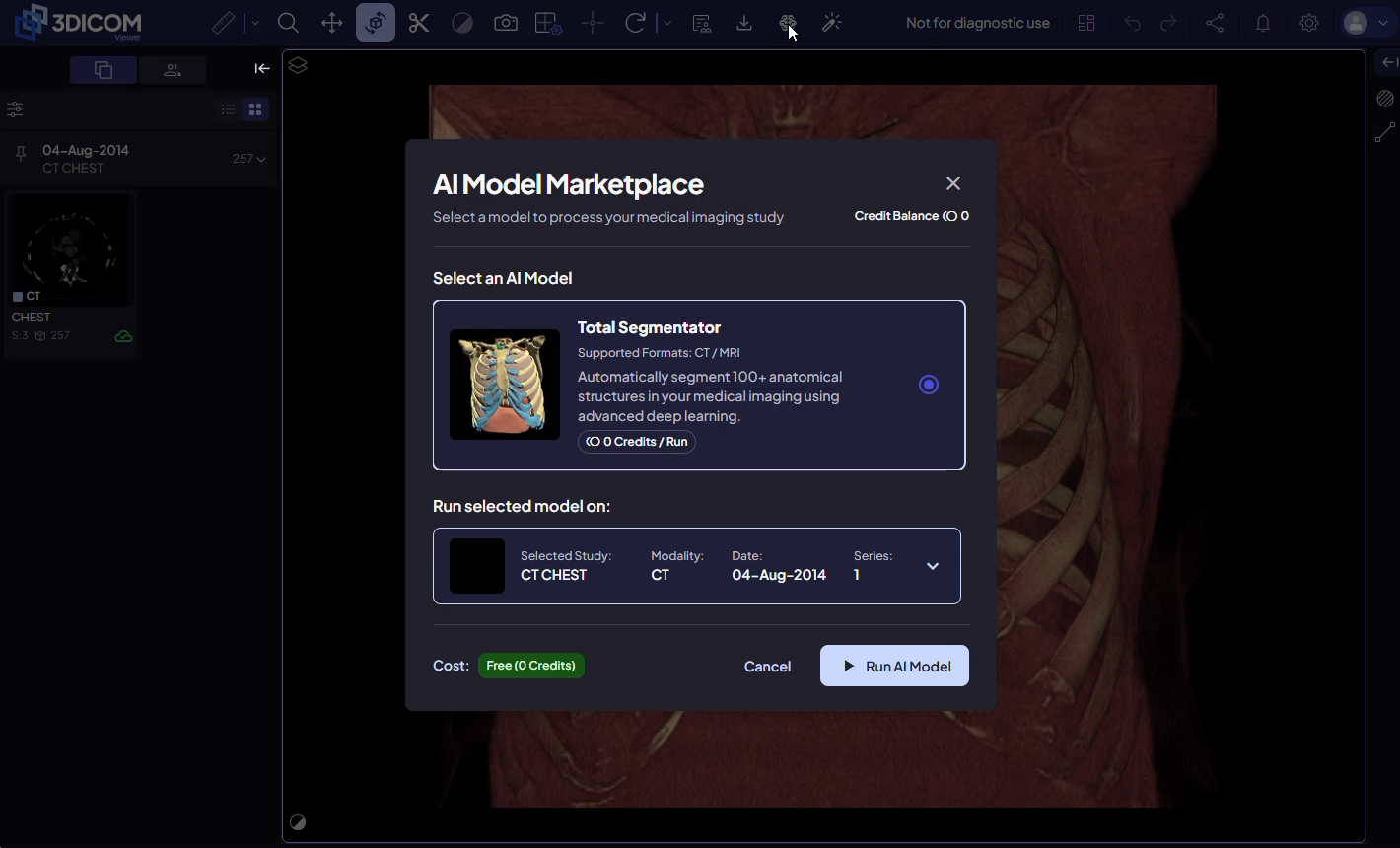
El Mercado de Modelos muestra todos los modelos de IA disponibles para tu cuenta y tu saldo de créditos actual.
Seleccionar estudio y serie
Paso 2. Seleccione el estudio que desea procesar en el Marketplace.
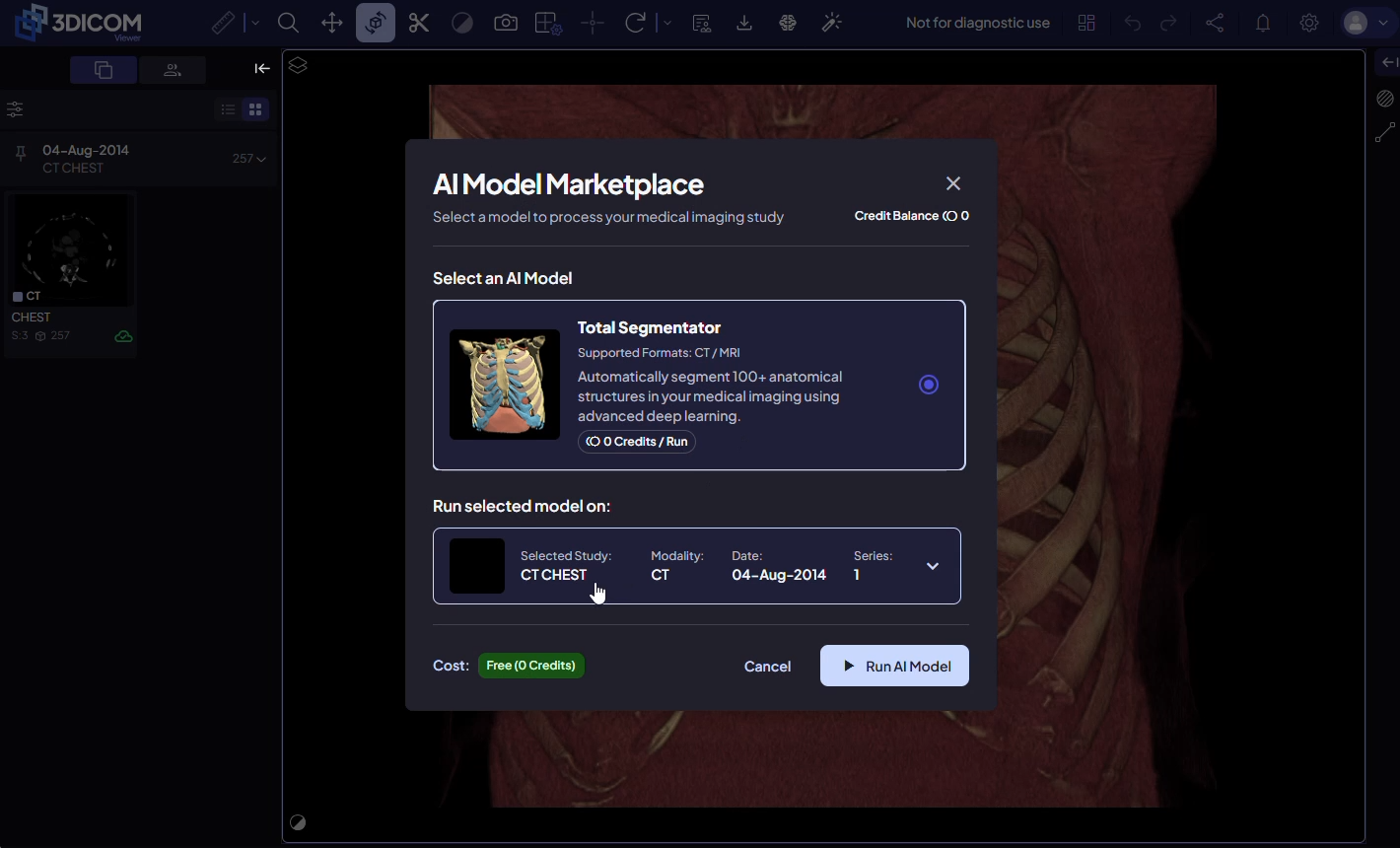
Paso 3. Si el estudio incluye múltiples series de imágenes, elige cuáles incluir. Todas las series están preseleccionadas. Anula la selección de las que no quieras procesar. Los nombres de las series y los recuentos de cortes coincidirán con las vistas previas en el Estudiar en el navegador.
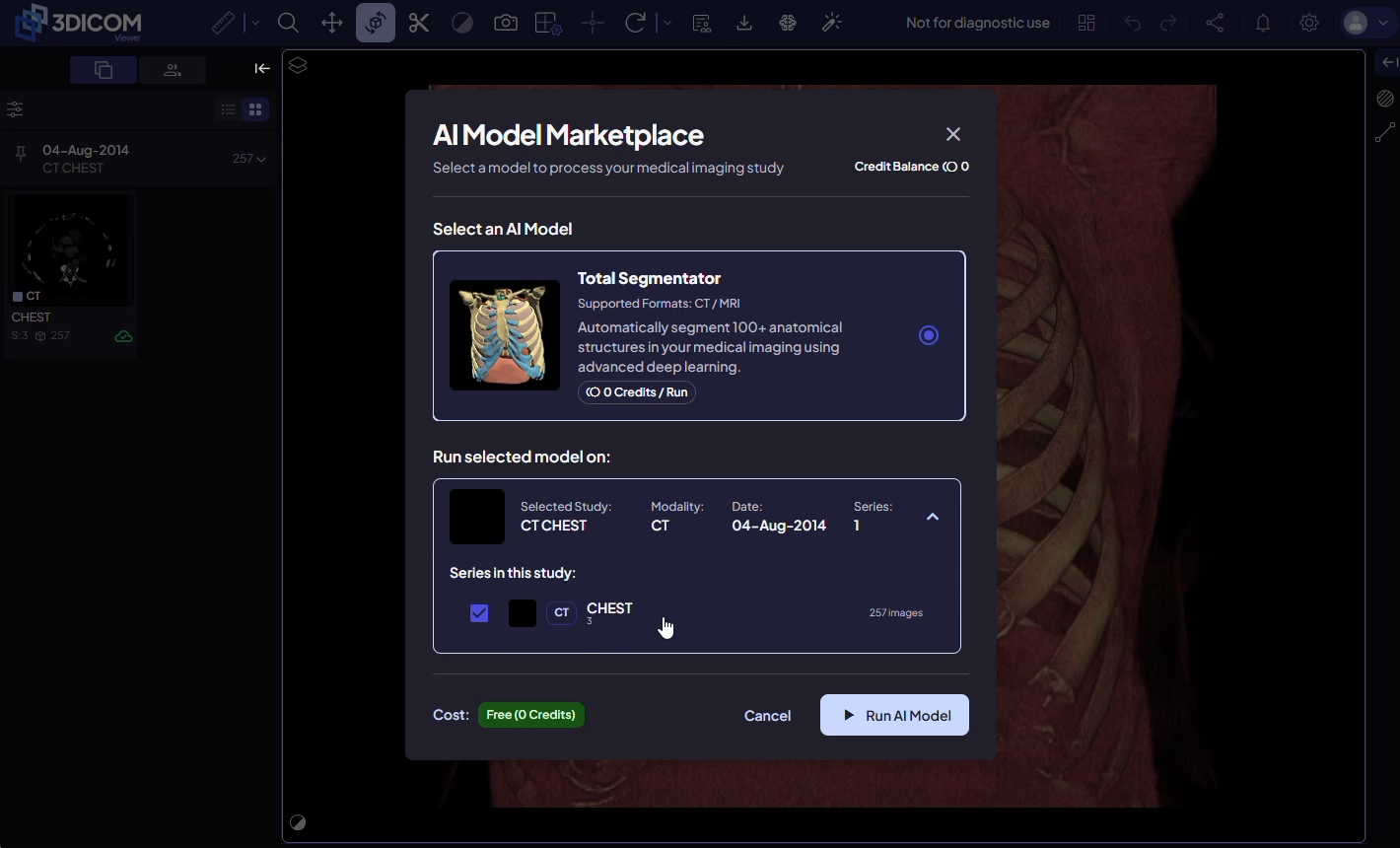
Paso 4. Clic Ejecutar modelo de IA para iniciar el proceso. El modelo se ejecuta en segundo plano. El tiempo de procesamiento puede demorar hasta veinte minutos, dependiendo de la cantidad y el tamaño de las series seleccionadas.
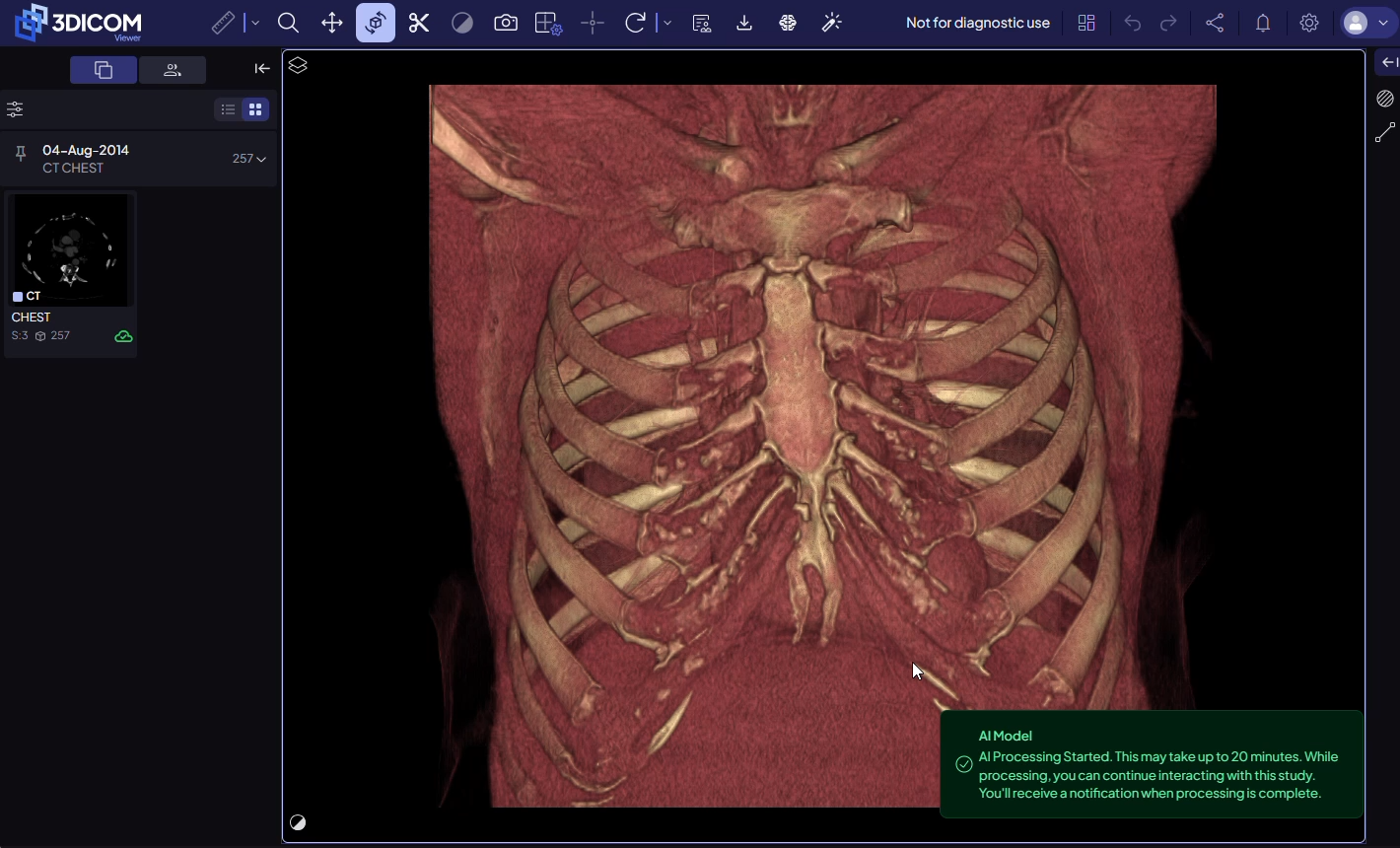
Puede seguir utilizando el visor u otras funciones de la plataforma mientras el modelo procesa su estudio.
Procesamiento y notificaciones del monitor
Paso 5. Cuando el procesamiento se complete, aparecerá una notificación en la esquina superior derecha de la interfaz.
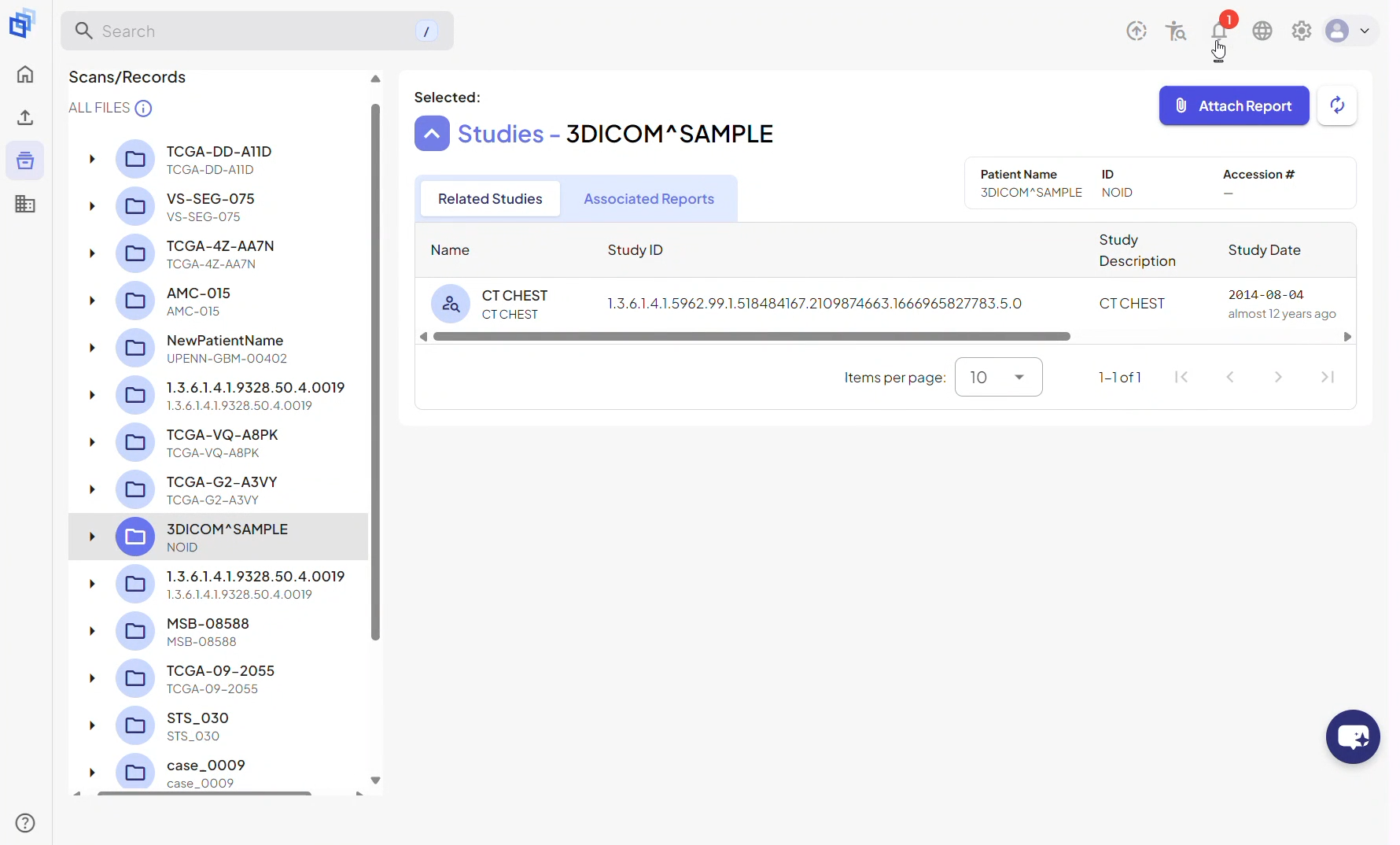
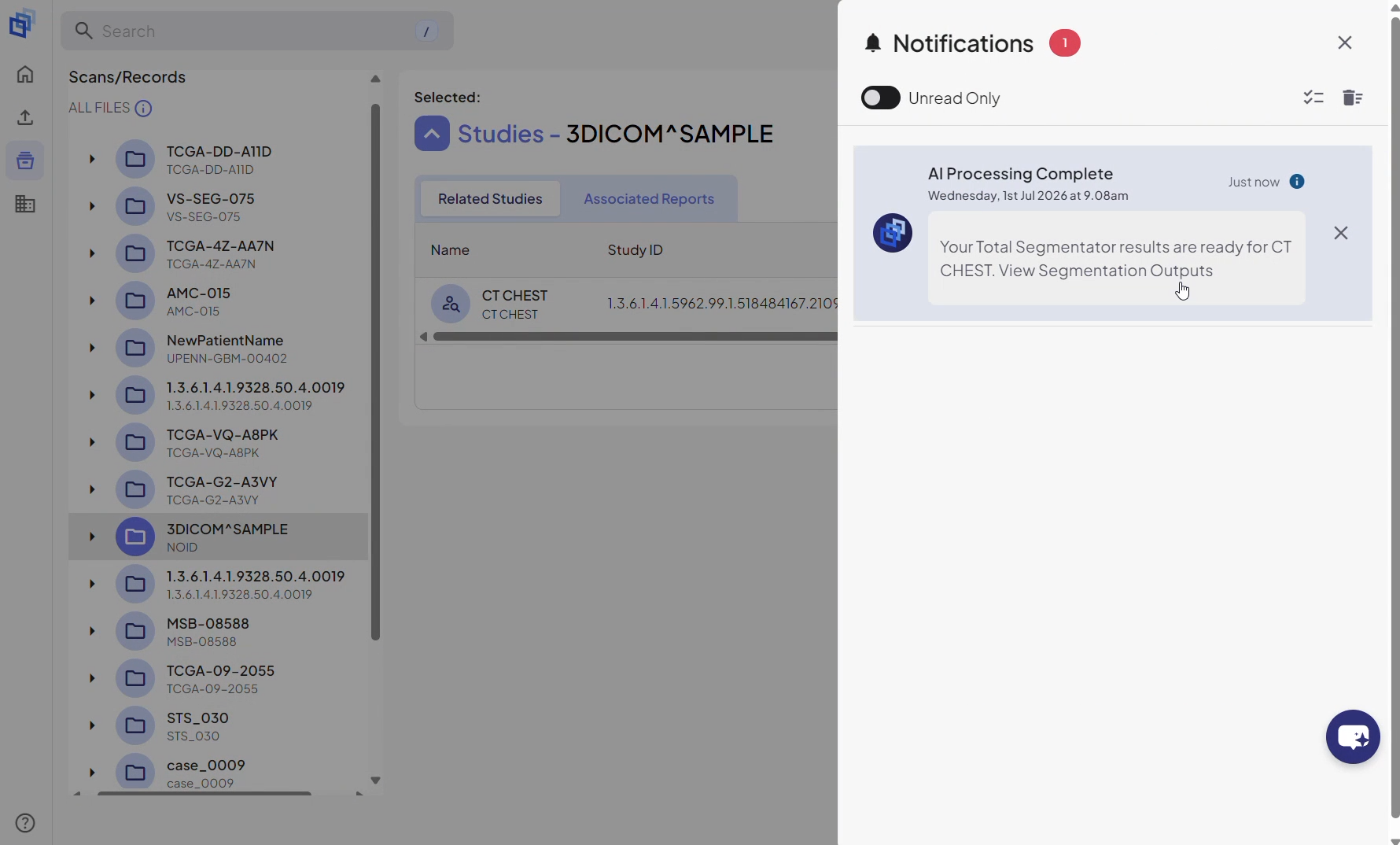
Paso 6. Haz clic en la notificación para abrir el estudio procesado en el Segmentación de audiencia espacio de trabajo. También puedes acceder a este espacio de trabajo desde el icono del espacio de trabajo en la barra de herramientas del Visor en cualquier momento.
Ver e interactuar con los resultados de segmentación
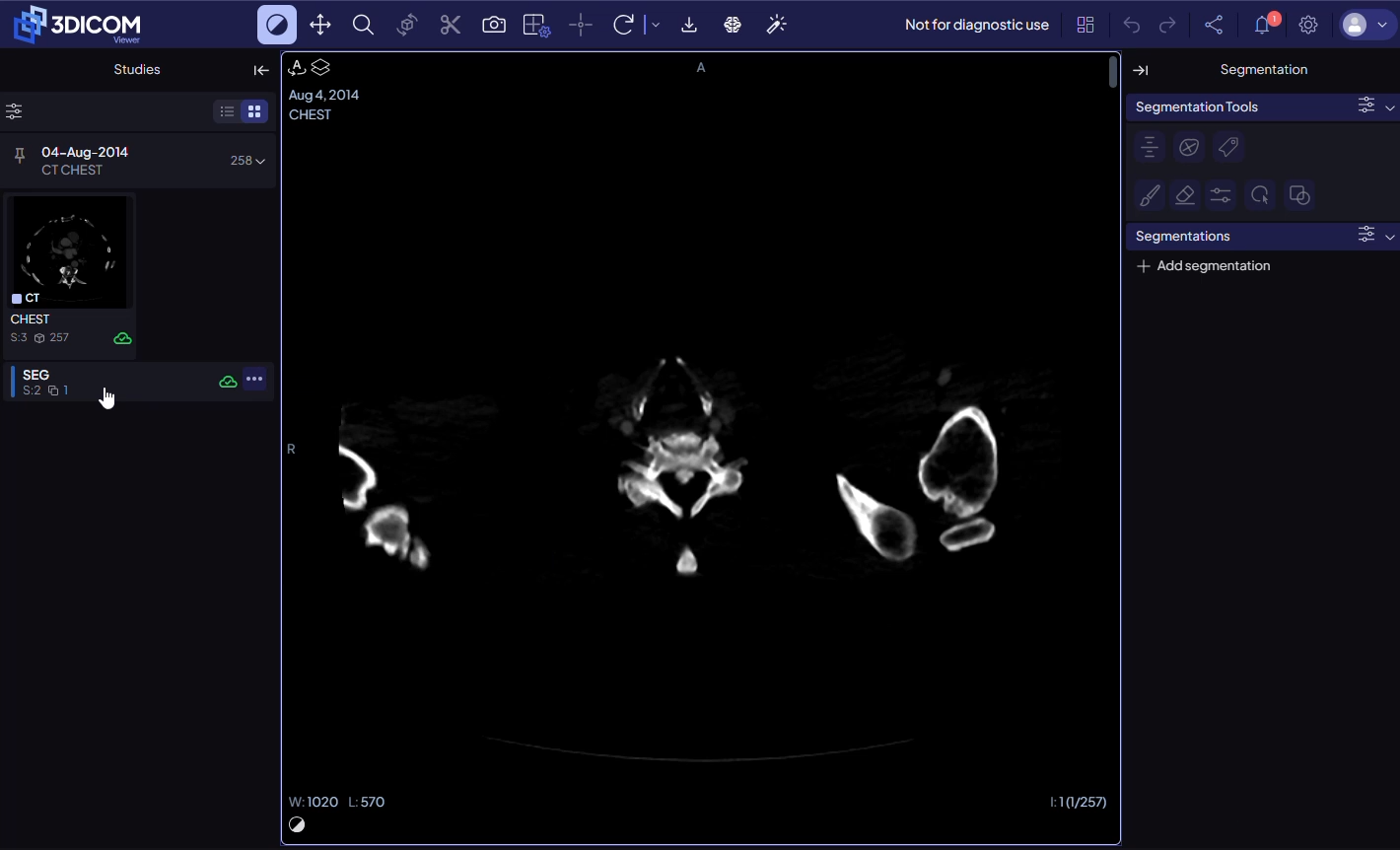
Paso 7. En el Estudiar en el navegador a la izquierda, generado por IA SEG los archivos (salidas de segmentación) aparecen debajo de la serie de imágenes original. Haz doble clic en el archivo SEG relevante para cargar la segmentación de esa serie.
Paso 8. Los segmentos anatómicos generados por IA se vuelven disponibles en Segmentación panel a la derecha. Navegue, muestre u oculte estructuras individuales según sea necesario. Los resultados de la segmentación se muestran en vistas 2D y 3D. Soporte de Annotiva disponible (indicado por el ícono de varita mágica en la barra de herramientas) para descripciones anatómicas interactivas y aprendizaje.
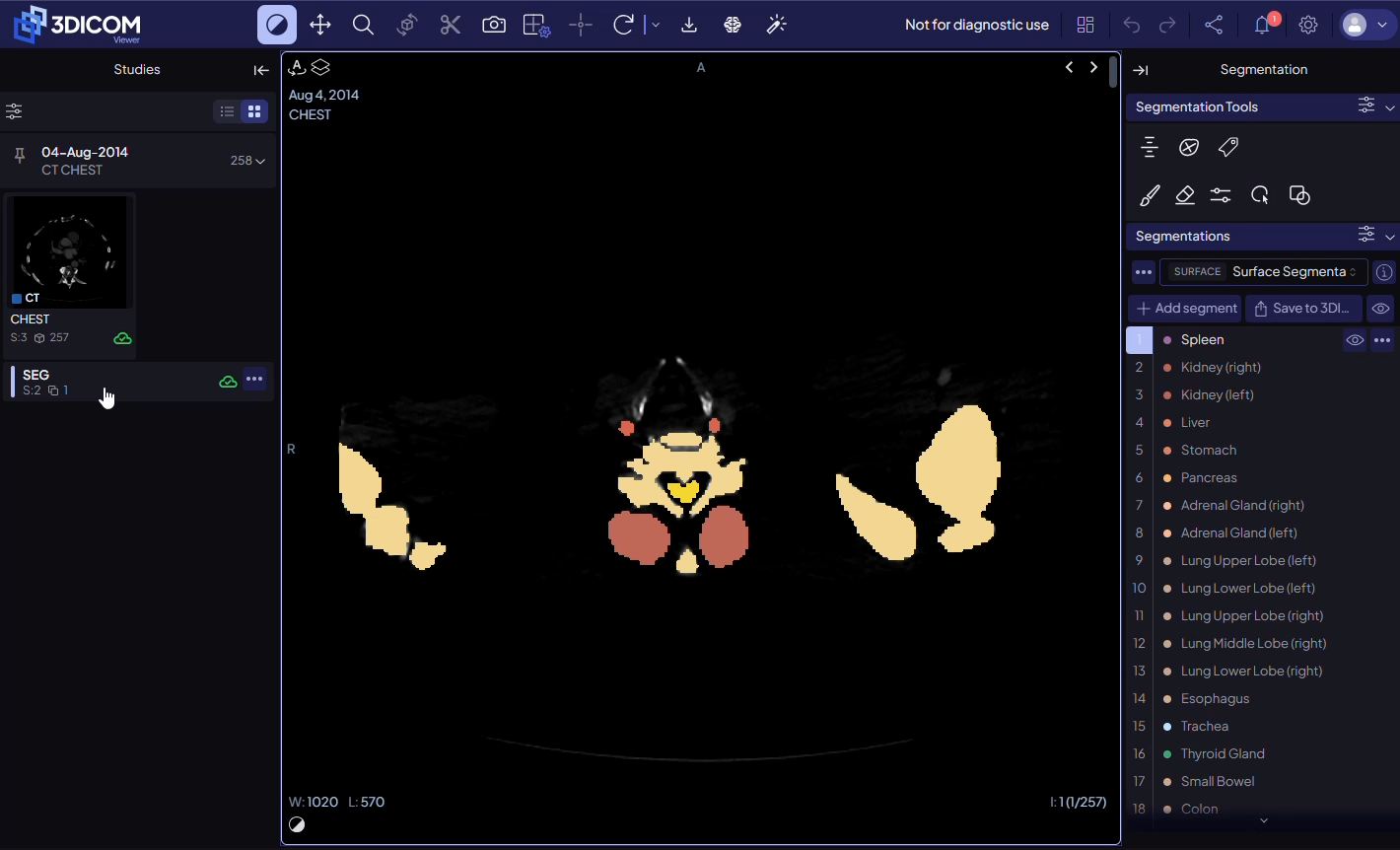
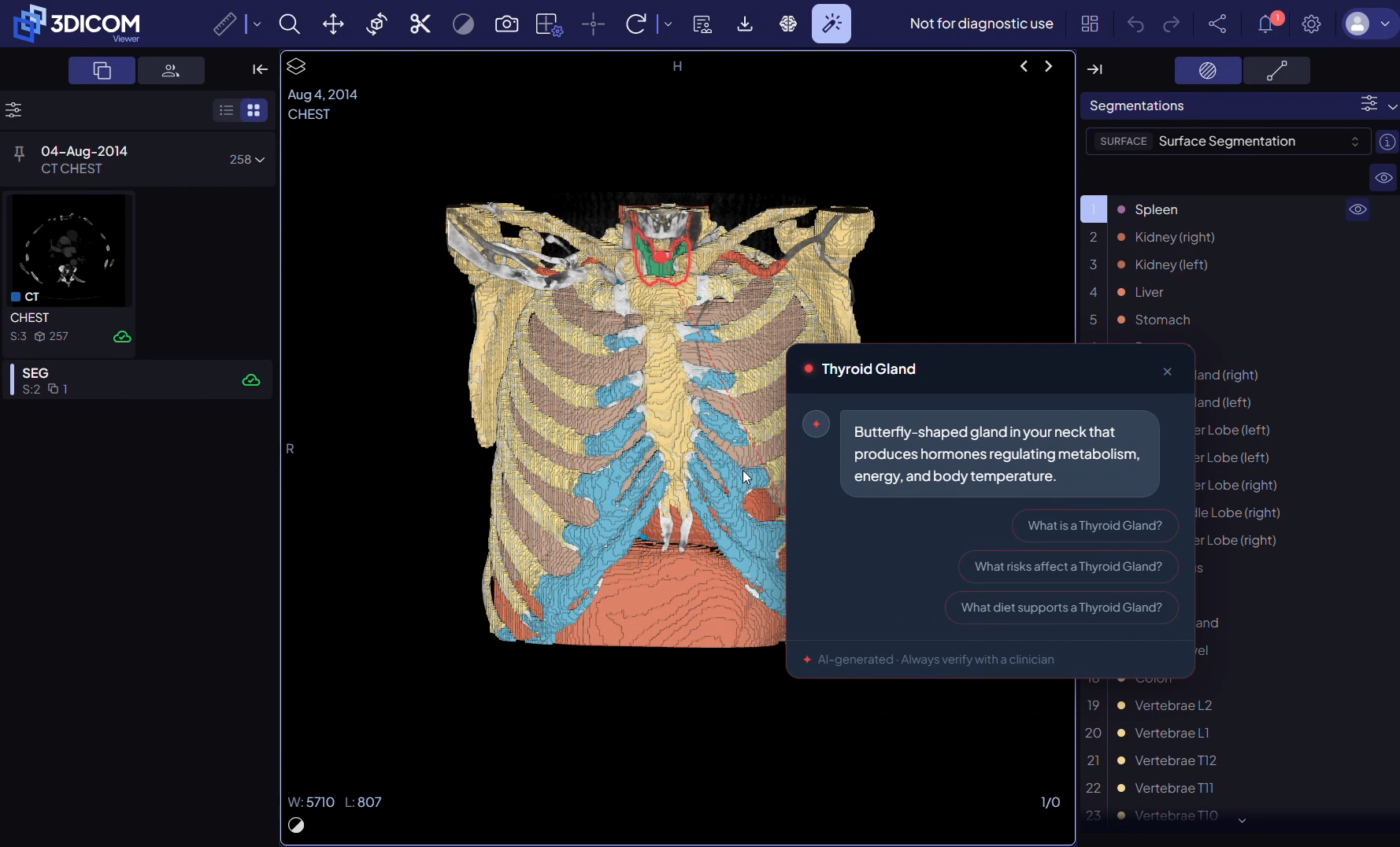
Puedes regresar a los resultados de segmentación en cualquier momento al reabrir el estudio desde Escaneos y registros y cargando el archivo SEG desde Estudiar en el navegador.
Resultado
Después de completar estos pasos, podrás ejecutar con éxito el modelo de IA TotalSegmentator en el visor 3DICOM, seleccionar estudios y series apropiados, monitorear el estado del procesamiento y cargar los resultados de segmentación completados para su revisión y análisis posterior.