What is TotalSegmentator?
TotalSegmentator is an AI Model that automatically identifies, segments, and labels anatomical structures in compatible CT and MRI studies.
How to Run & Load TotalSegmentator Outputs
Overview
This guide explains how to run the TotalSegmentator AI model in the 3DICOM Viewer and review its segmentation outputs for CT and MRI studies. You will learn how to launch the model, monitor processing, and view and interact with the generated anatomical segments.
Before you begin
Confirm you have high-quality imaging that covers the complete anatomy.
Avoid using series with missing slices or poor image quality, as these can affect segmentation accuracy.
To quickly check, preview the series in 3D in the 3DICOM Viewer. Clear and complete anatomy increases the reliability of AI segmentation results.
Step-by-step instructions
Running the TotalSegmentator AI model
Step 1. Select the brain-shaped icon in the toolbar to open the AI Model Marketplace.
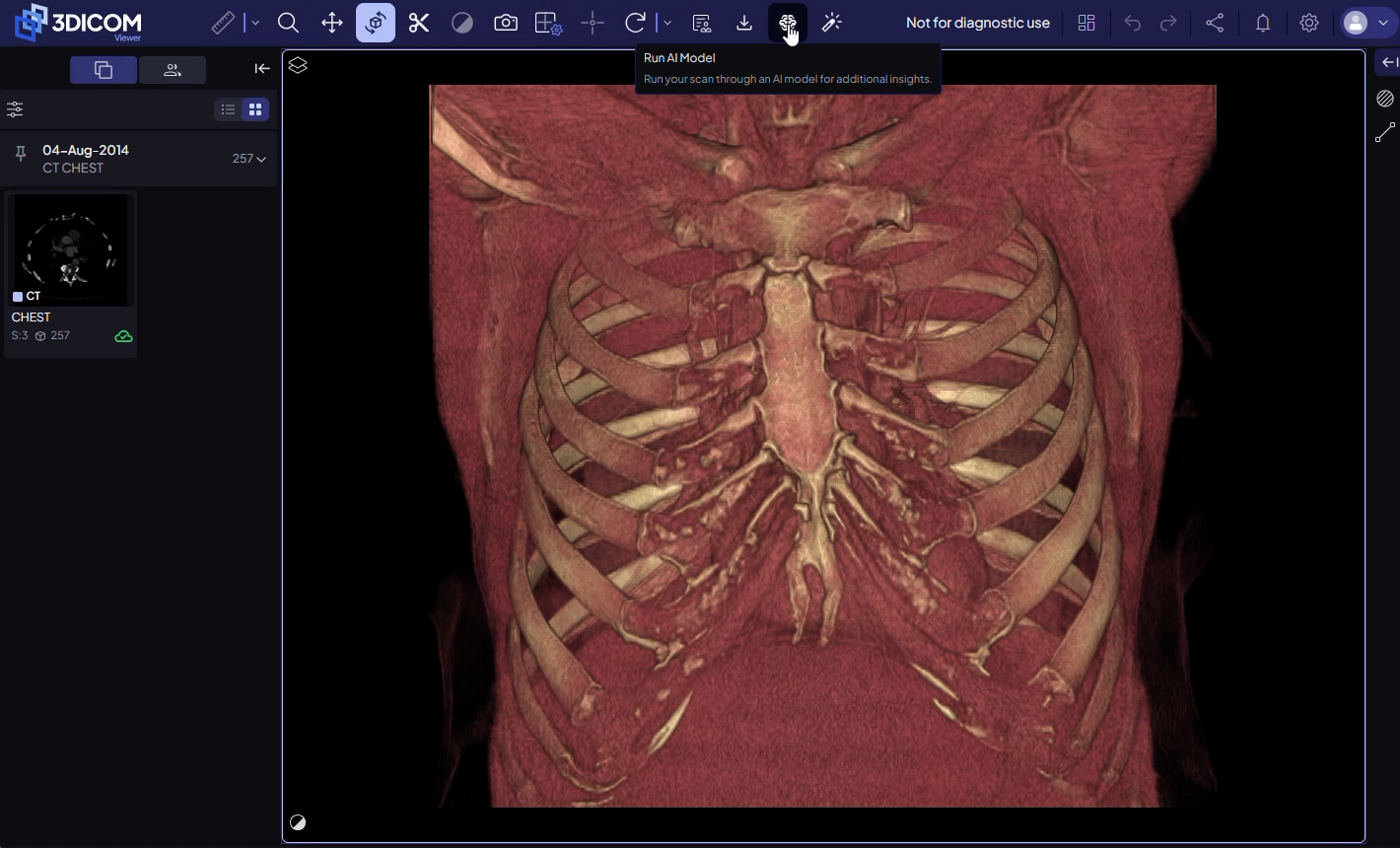
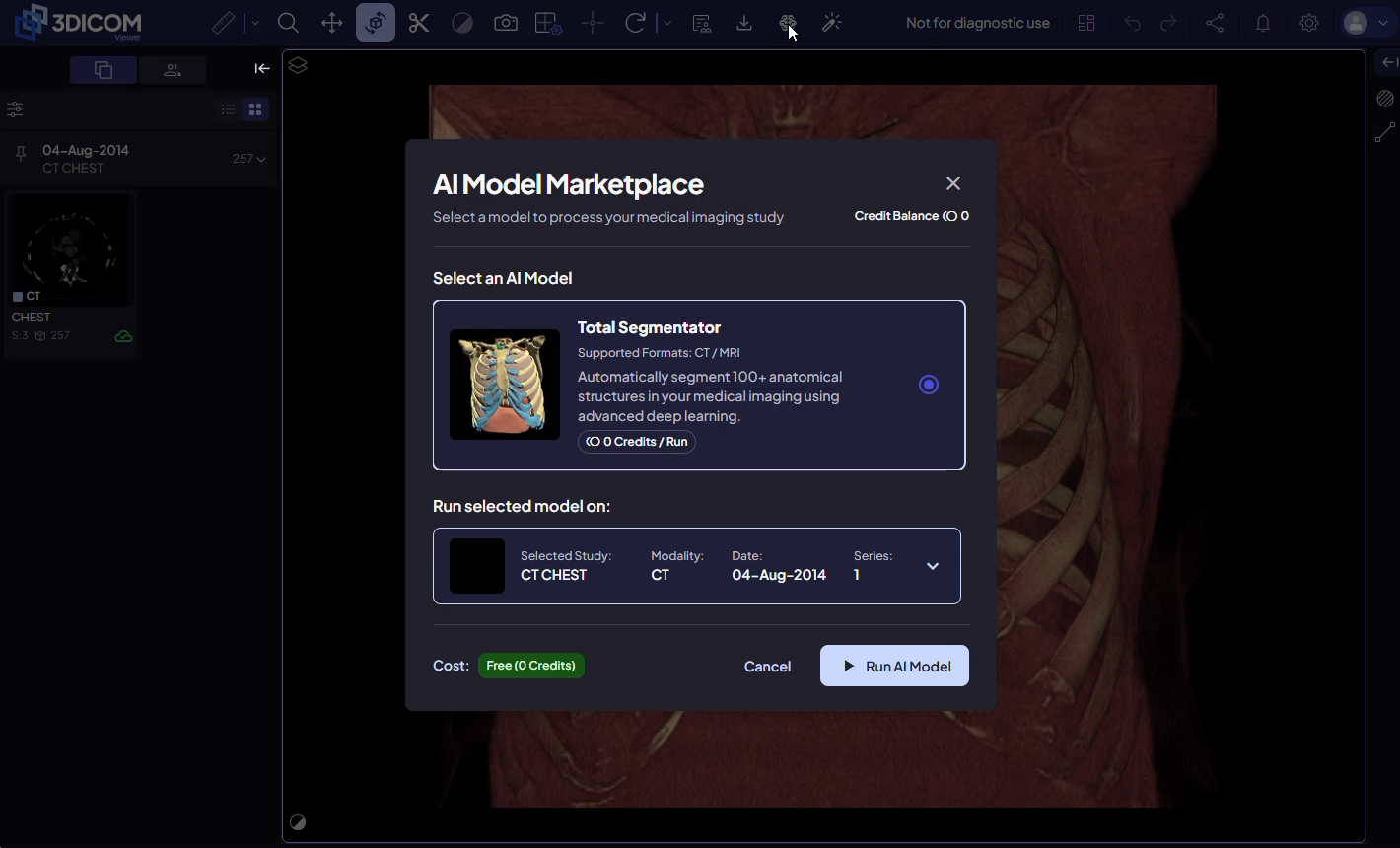
The Model Marketplace displays all AI models available to your account and your current credit balance.
Select study and series
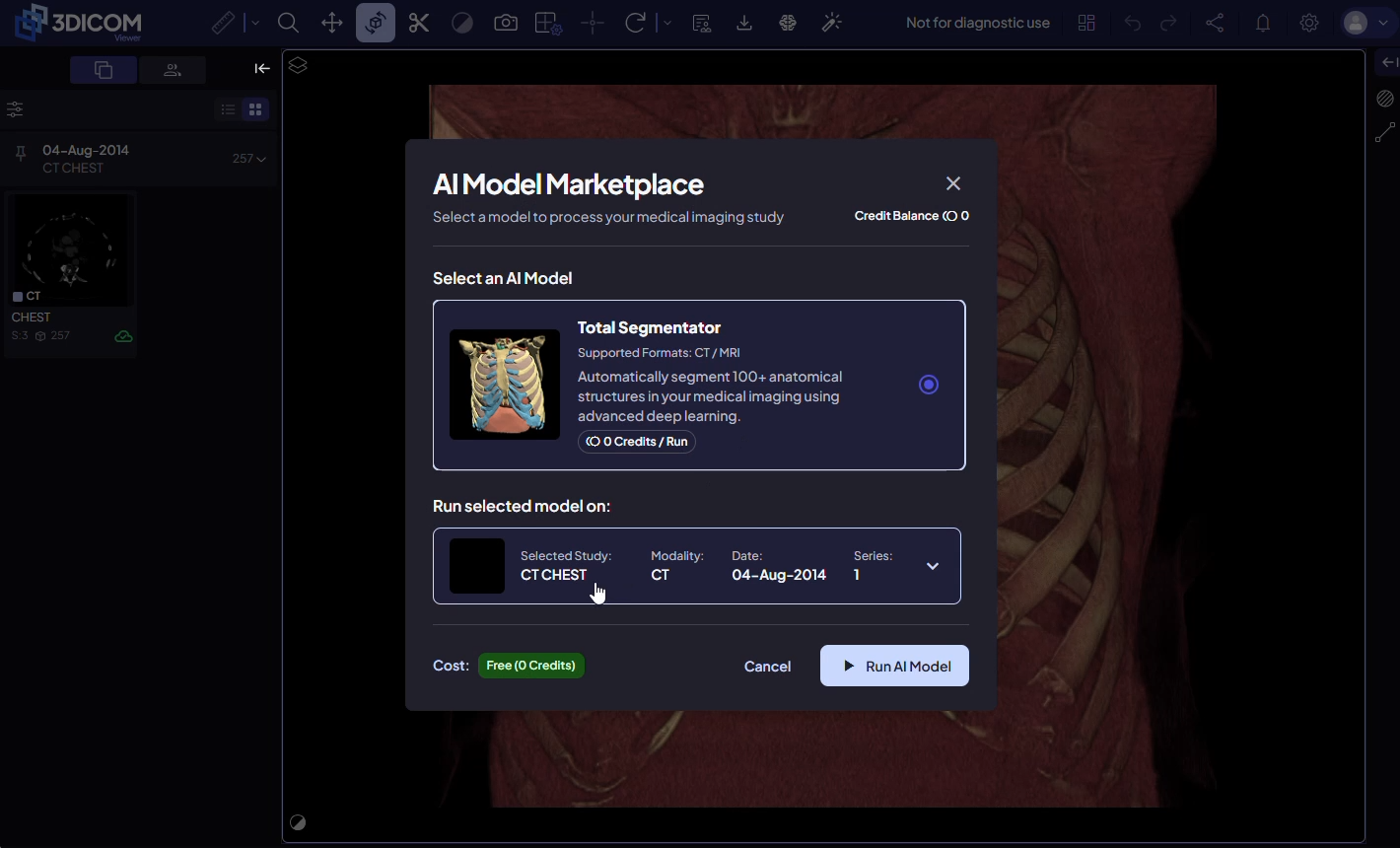
Step 2. Select the study you want to process in the Marketplace.
Step 3. If the study includes multiple imaging series, choose which series to include. All series are preselected. Deselect any you do not want processed. Series names and slice counts will match the previews in the Study Browser.
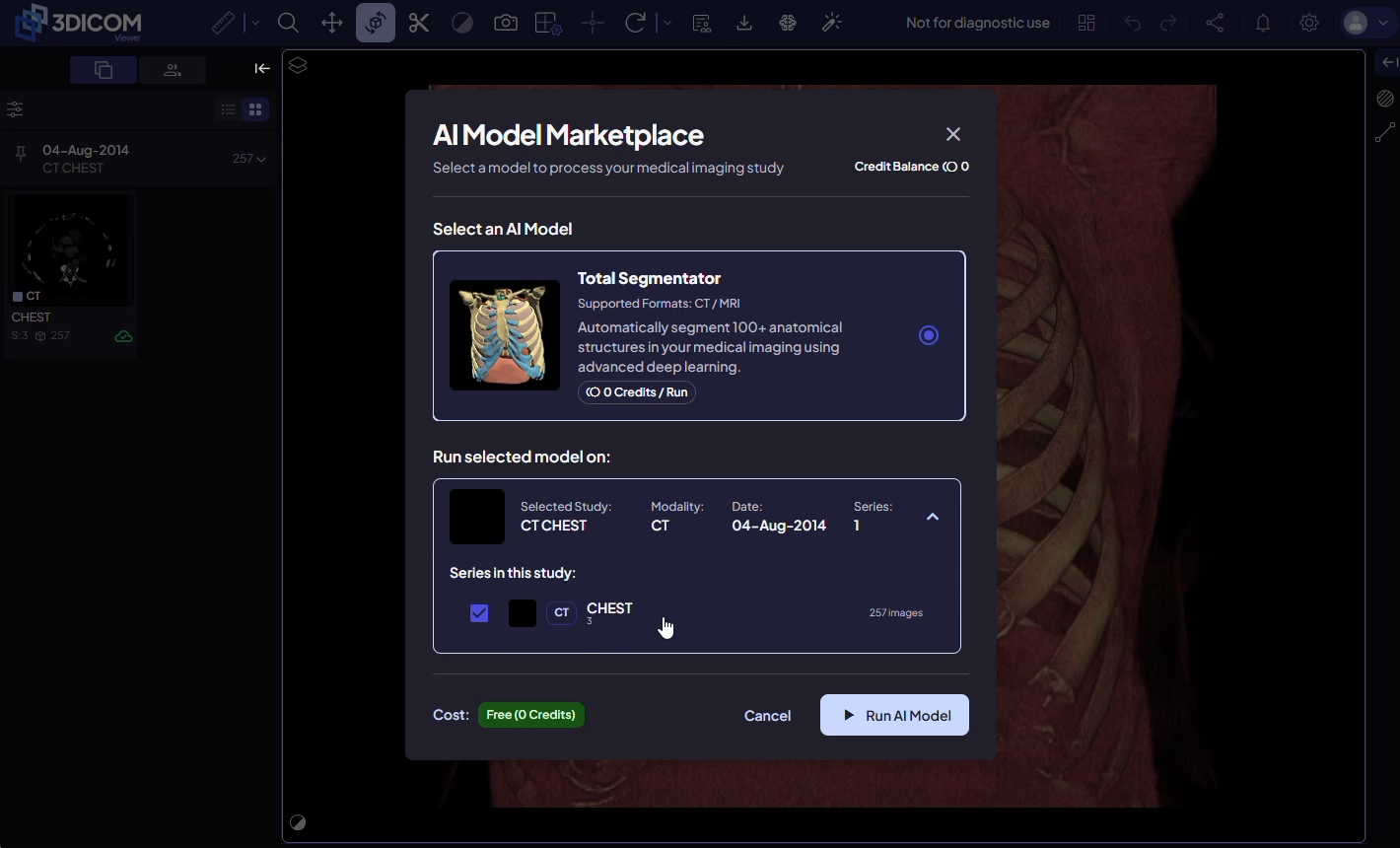
Step 4. Click Run AI Model to launch the process. The model runs in the background. Processing time can take up to twenty minutes, depending on the number and size of the selected series.
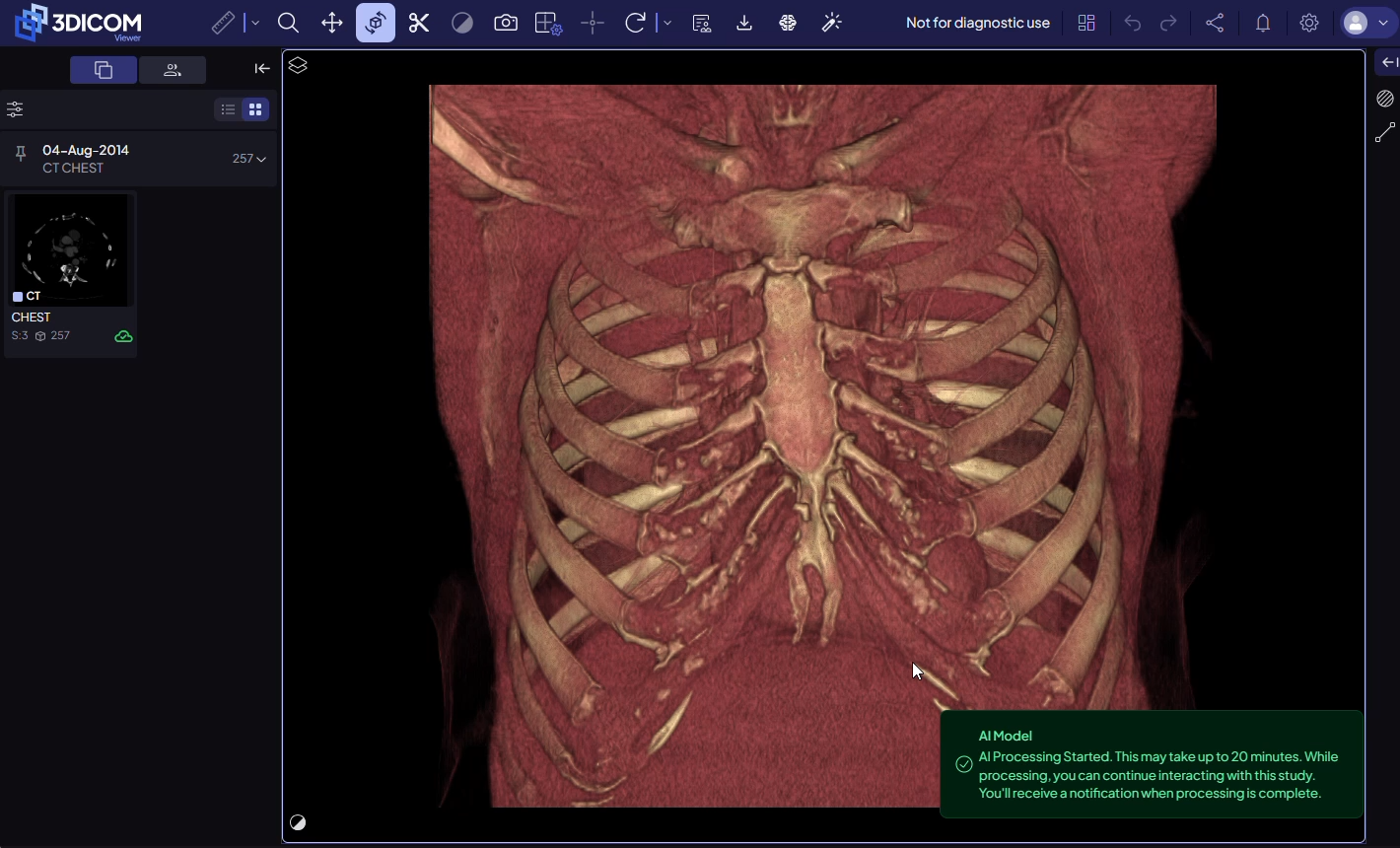
You may continue using the viewer or other platform features while the model processes your study.
Monitor processing and notifications
Step 5. When processing is complete, a notification appears in the upper right corner of the interface.
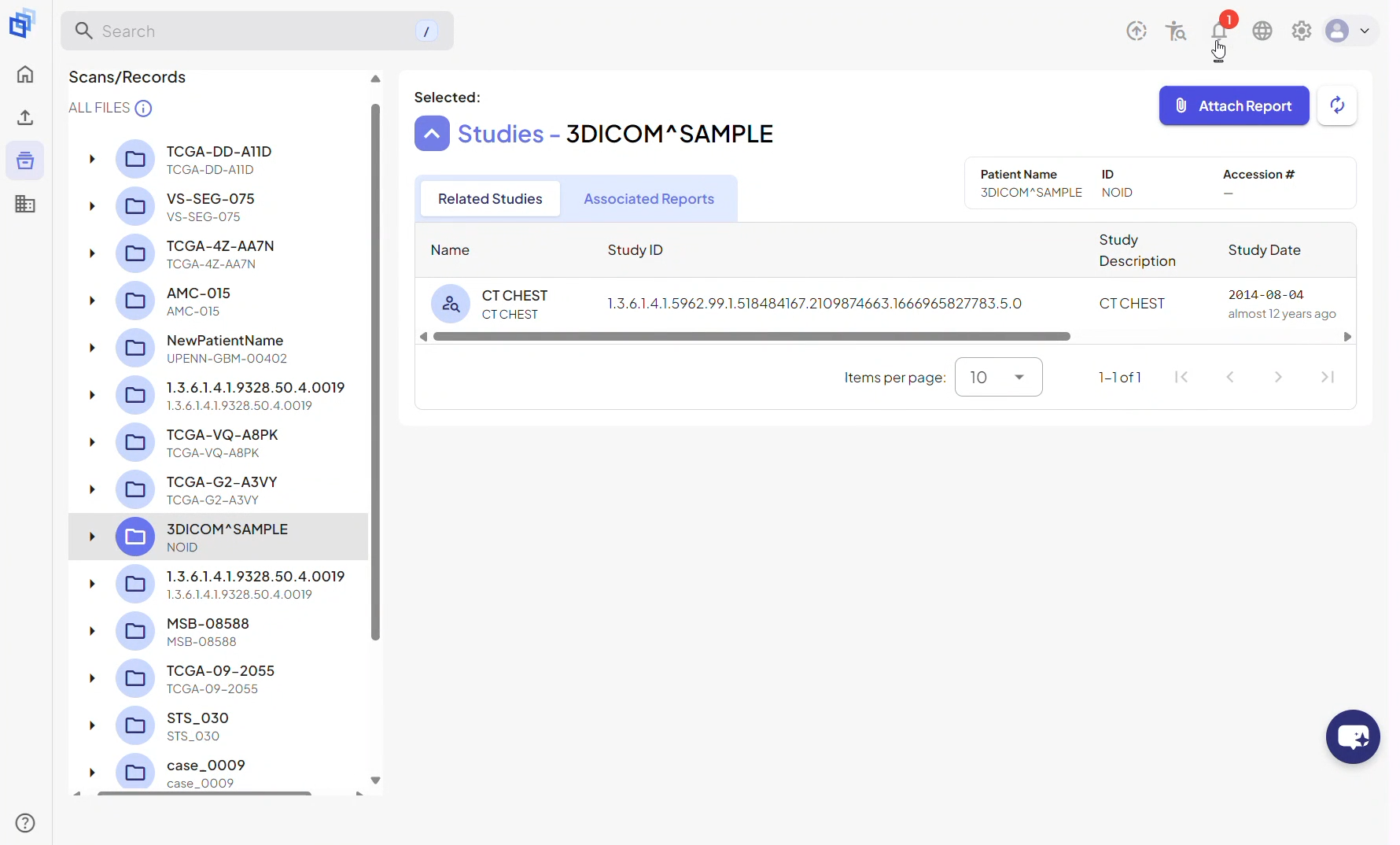
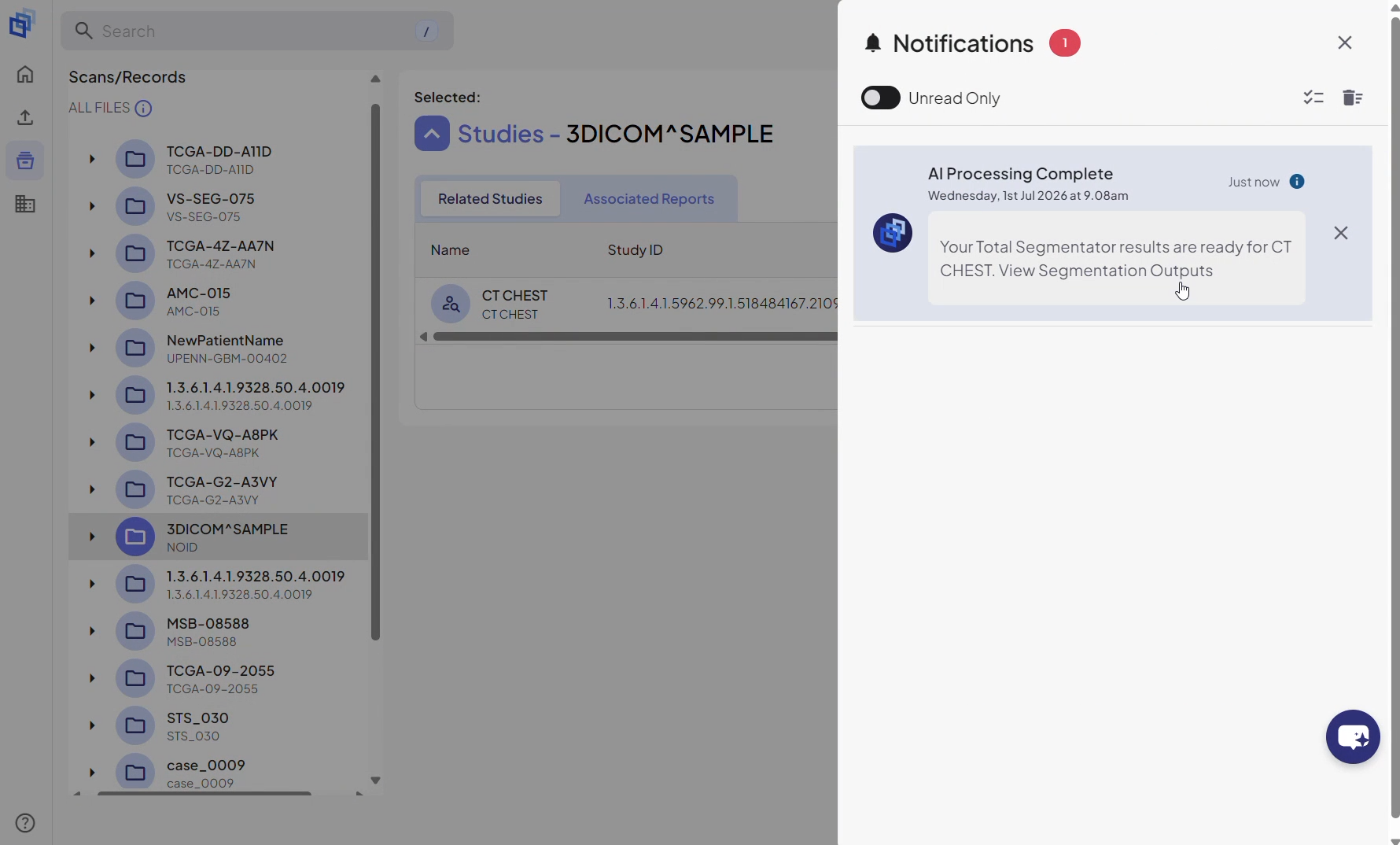
Step 6. Click the notification to open the processed study in the Viewer Segmentation workspace. You can also access this workspace from the workspace icon in the Viewer toolbar at any time.
View and interact with segmentation outputs
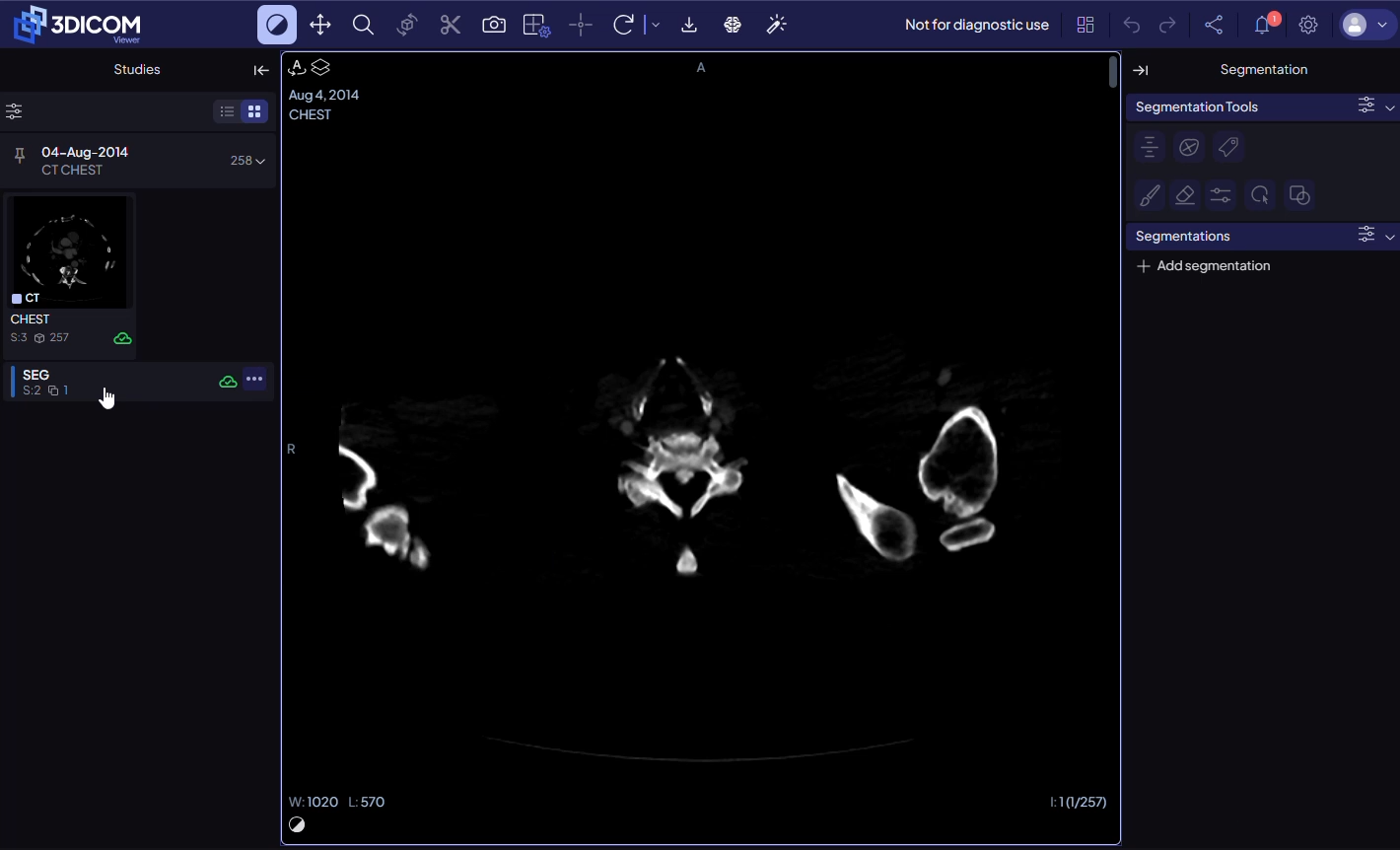
Step 7. In the Study Browser on the left, AI-generated SEG files (segmentation outputs) appear beneath the original imaging series. Double-click the relevant SEG file to load the segmentation for that series.
Step 8. The AI-generated anatomical segments become available in the Segmentation panel on the right. Browse, show, or hide individual structures as needed. Segmentation results display in both 2D and 3D viewports. Annotiva support is available (indicated by the magic wand icon in the toolbar) for interactive anatomical descriptions and learning.
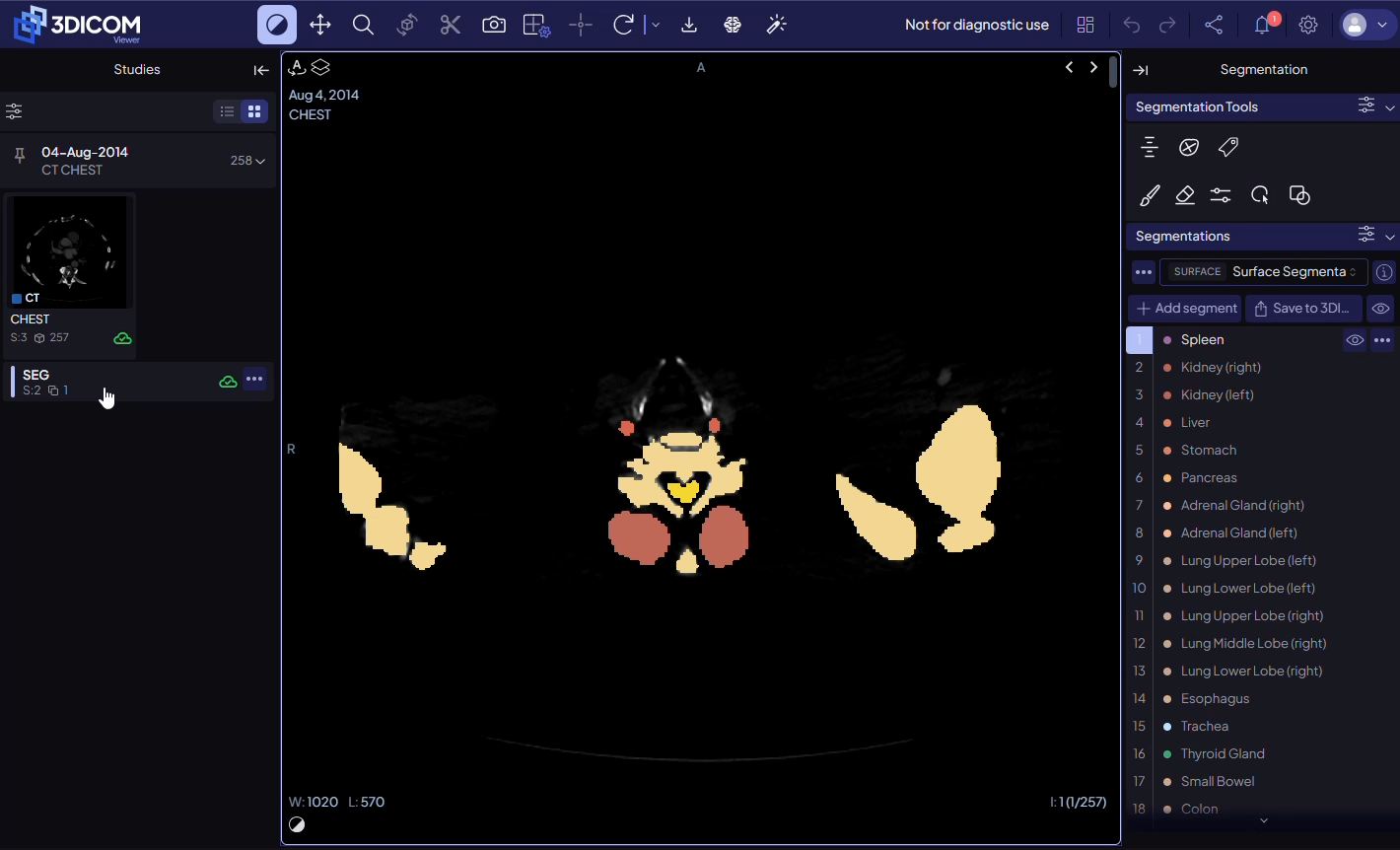
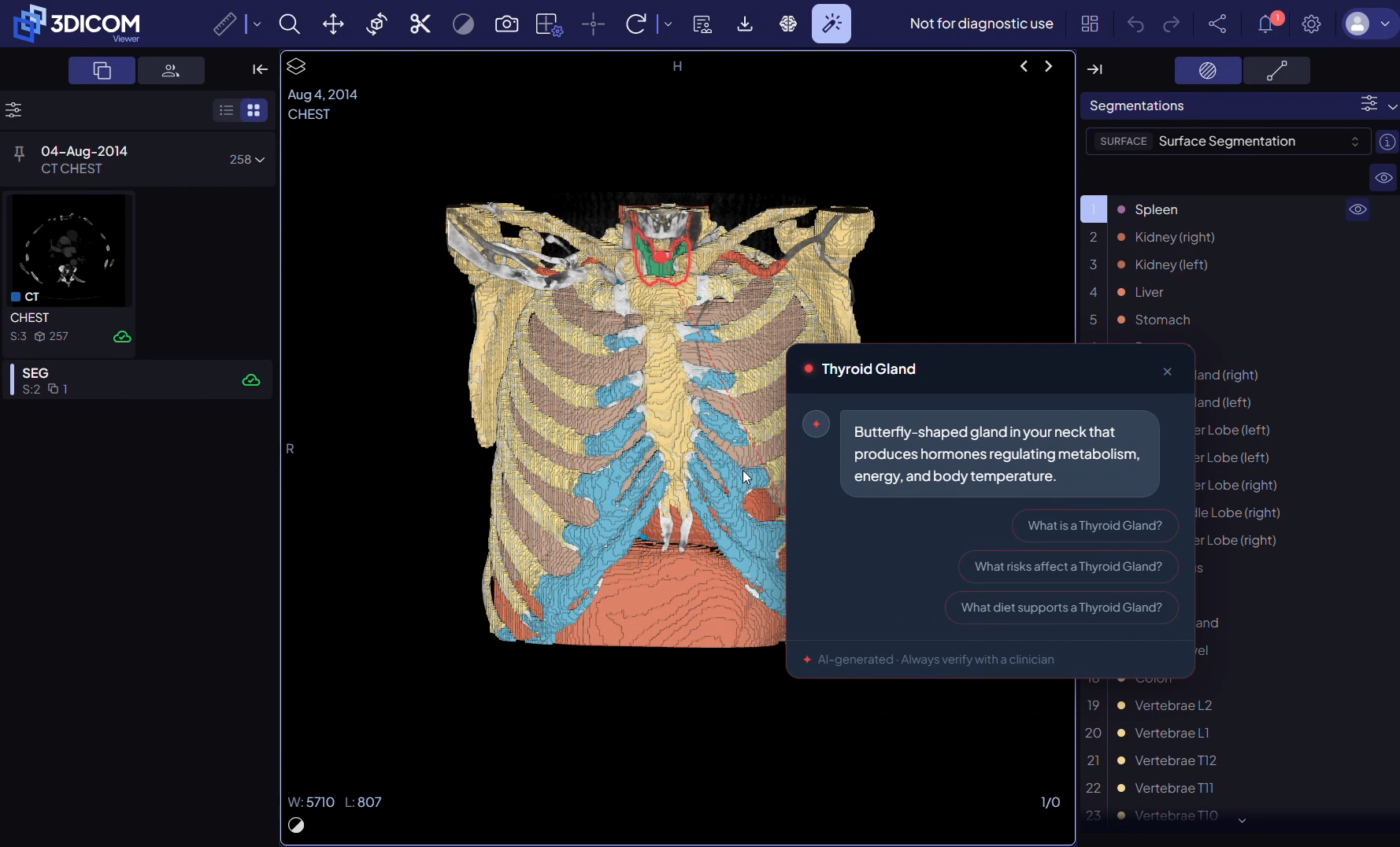
You can return to segmentation results at any time by reopening the study from Scans & Records and loading the SEG file from the Study Browser.
Result
After completing these steps, you can successfully run the TotalSegmentator AI model in the 3DICOM Viewer, select appropriate studies and series, monitor processing status, and load the completed segmentation results for review and further analysis.