Cambia tu contraseña en 3DICOM
Resumen
Aprende a cambiar tu contraseña en 3DICOM usando el menú de configuración dentro de la aplicación. Esta guía muestra cómo actualizar de forma segura tus datos de inicio de sesión paso a paso.
Instrucciones paso a paso
Abrir configuración
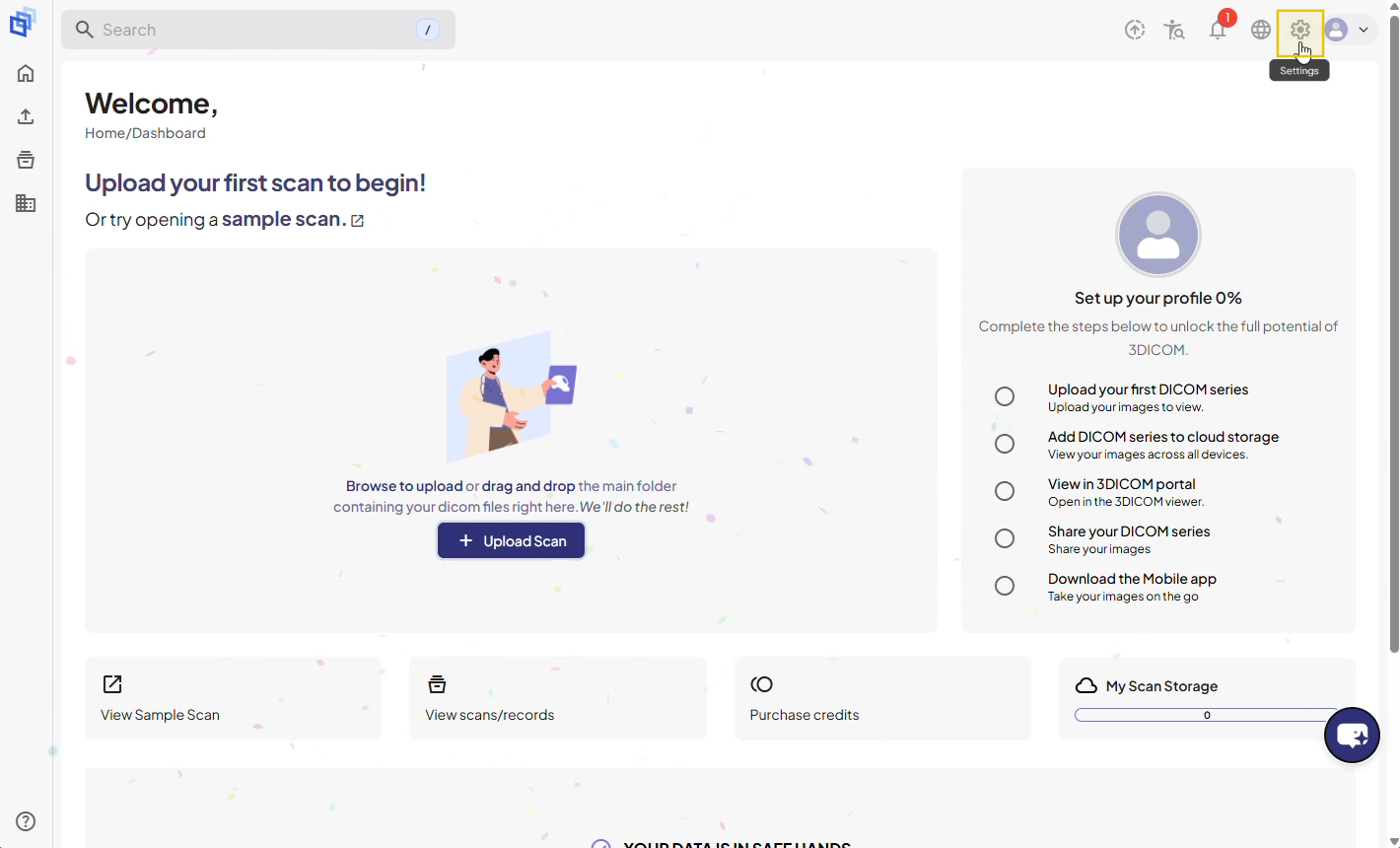
Paso 1. Ve a la pantalla de bienvenida en 3DICOM.
Paso 2. Haz clic Configuración icono en la parte superior derecha de la interfaz.
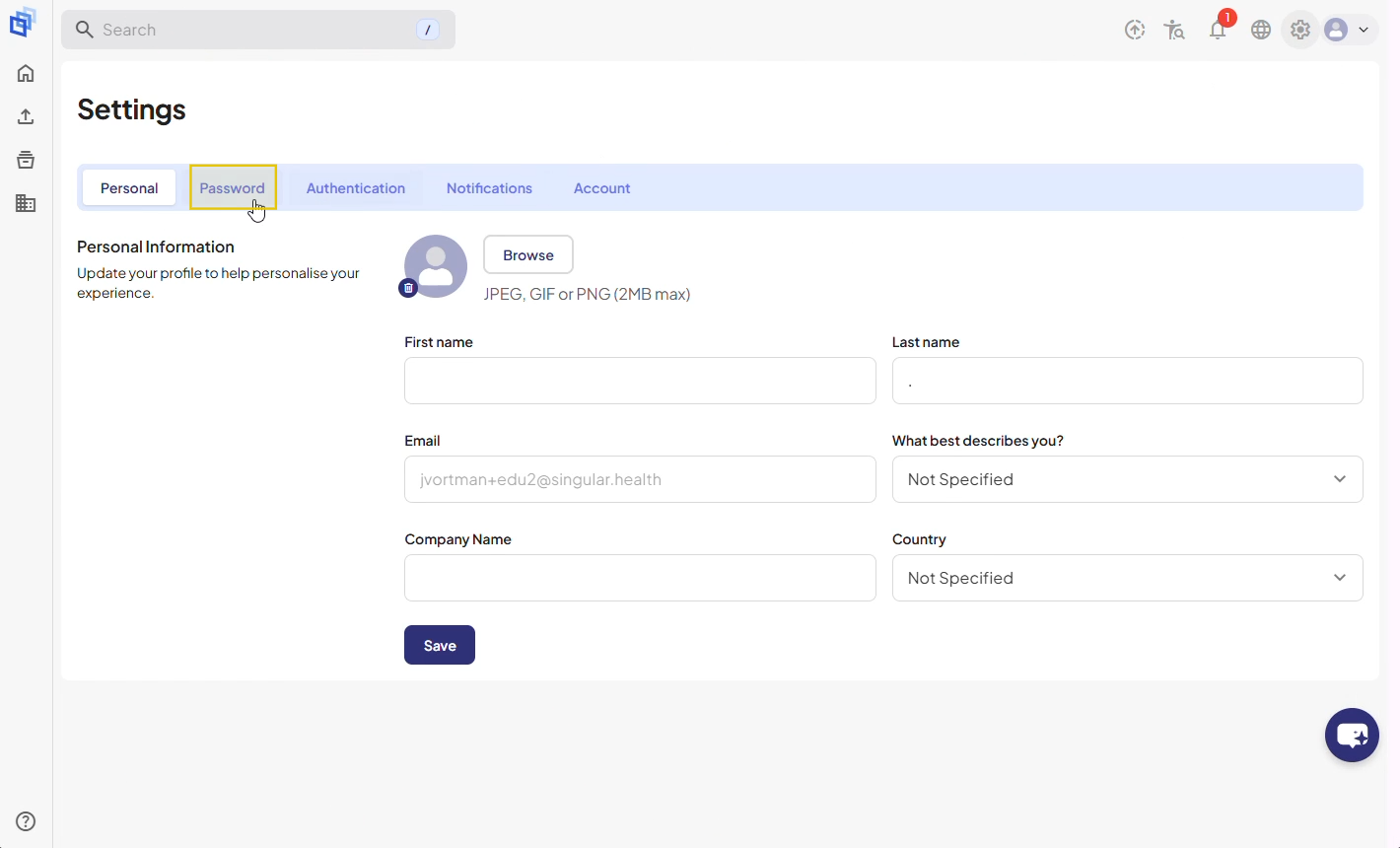
Abrir la pestaña de contraseña
Paso 3. En Configuración, seleccione el Contraseña Pulsa la tecla Tab para acceder a la sección Cambiar contraseña.
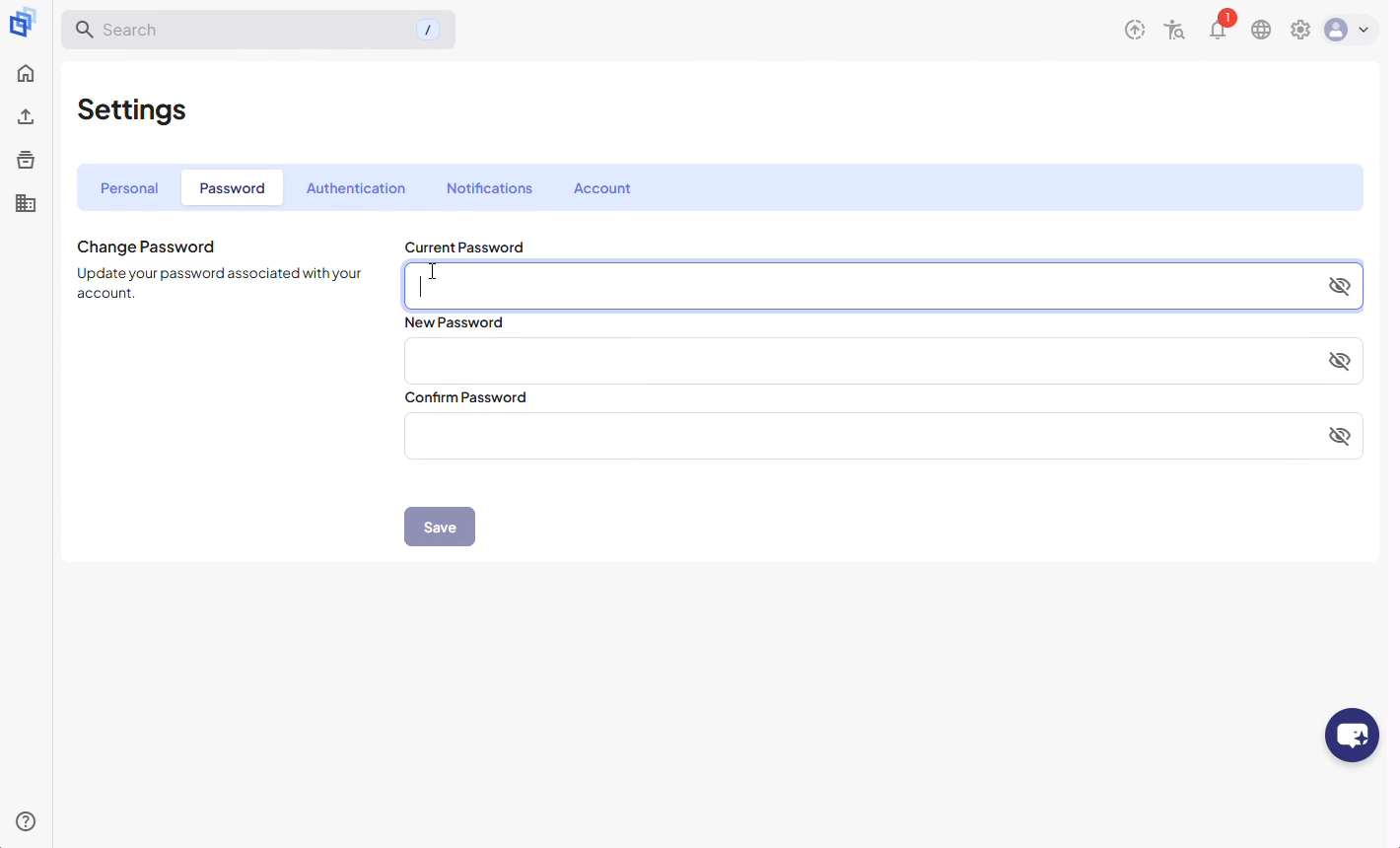
Ingresa tu contraseña actual
Paso 4. Haz clic Contraseña actual campo e ingrese su contraseña actual o temporal.
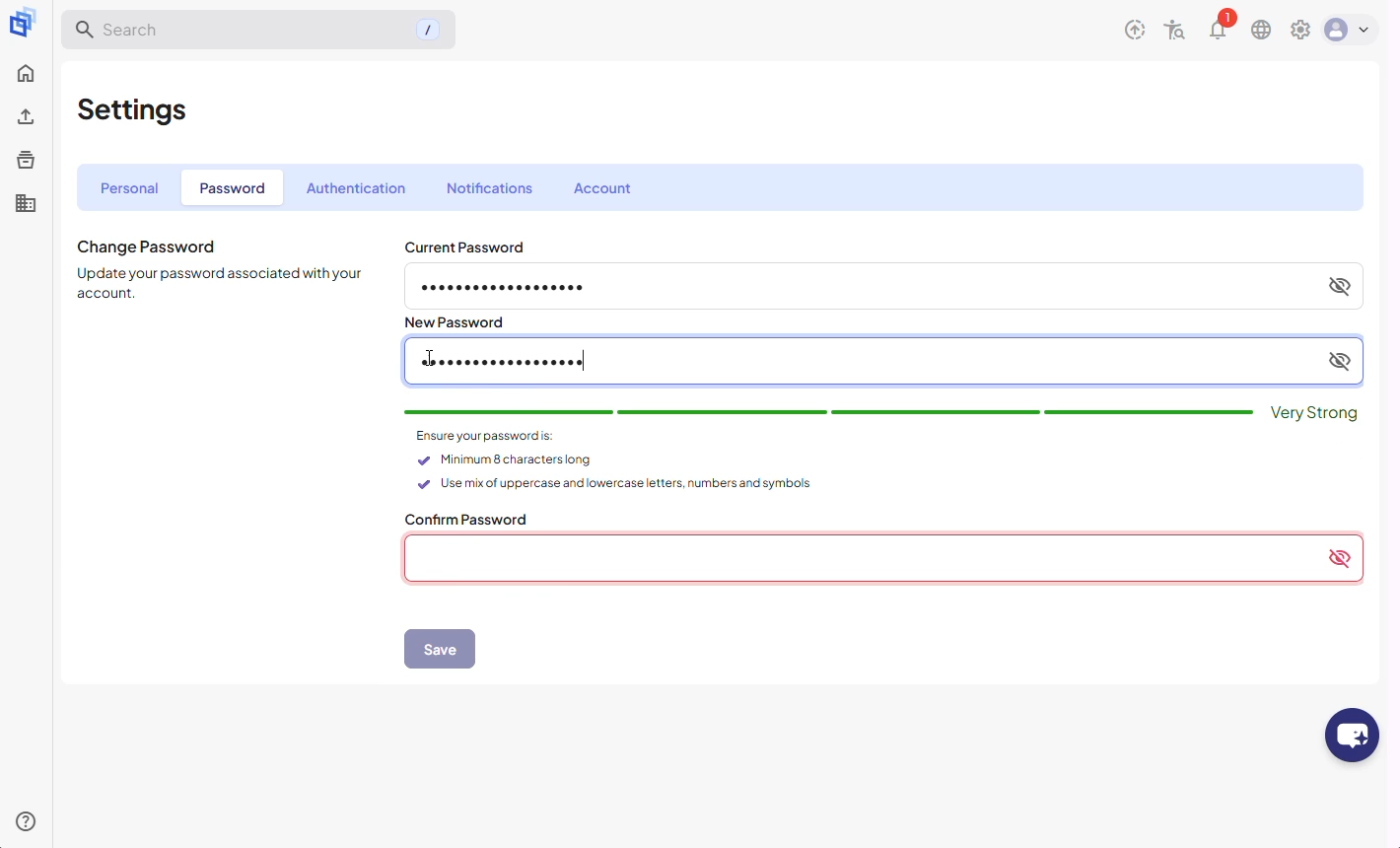
Ingresa tu nueva contraseña
Paso 5. Haz clic en el campo de tu nueva contraseña y escribe tu nueva contraseña. Sigue los requisitos que se muestran debajo del campo.
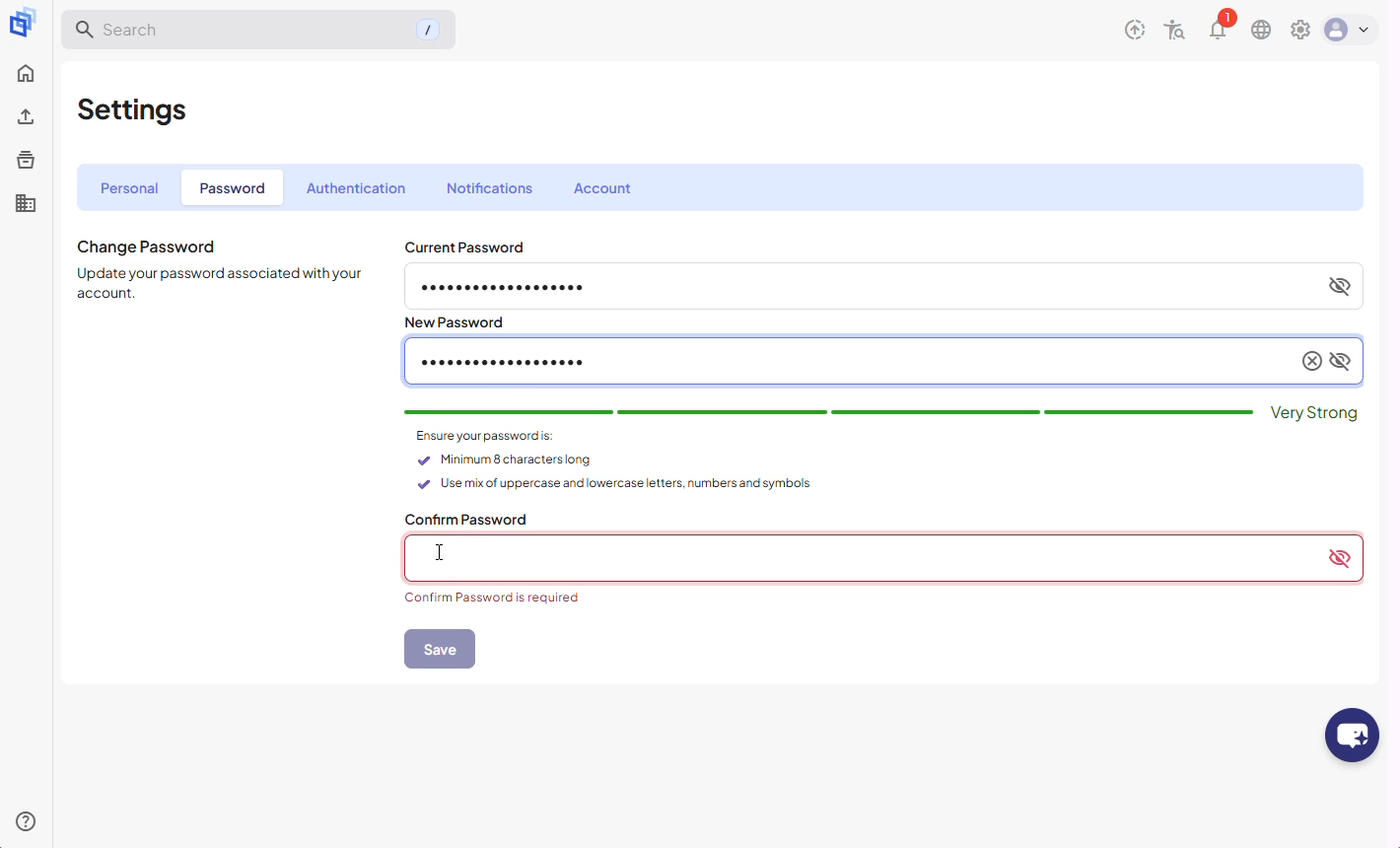
Paso 6. Vuelve a introducir tu nueva contraseña para confirmar.
Paso 7. Clic Guardar para actualizar tu contraseña.
Confirmación
Paso 8. Cuando el cambio sea exitoso, aparecerá un mensaje de confirmación en la parte superior de la pantalla.
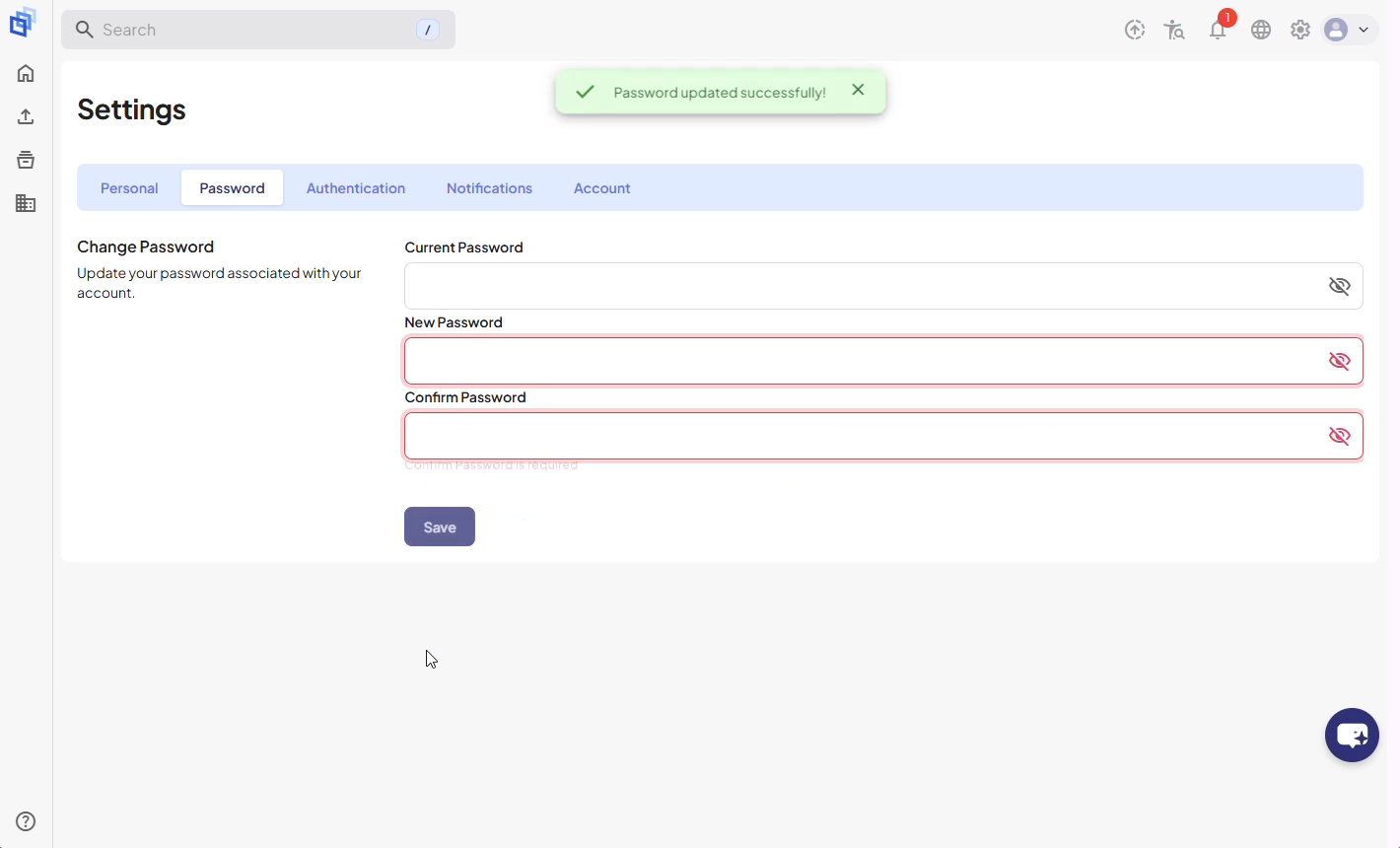
Resultado
Tu contraseña ha sido actualizada exitosamente en 3DICOM.