Change your password in 3DICOM
Overview
Learn how to change your password in 3DICOM using the in-app settings menu. This guide shows how to securely update your login details step by step.
Step-by-step instructions
Open settings
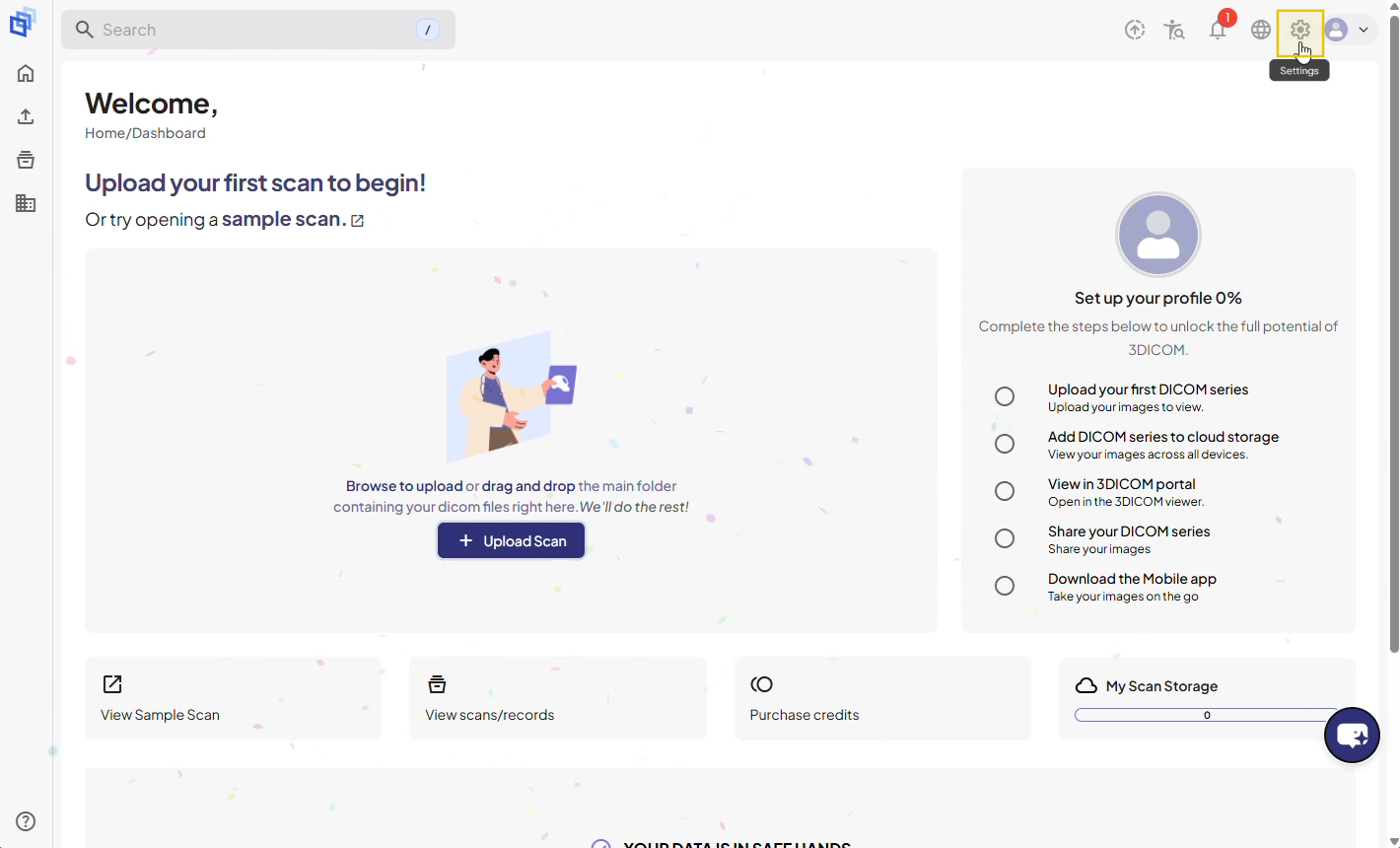
Step 1. Go to the welcome screen in 3DICOM.
Step 2. Click the Settings icon at the top right of the interface.
Open the password tab
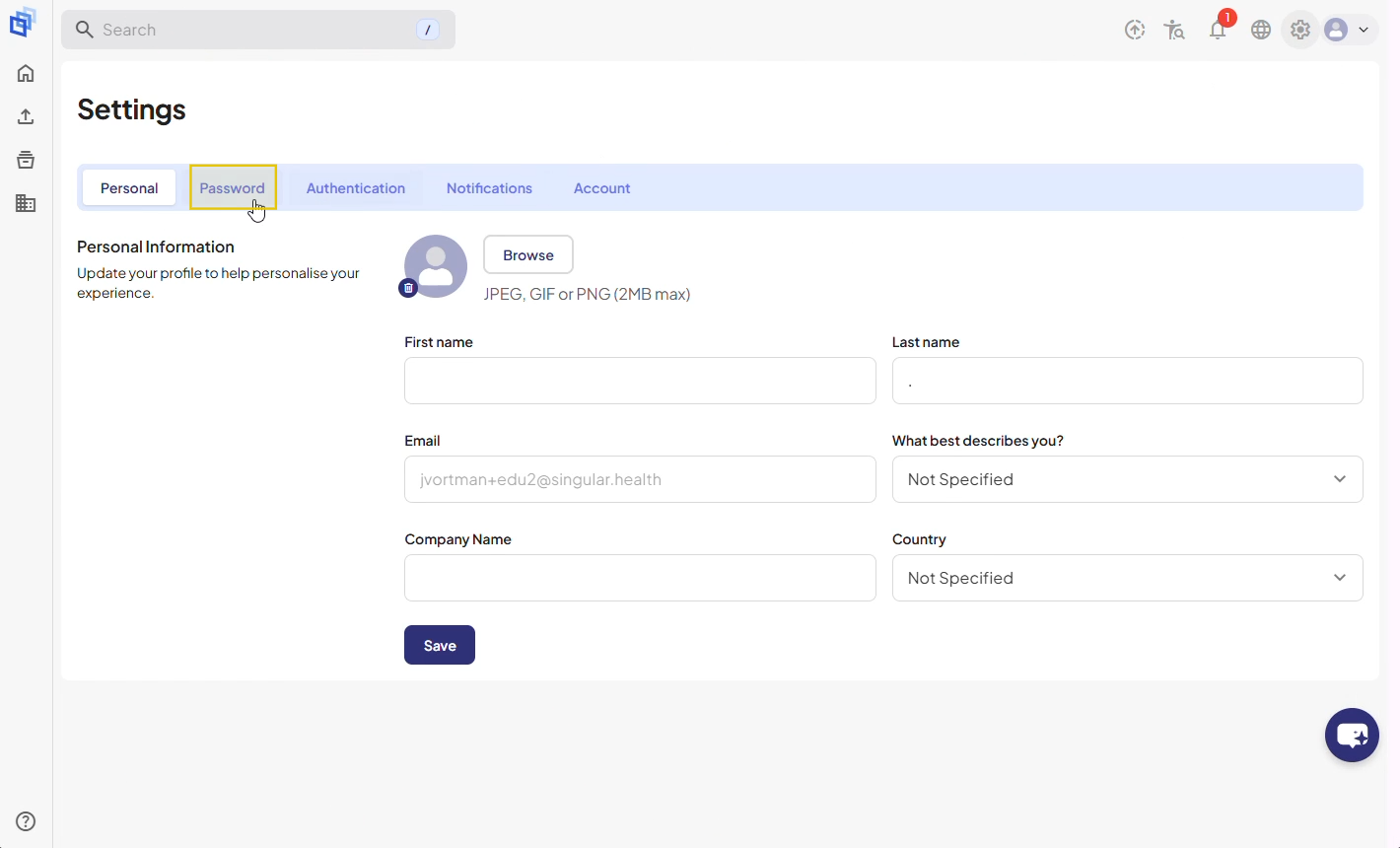
Step 3. In Settings, select the Password tab to access the Change Password section.
Enter your current password
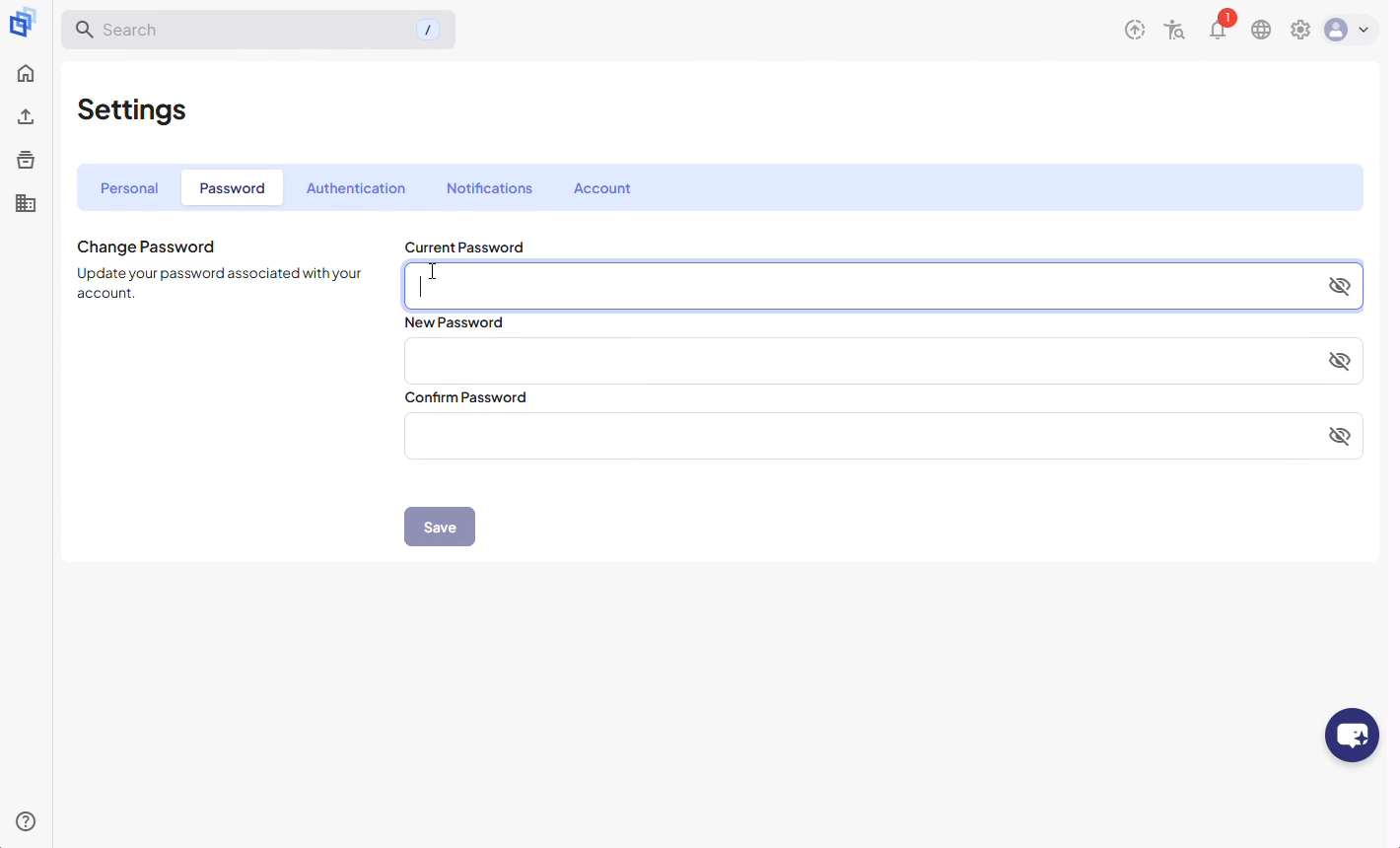
Step 4. Click the Current Password field and enter your current or temporary password.
Enter your new password
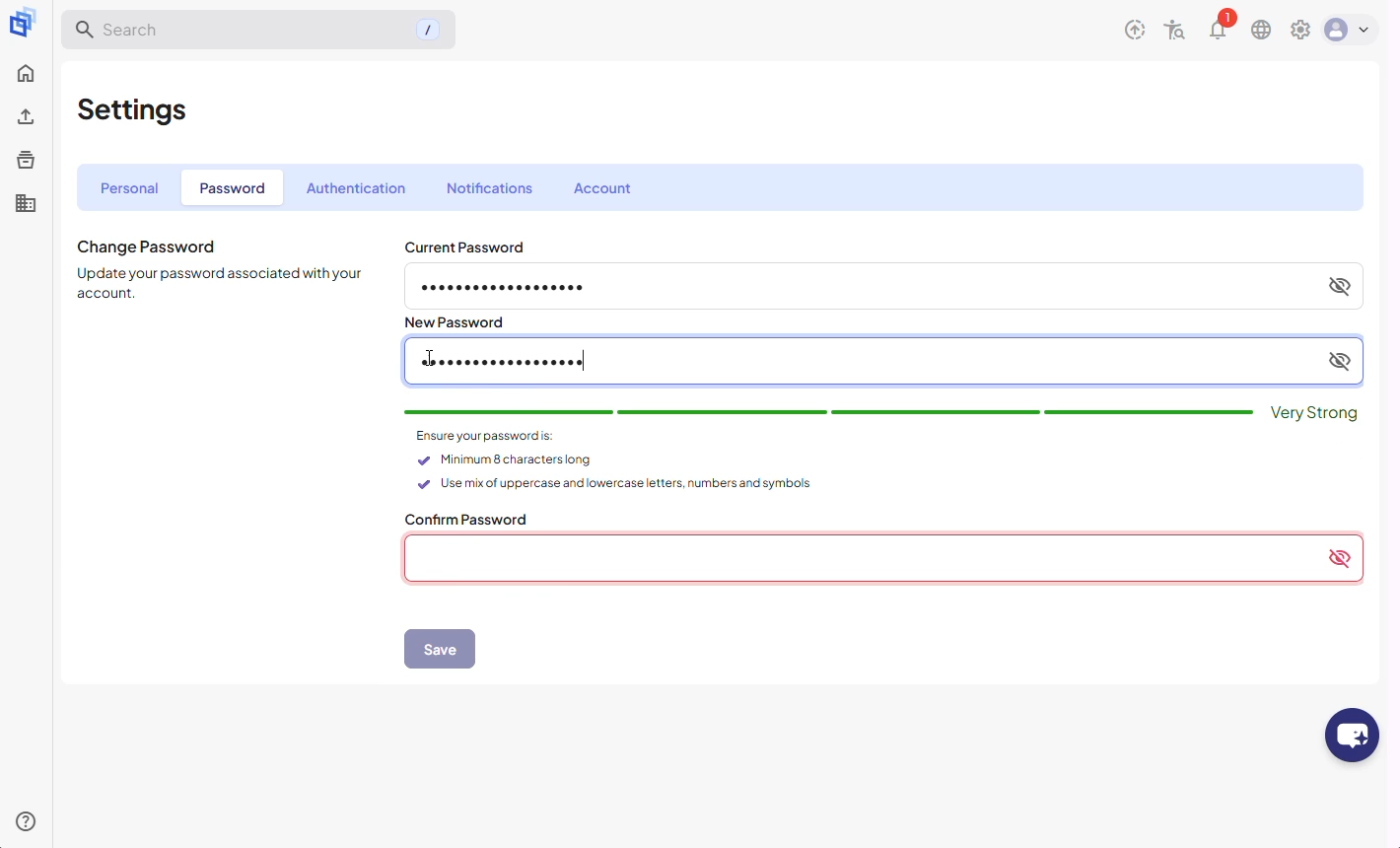
Step 5. Click the field for your new password and type your new password. Follow the requirements shown below the field.
Step 6. Re-enter your new password to confirm.
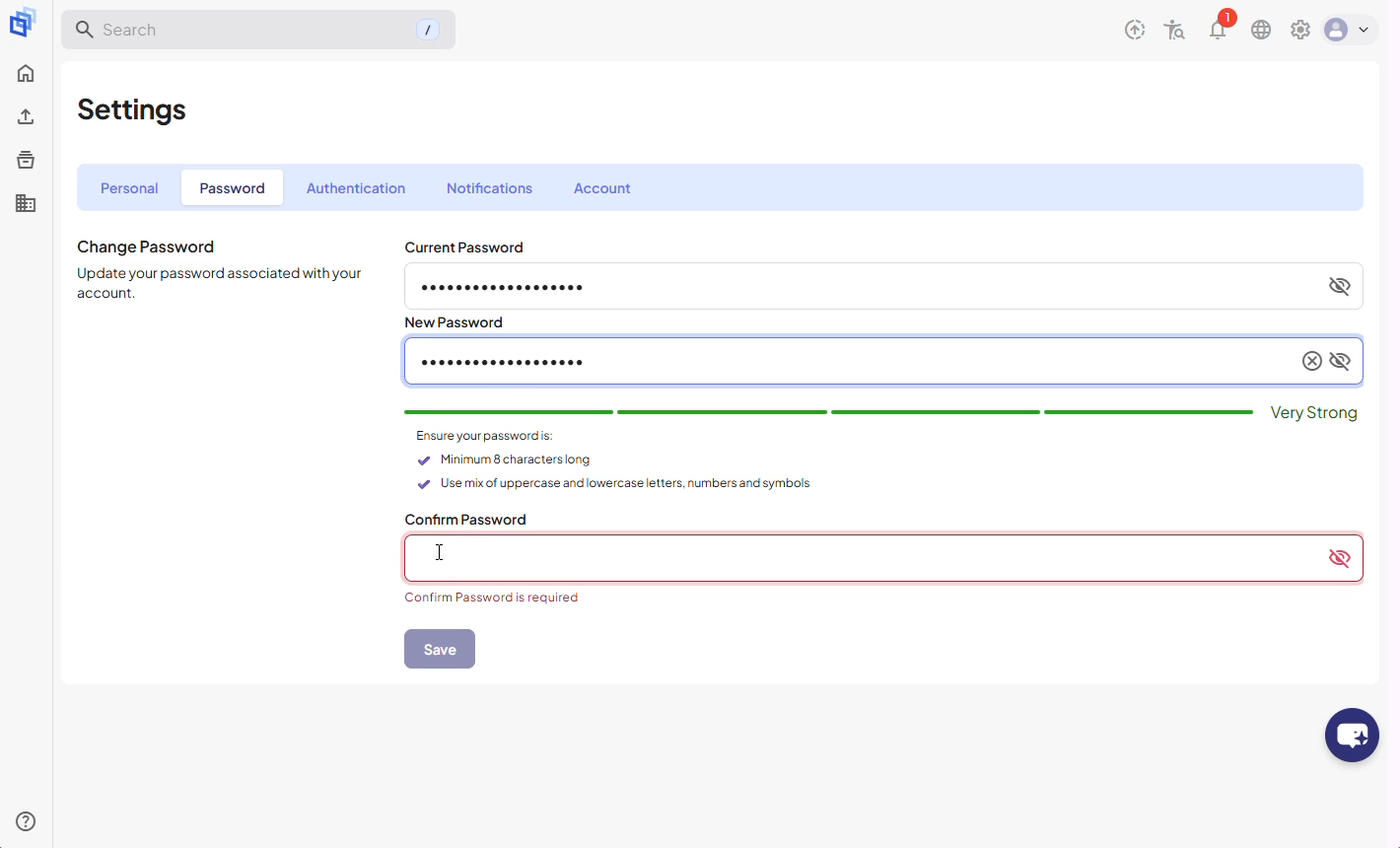
Step 7. Click Save to update your password.
Confirmation
Step 8. When the change is successful, a confirmation message appears at the top of the screen.
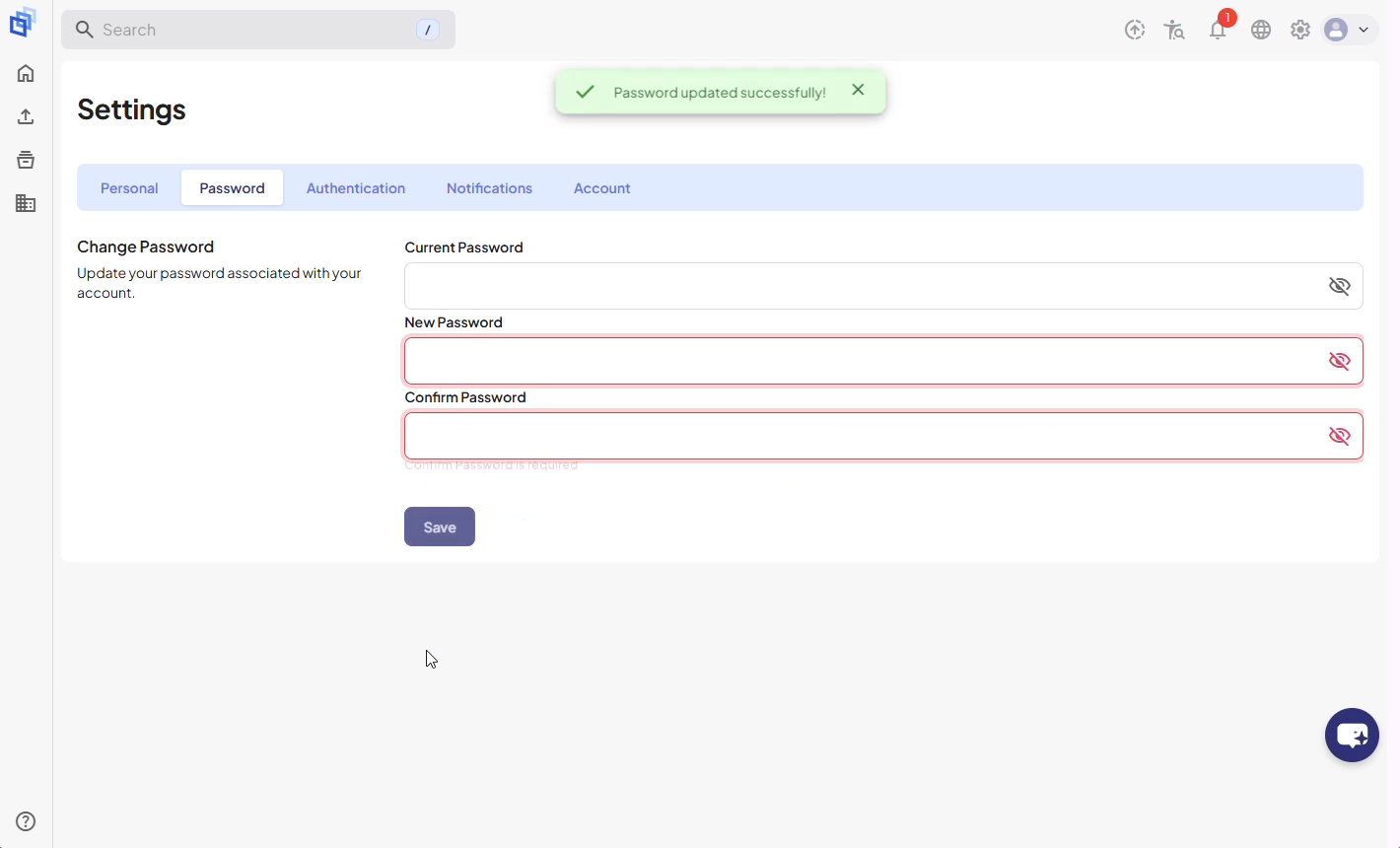
Result
Your password has now been updated successfully in 3DICOM.