Cómo subir imágenes médicas a 3DICOM por primera vez
Resumen
Esta guía explica cómo cargar imágenes médicas en 3DICOM, incluidos los pasos para anonimizar información confidencial, seleccionar opciones de almacenamiento y confirmar dónde se guardan sus archivos en la plataforma. Para aprender a cargar un escaneo desde un CD-ROM, lea este artículo.
Instrucciones paso a paso
Iniciar el proceso de carga de imágenes
Paso 1. Haz clic Subir escaneo botón o arrastra y suelta tus archivos de imágenes médicas en la zona de carga.
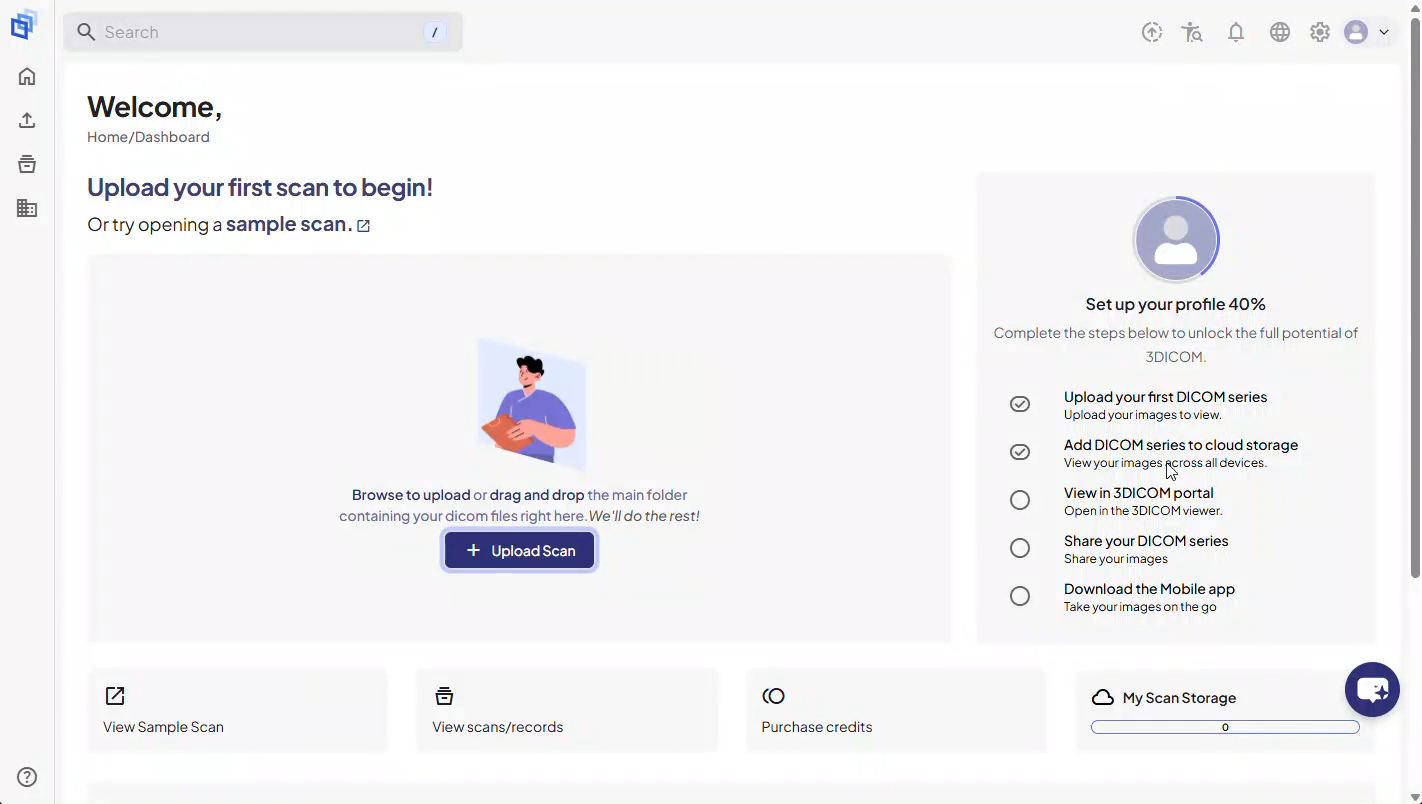
Paso 2. Cuando se abra la ventana emergente de carga, la plataforma buscará automáticamente tus estudios disponibles.
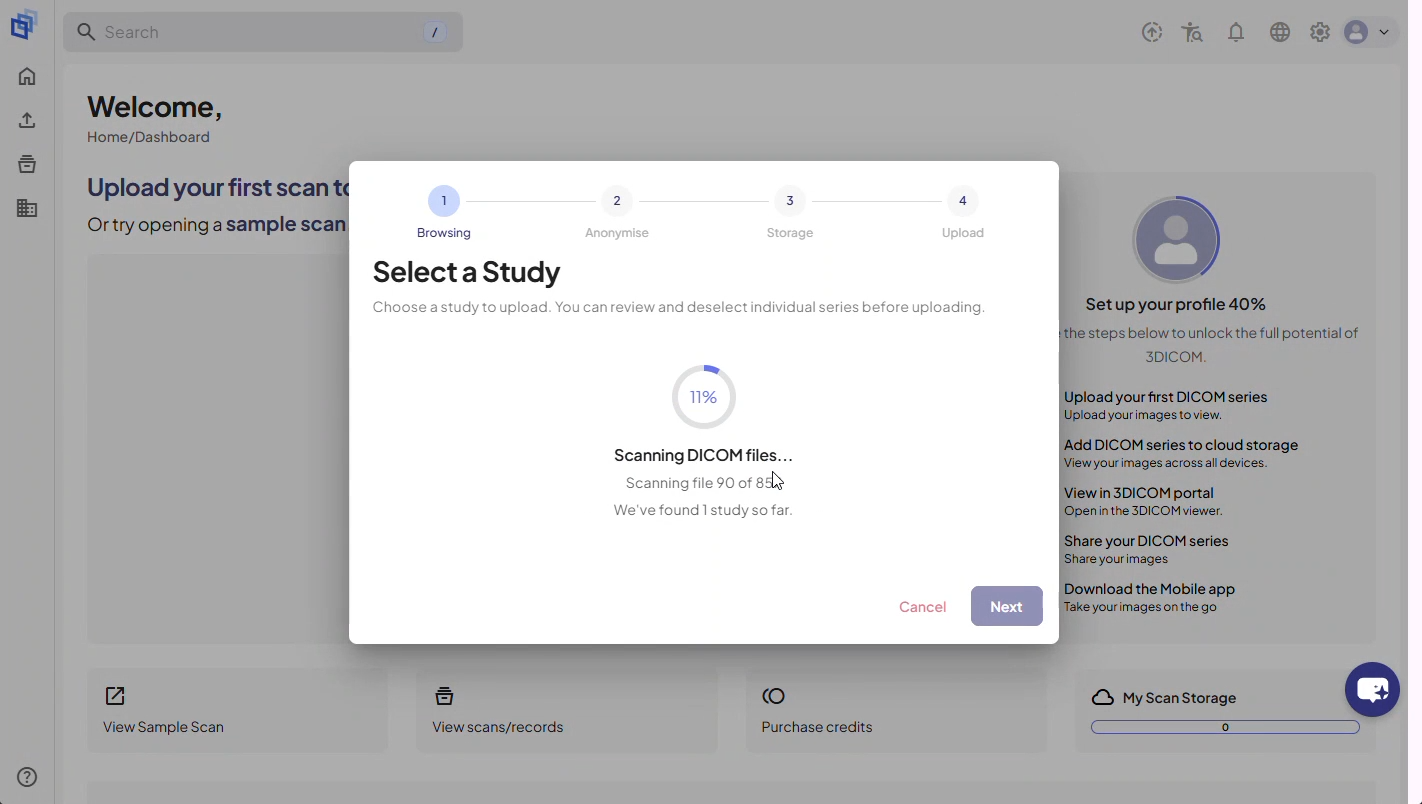
Paso 3. Revisa la lista para comprobar el contenido de cada estudio disponible.
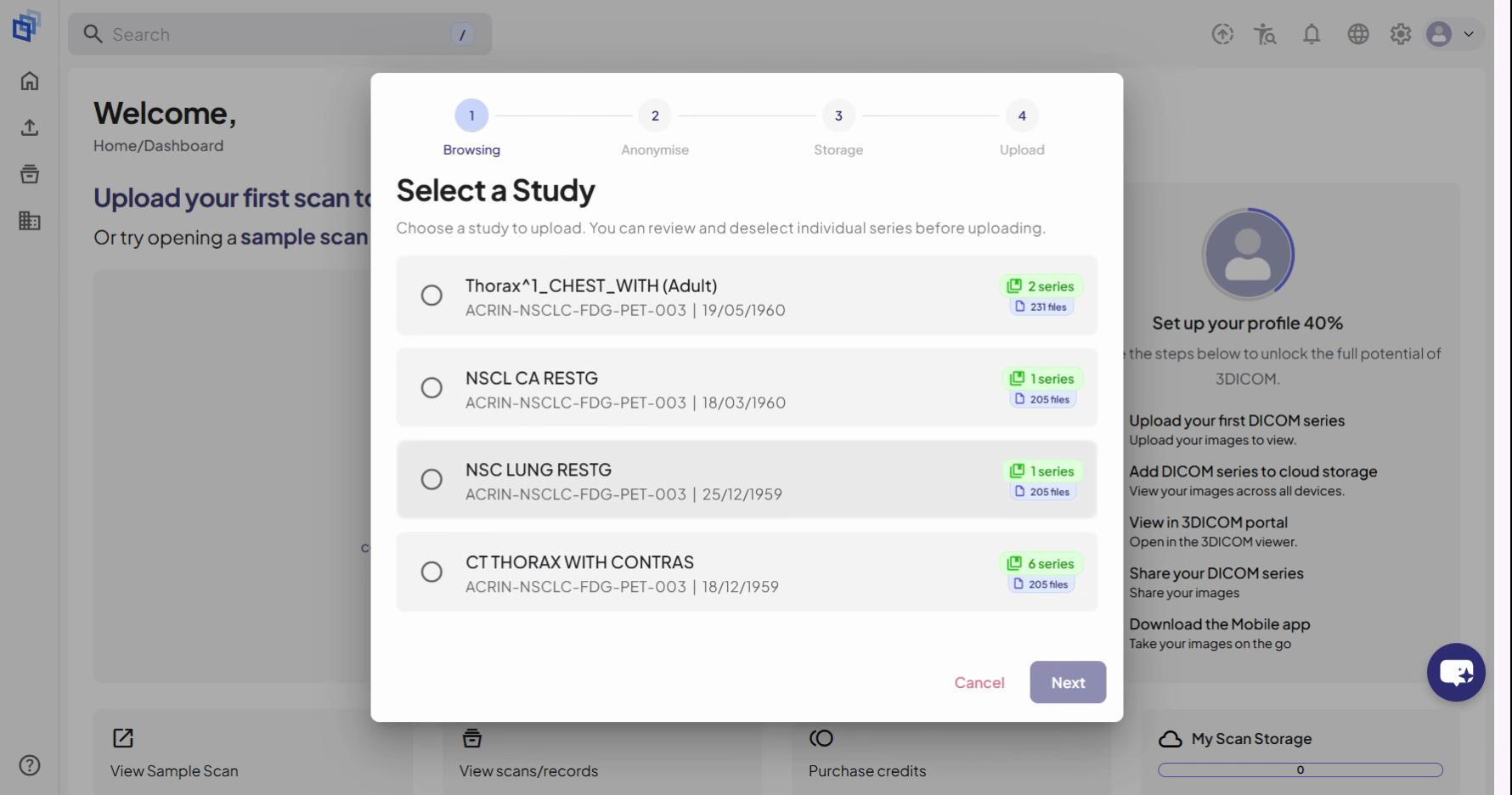
Paso 4. Selecciona el estudio que quieres subir.
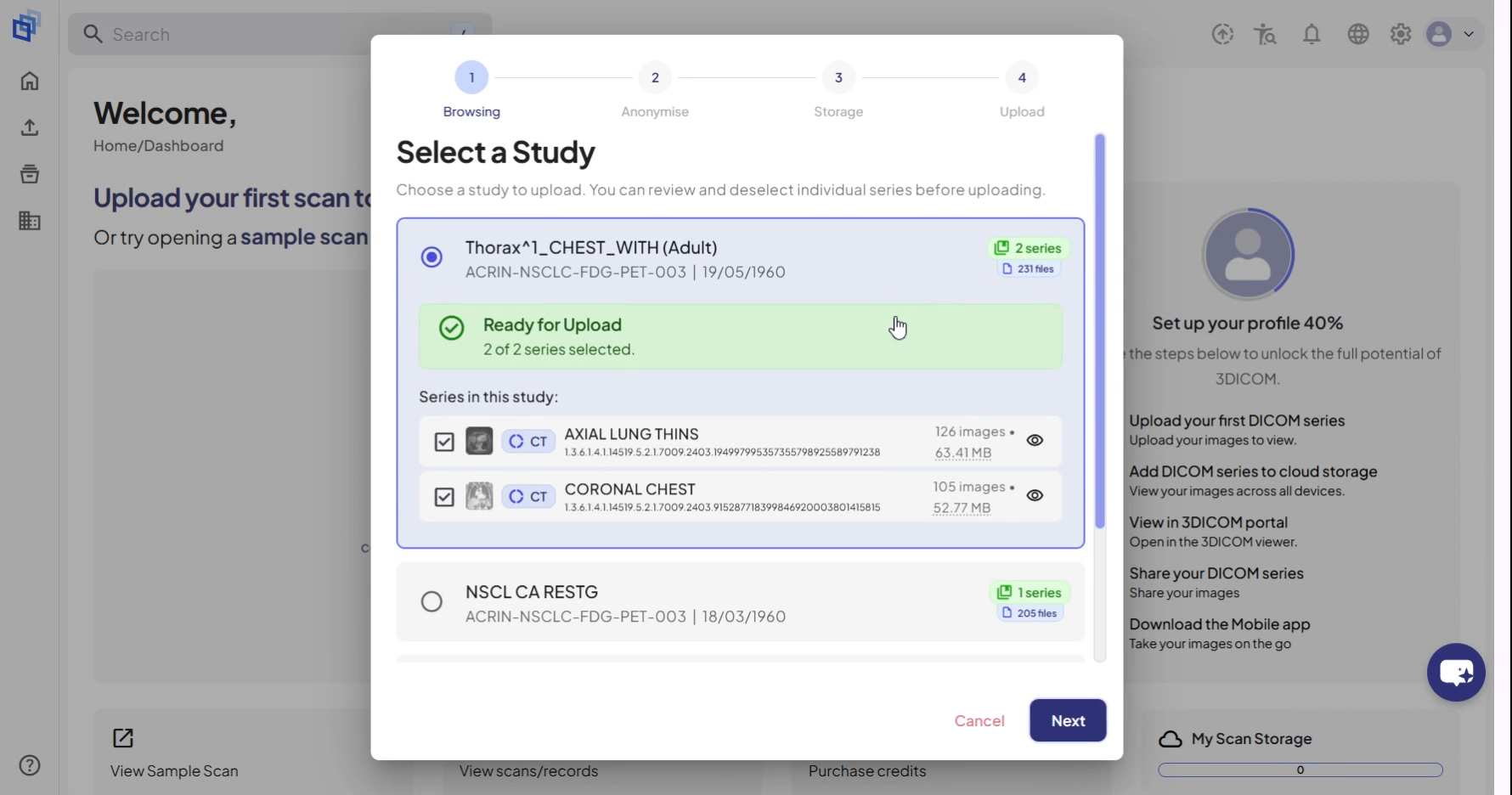
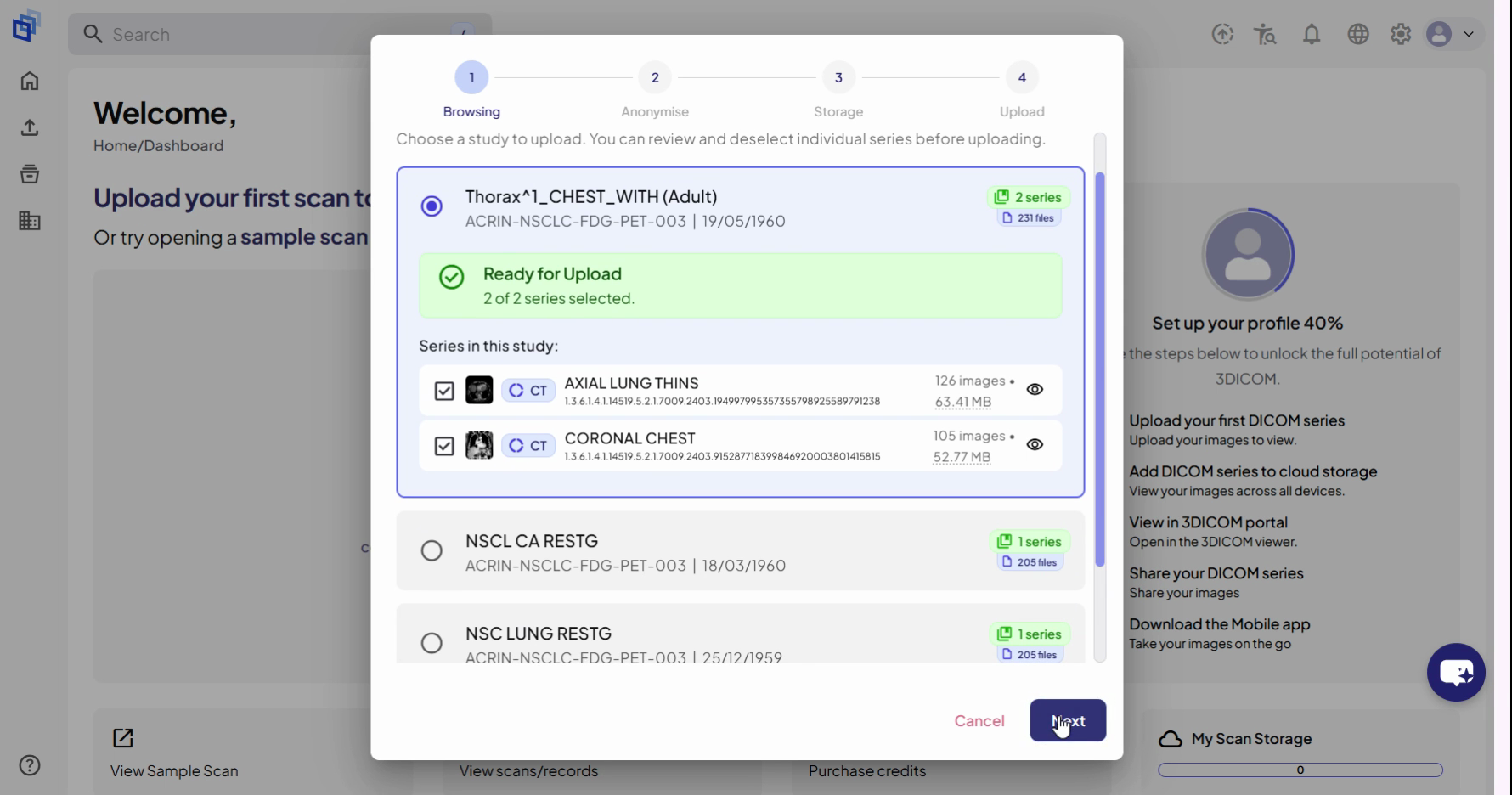
Paso 5. Clic Siguiente continuar.
Configurar ajustes de anonimización
Paso 6. En el paso de Anonimización, elige si deseas eliminar la información de identificación del paciente. Esto se recomienda si planeas compartir imágenes con fines educativos.
Paso 7. (Opcional) Activar Anonimizar al subir conmutar para eliminar nombres, fechas de nacimiento y otros detalles personales. Edita los nombres de las carpetas si es necesario.
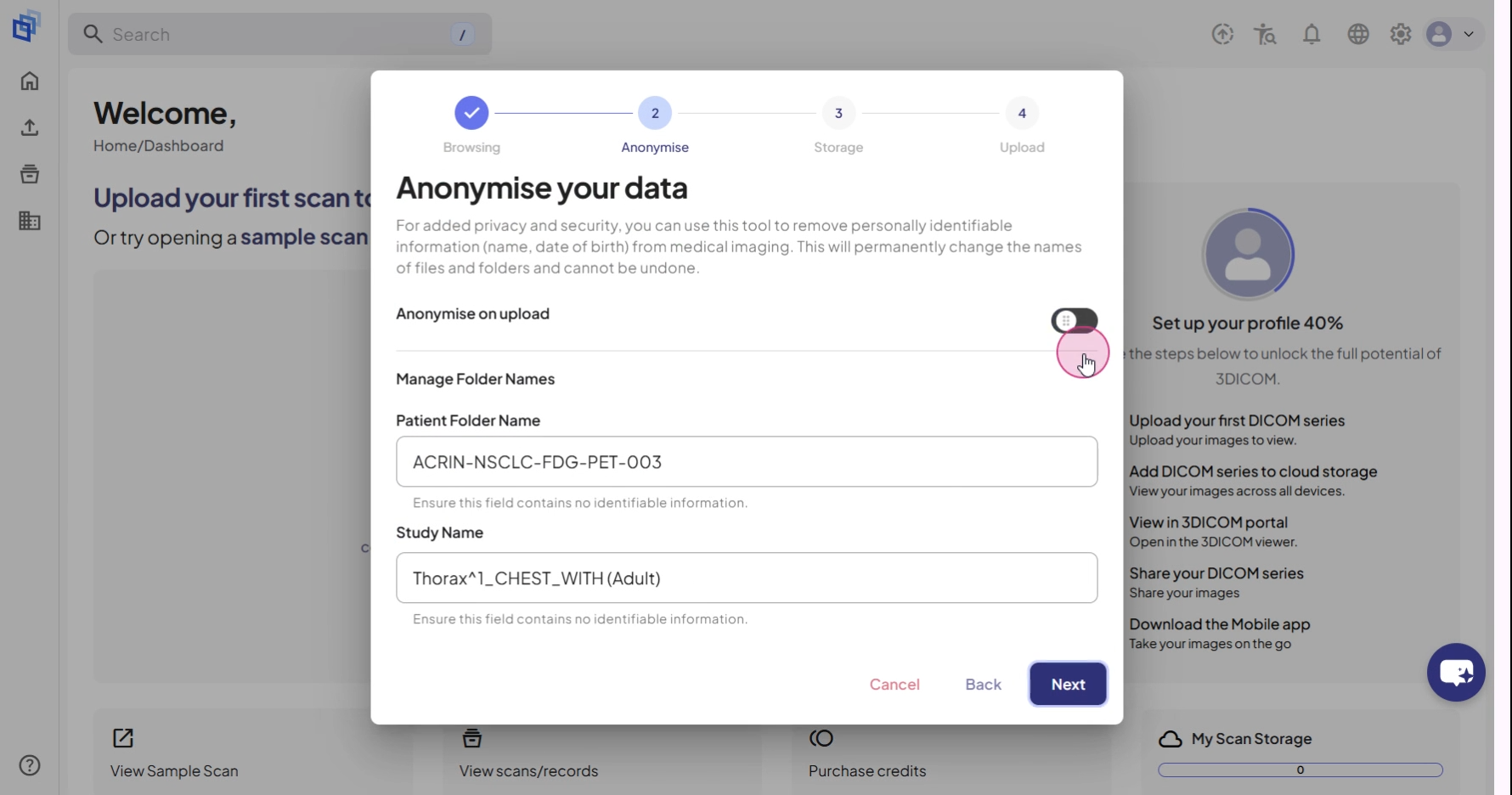
Paso 8. Clic Siguiente continuar.
Configurar opciones de almacenamiento
Paso 9. En el menú desplegable Inquilino, selecciona dónde quieres guardar tus archivos. Tu cuenta personal está seleccionada por defecto, lo que mantiene los archivos privados.
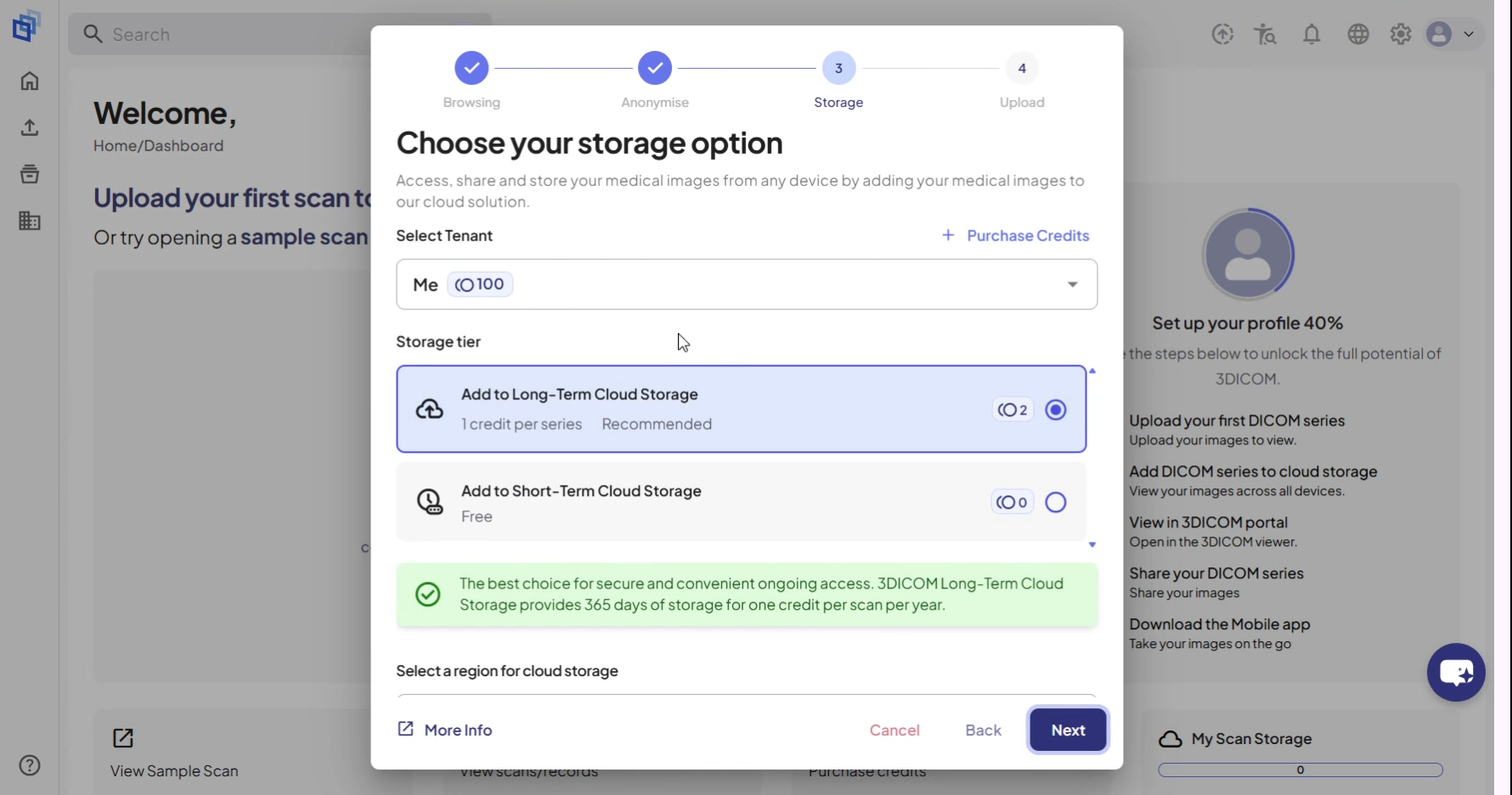
Paso 10. Opcionalmente, selecciona tu organización o escuela para compartir cargas con tu grupo.
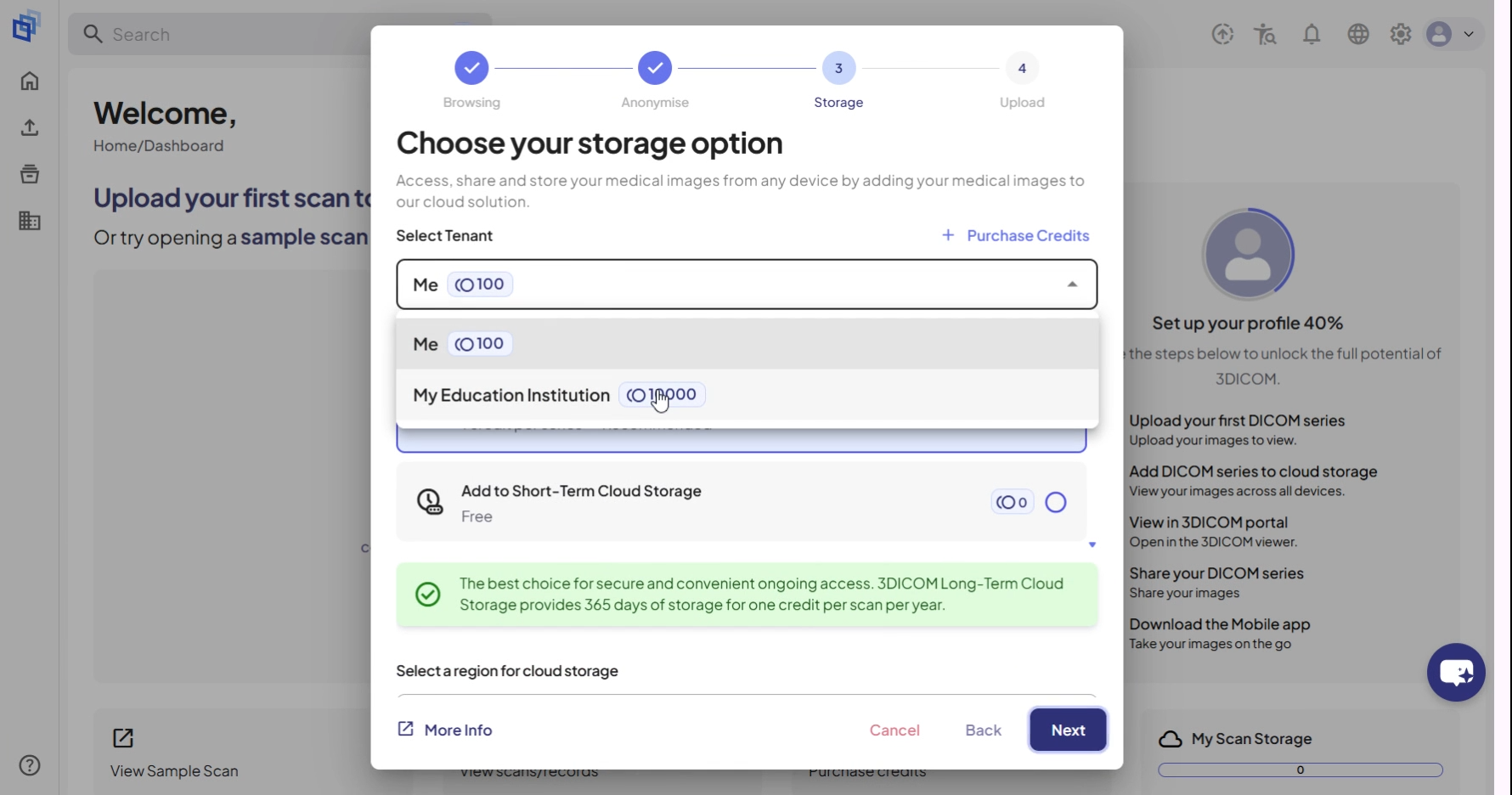
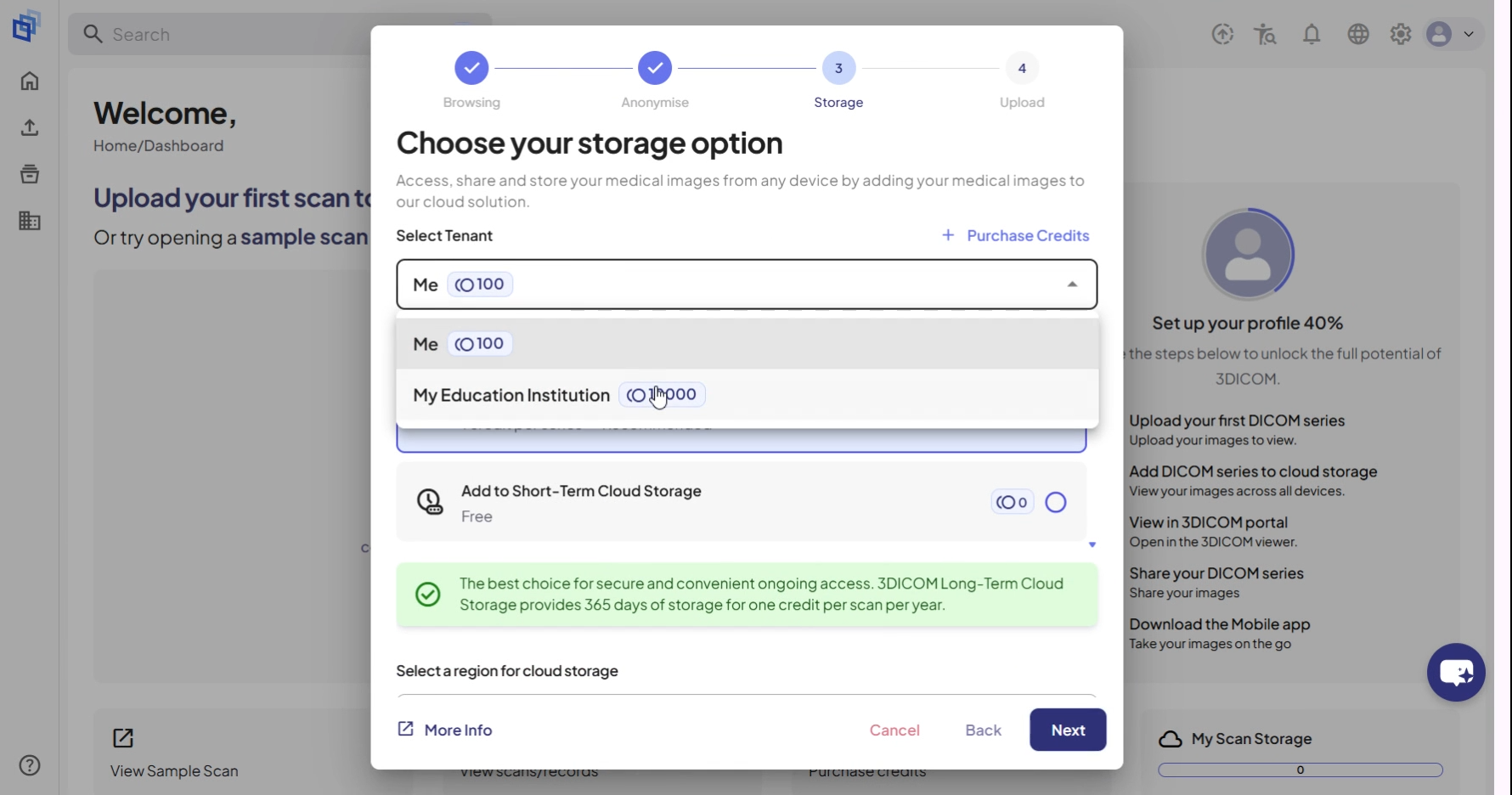
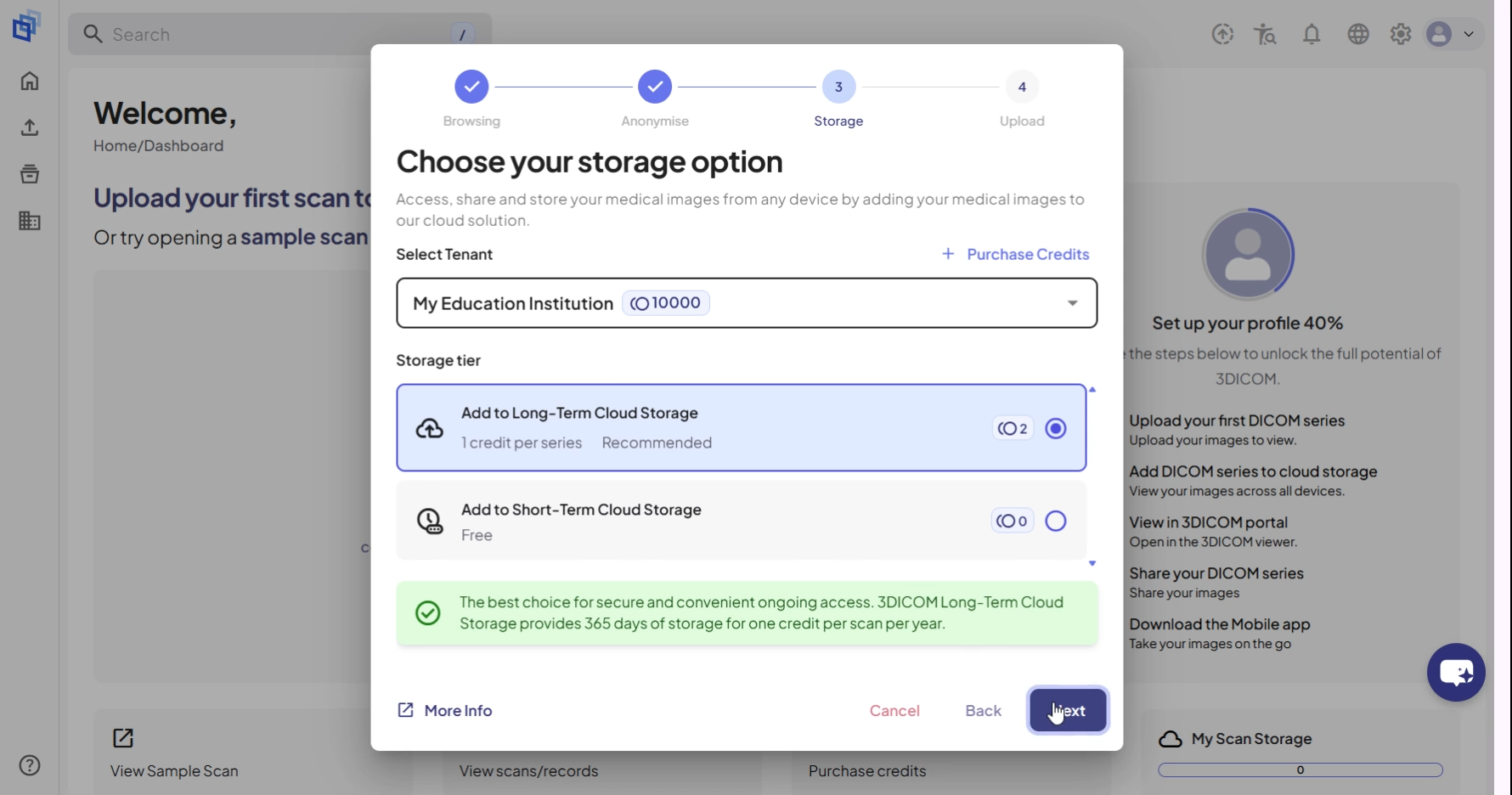
Paso 11. Selecciona un nivel de almacenamiento. Almacenamiento en la nube a largo plazo se selecciona por defecto y se renueva anualmente para acceso continuo.
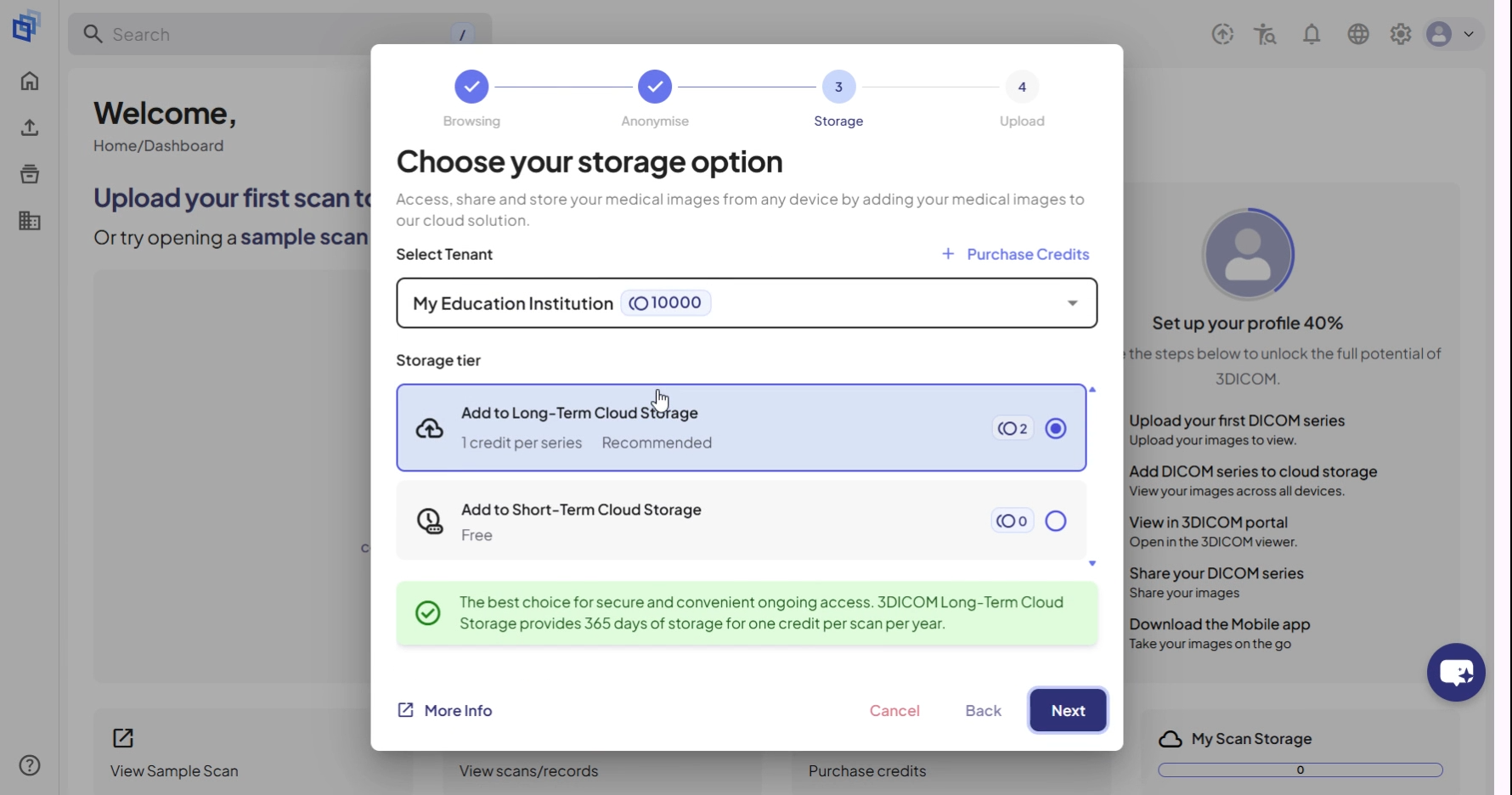
Paso 12. Clic Siguiente seguir adelante.
Subir y confirmar
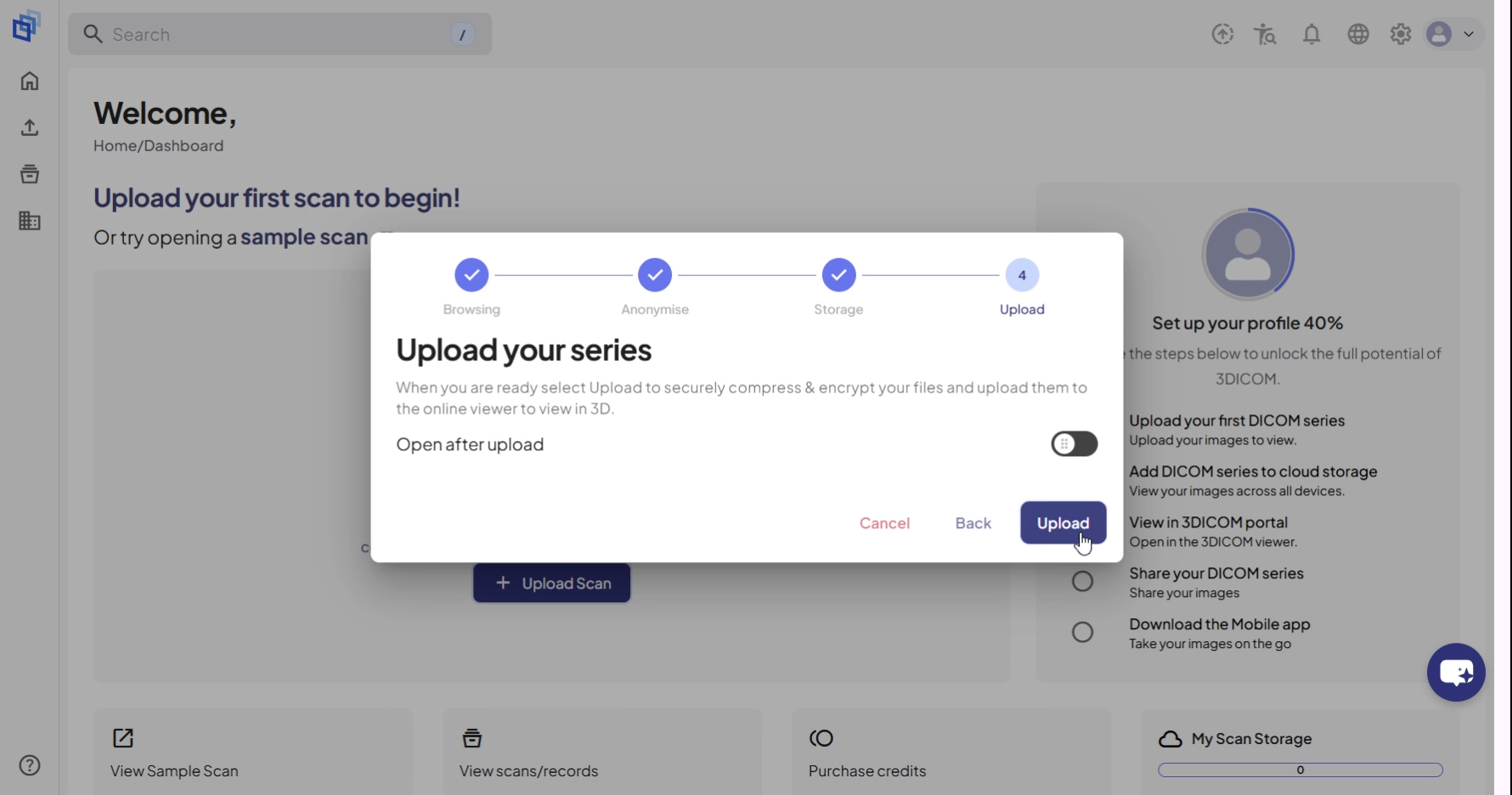
Paso 13. Haz clic Subir botón para comenzar a subir tus archivos.
Paso 14. Supervisa el progreso de tu carga en la ventana emergente inferior derecha.
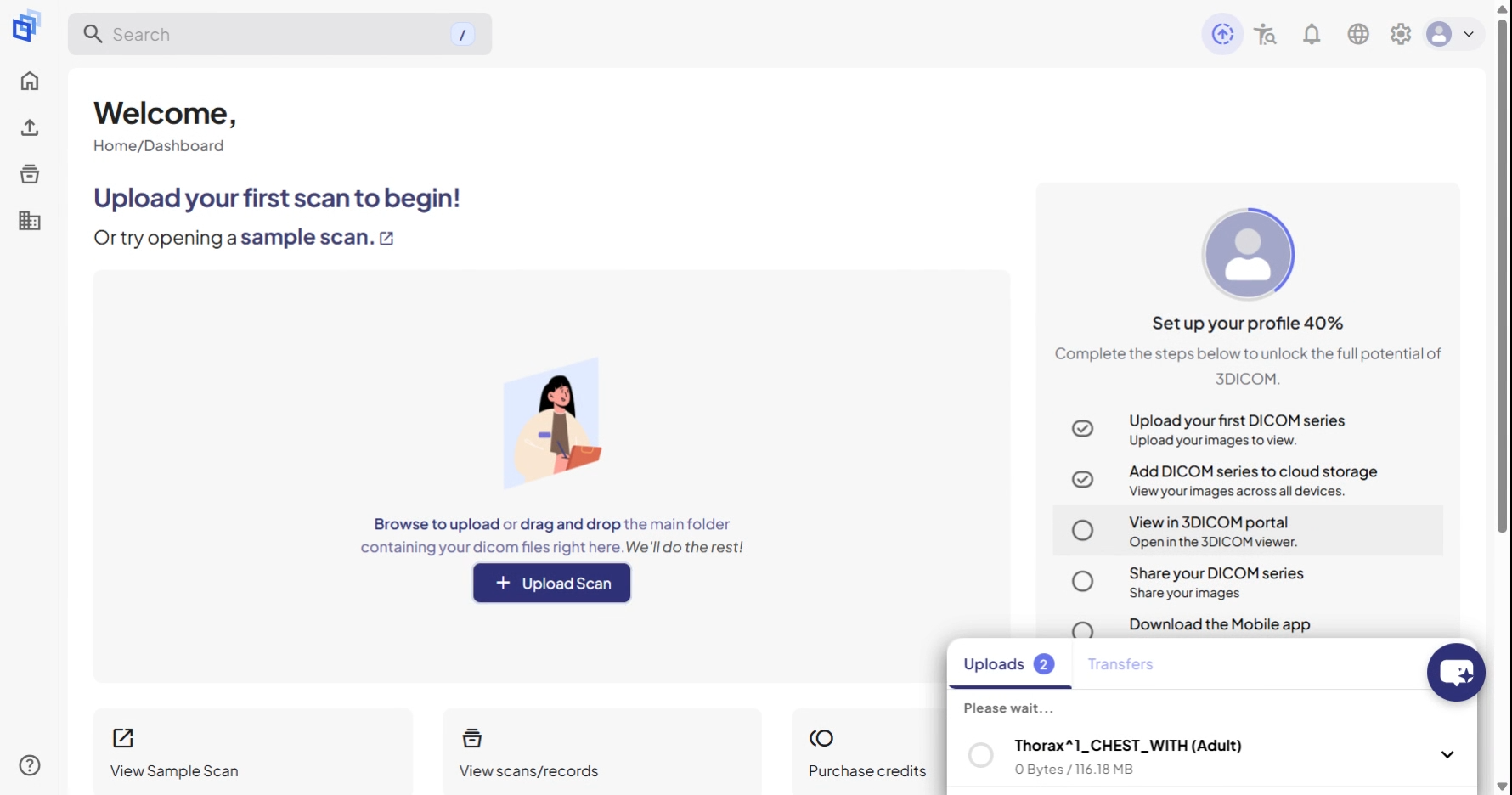
Paso 15. Cuando la carga se complete, aparecerá una pancarta de éxito en la parte superior de la página.
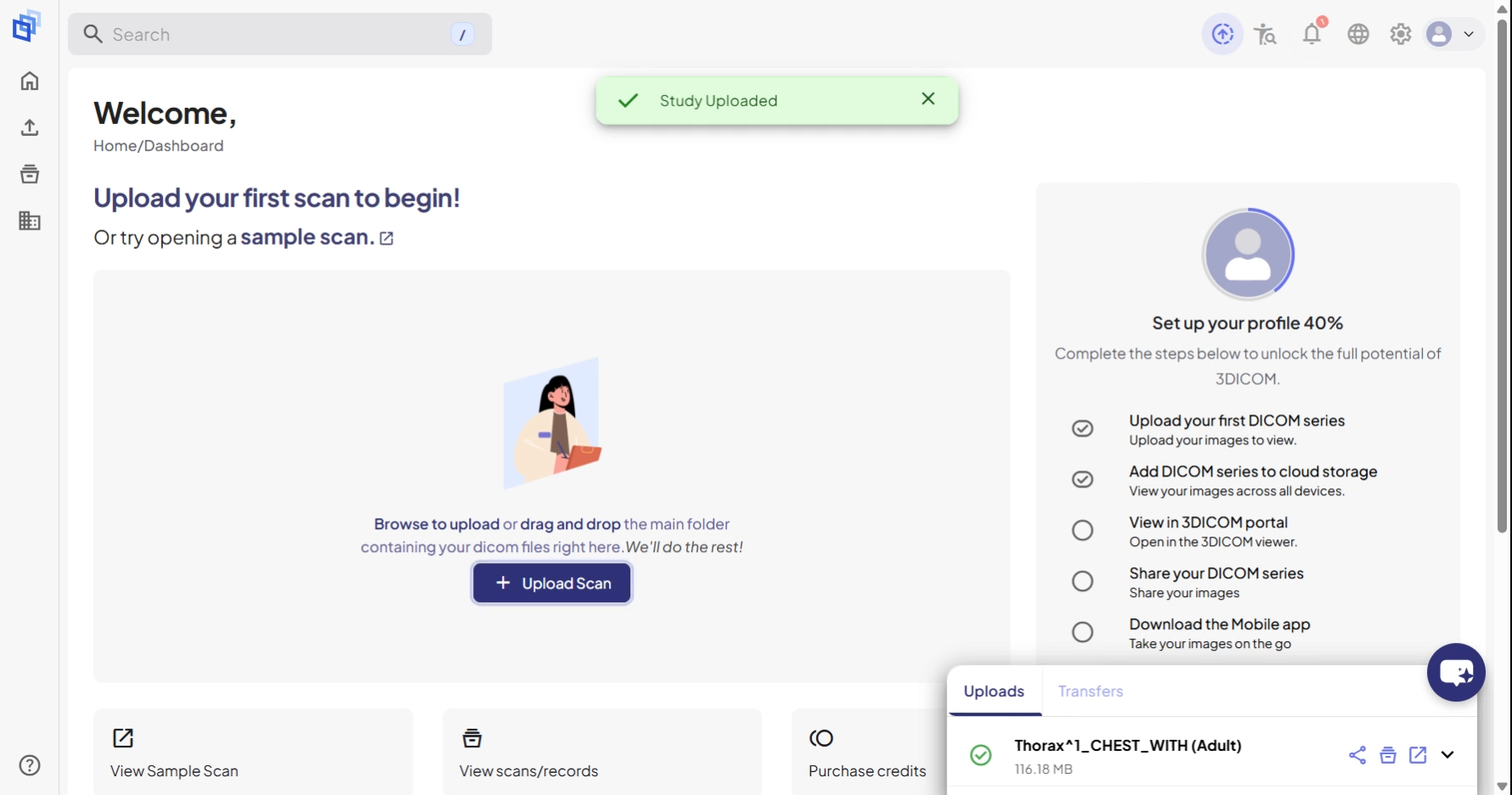
Paso 16. Accede a tus archivos en el Panel de control bajo Actividad reciente o en el Escaneos y Registros sección.
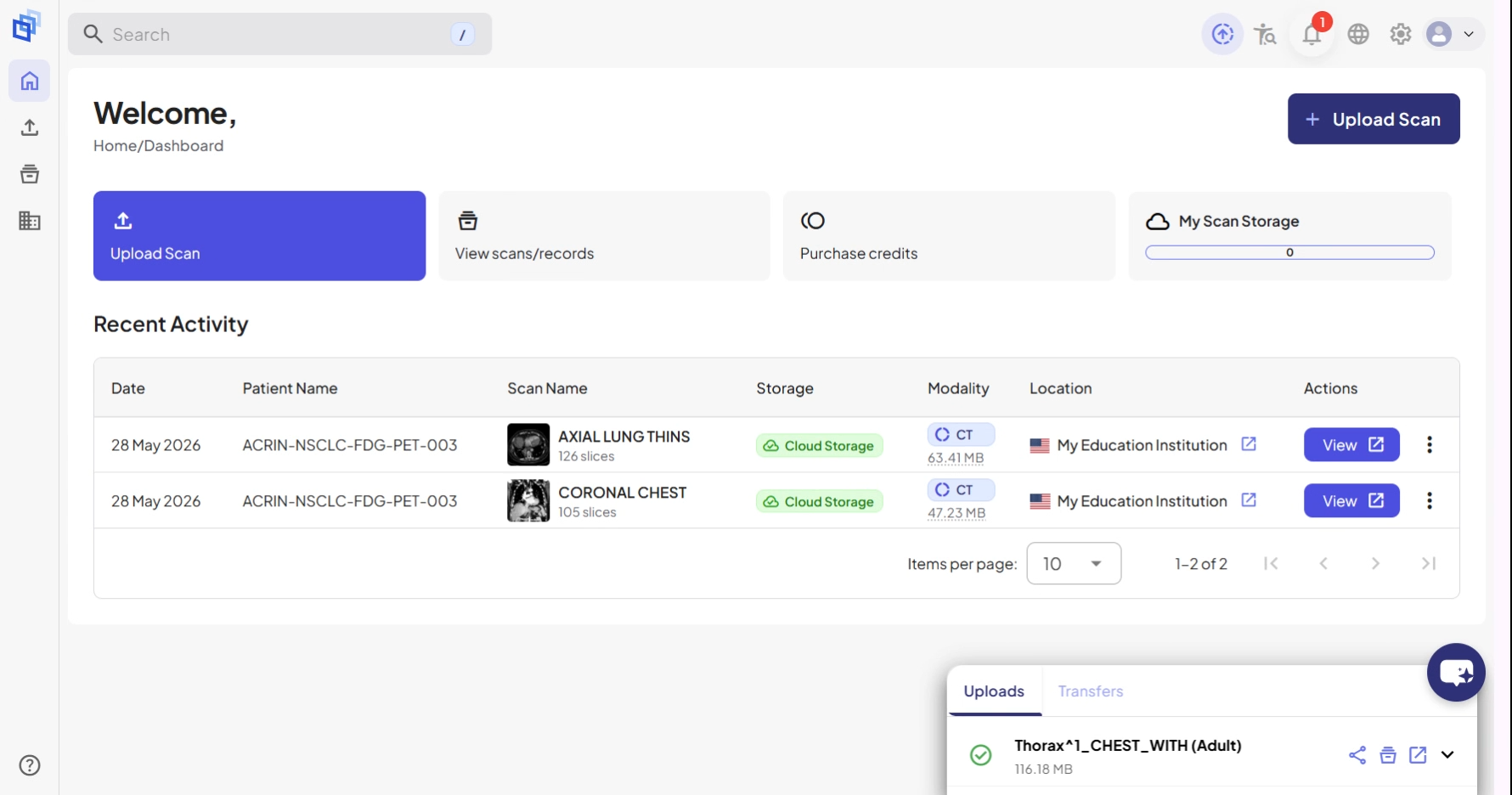
Resultado
Tus escaneos ahora están cargados en 3DICOM con los controles de privacidad y opciones de almacenamiento elegidos. Encuéntralos en el Panel de control para su revisión inmediata o para compartirlos de forma segura.