Step-by-step PDF guide
Save the instructions for offline reference.
PDF · 1 B
Log in to 3DICOM for the first time with a provisioned account
Overview
This guide shows you how to access the 3DICOM platform for the first time when using a provisioned account set up by your organization or a 3DICOM team member.
Before you begin
- You need the invitation email sent to you by your organization or a 3DICOM team member.
Log in to the 3DICOM platform
Set up your password
Step 1. Open the invitation email from your organization or a 3DICOM team member.
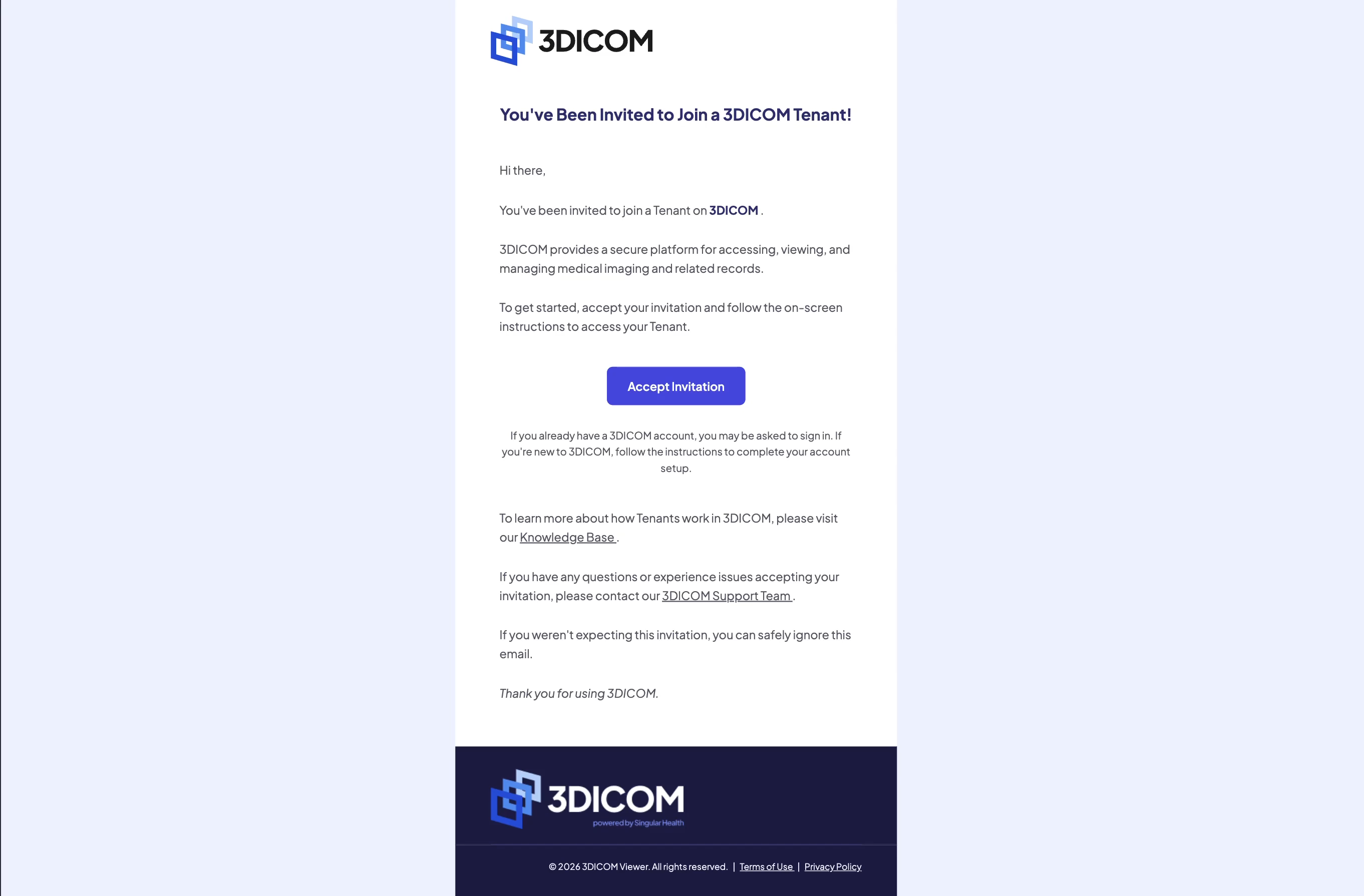
Step 2. Click the link in the email and follow the instructions to set up your password.
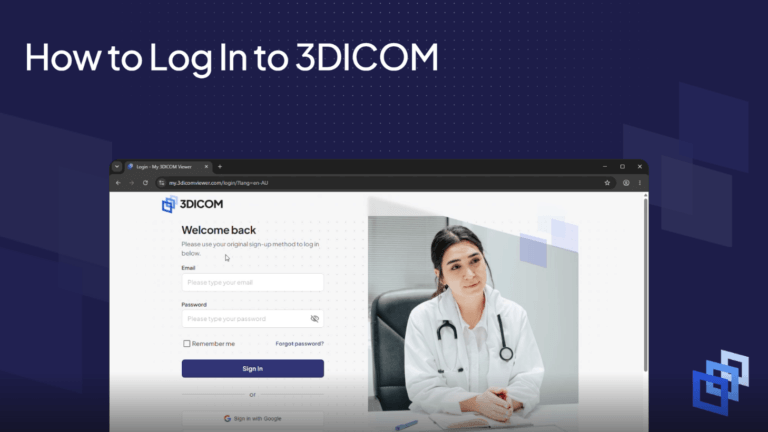
Step 3. Go to the 3DICOM login page at my.3dicomviewer.com.
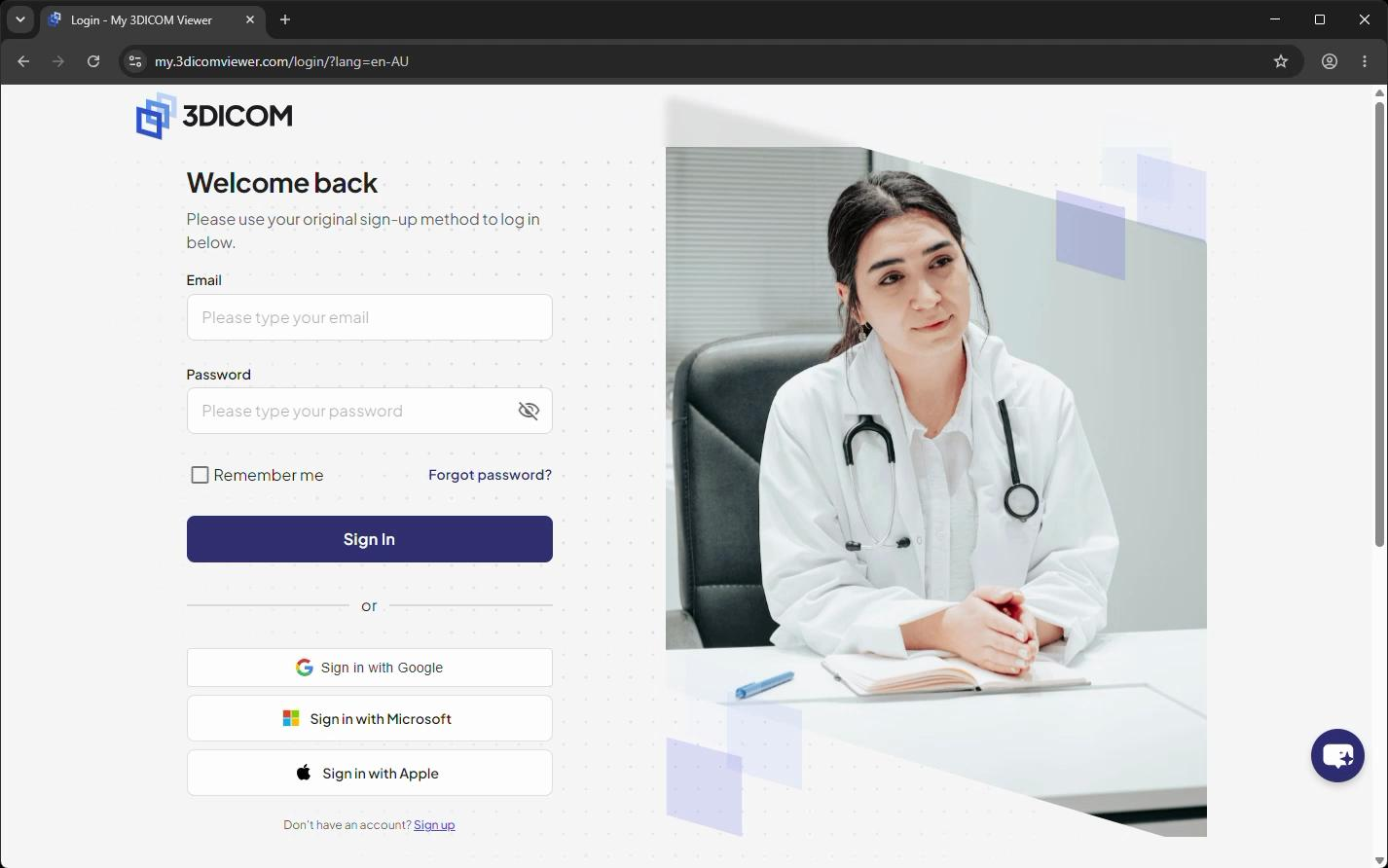
Sign in to the platform
Step 4. Enter your email address in the Email field.
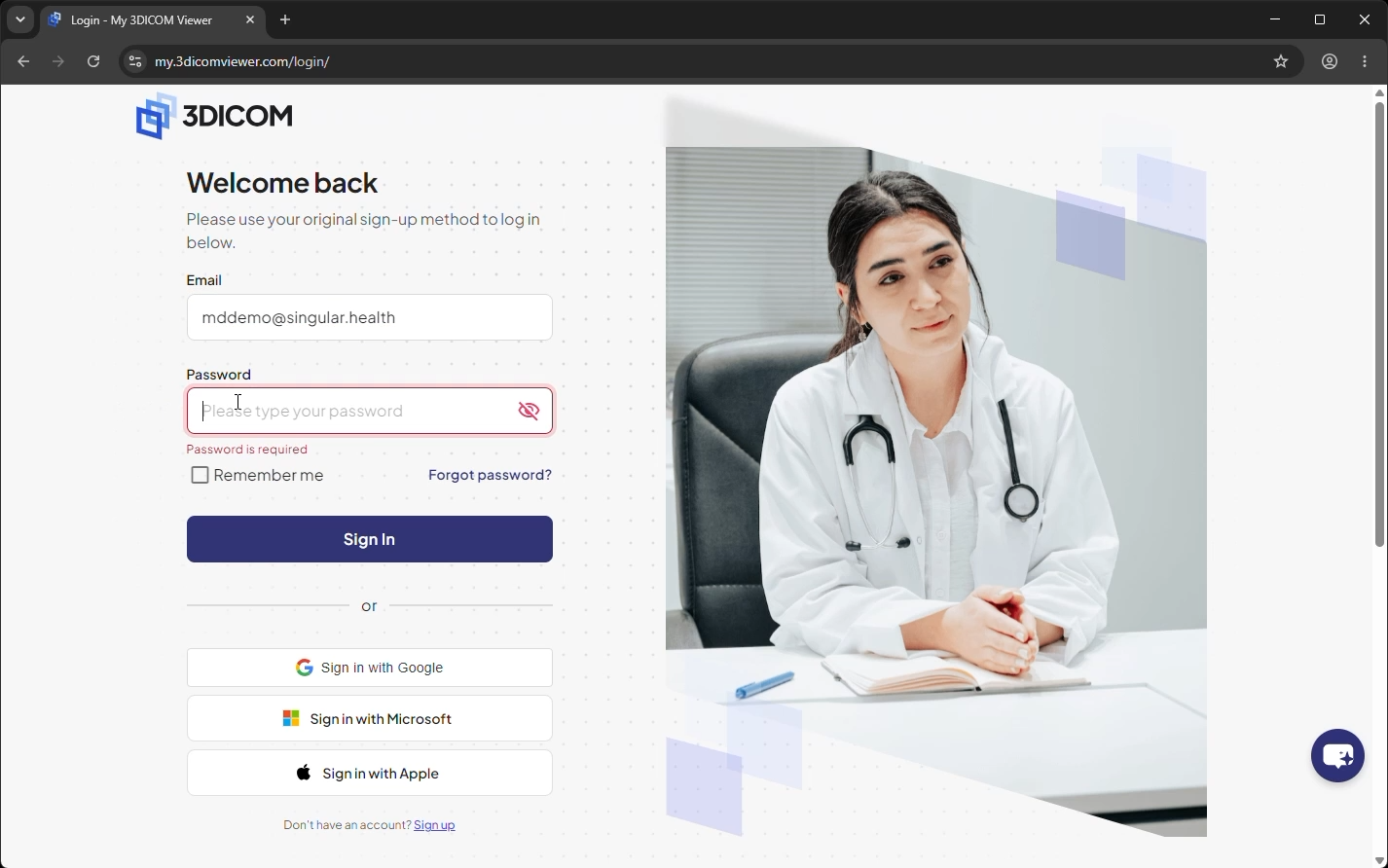
Step 5. Go to the Password field and enter your newly created password.
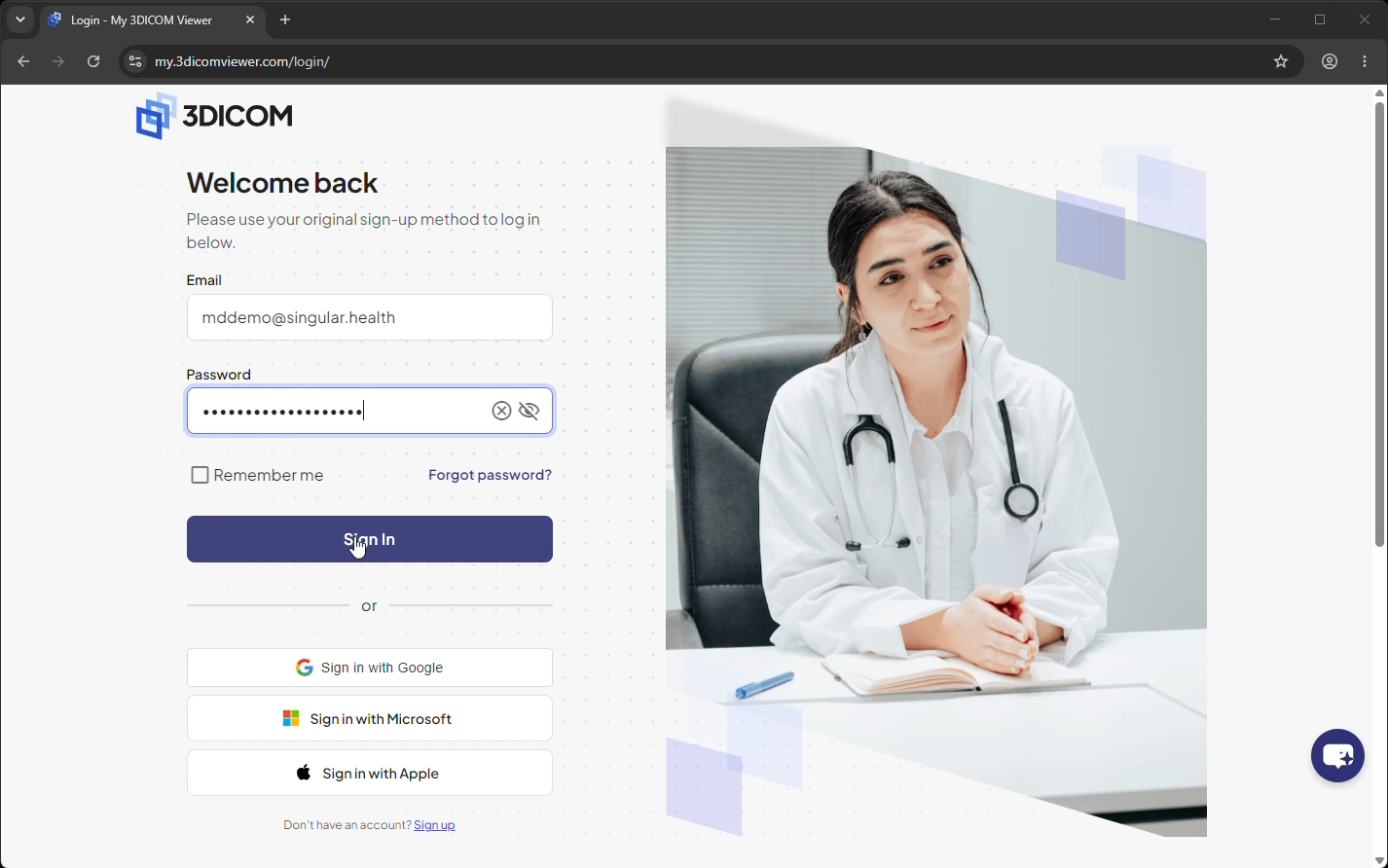
Step 6. Click Sign In to complete the process.
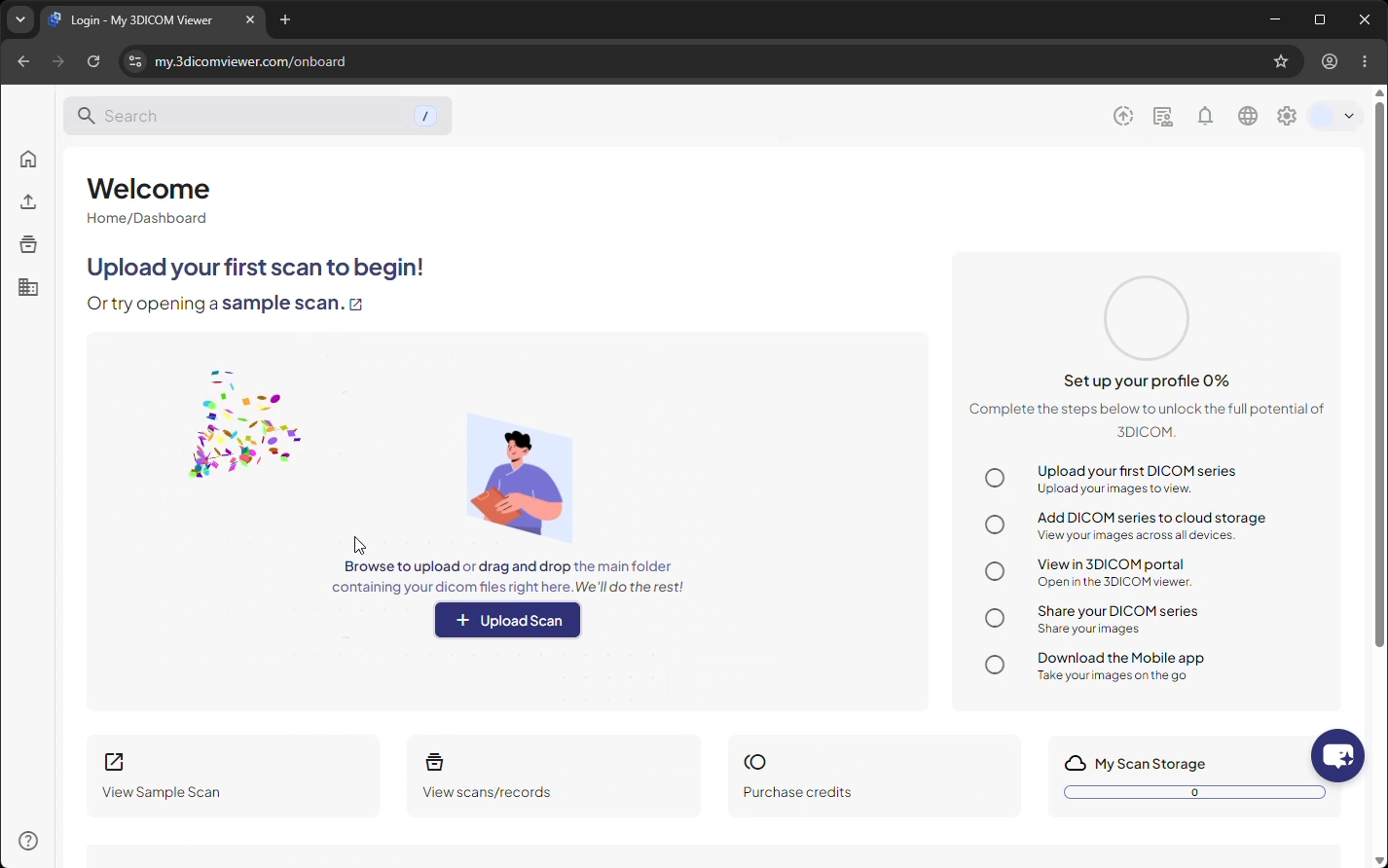
Result
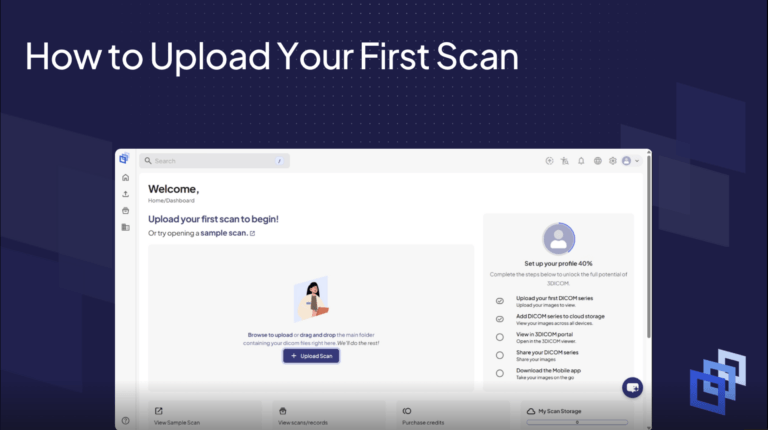
You land on the 3DICOM Dashboard and are now logged in to the platform.