Reset your 3DICOM password
Overview
This guide shows how to reset your 3DICOM password if you’ve forgotten it, so you can get back into your account in just a few minutes. You will request a verification code, confirm it, set a new password, and sign back in.
Request a password reset code
Open the reset password option
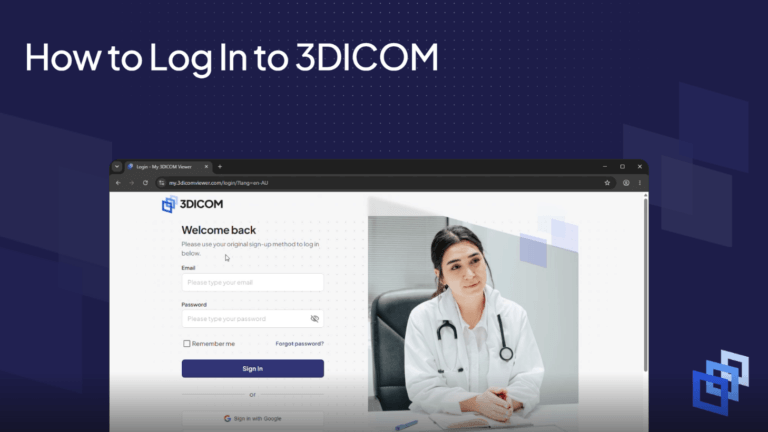
Step 1. Open the 3DICOM login page.
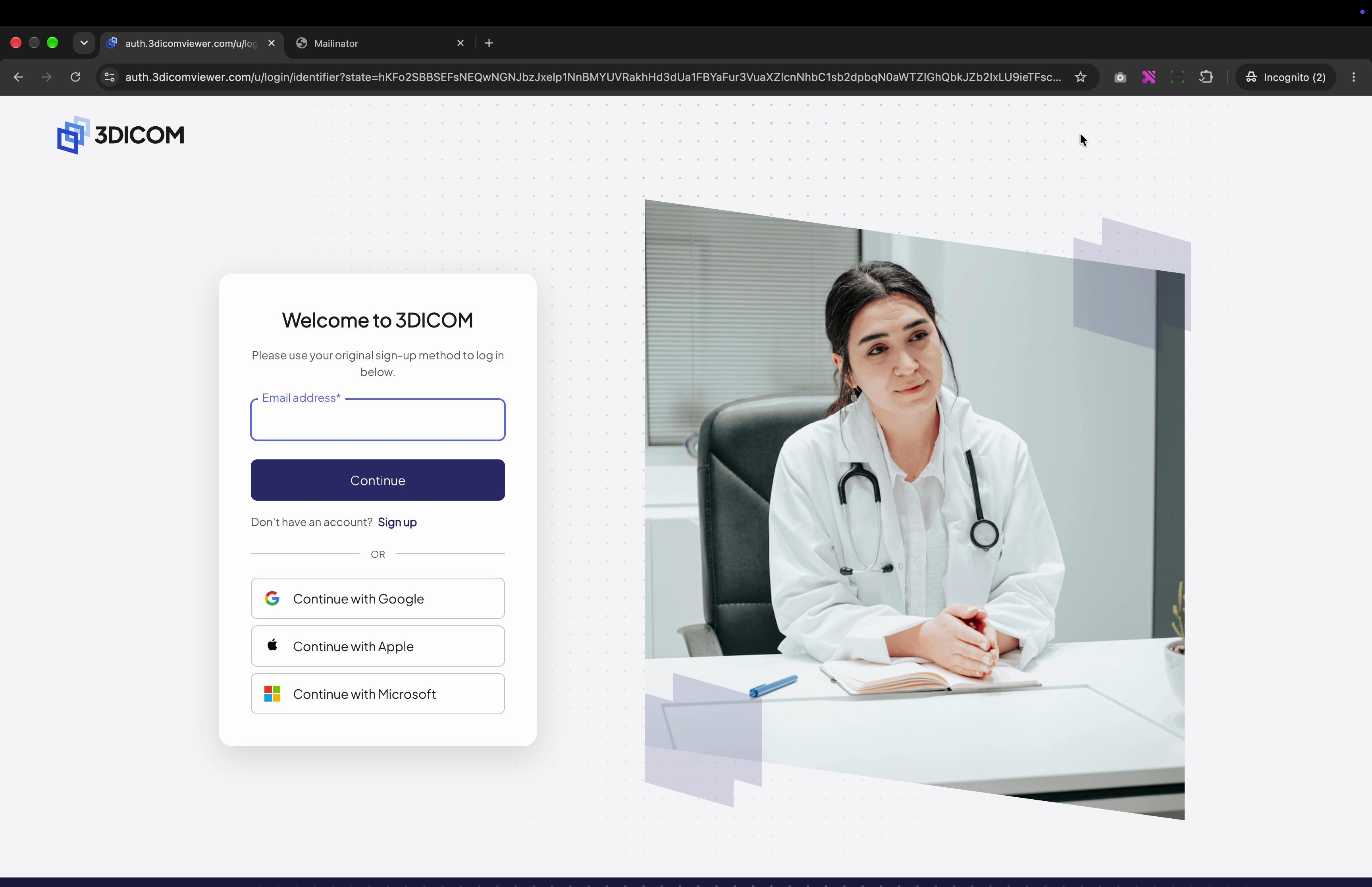
Step 2. Enter your email address.
Step 3. Select the Reset password option.
Request the code
Step 4. Confirm your email address.
Step 5. Click Continue to request a password reset code.
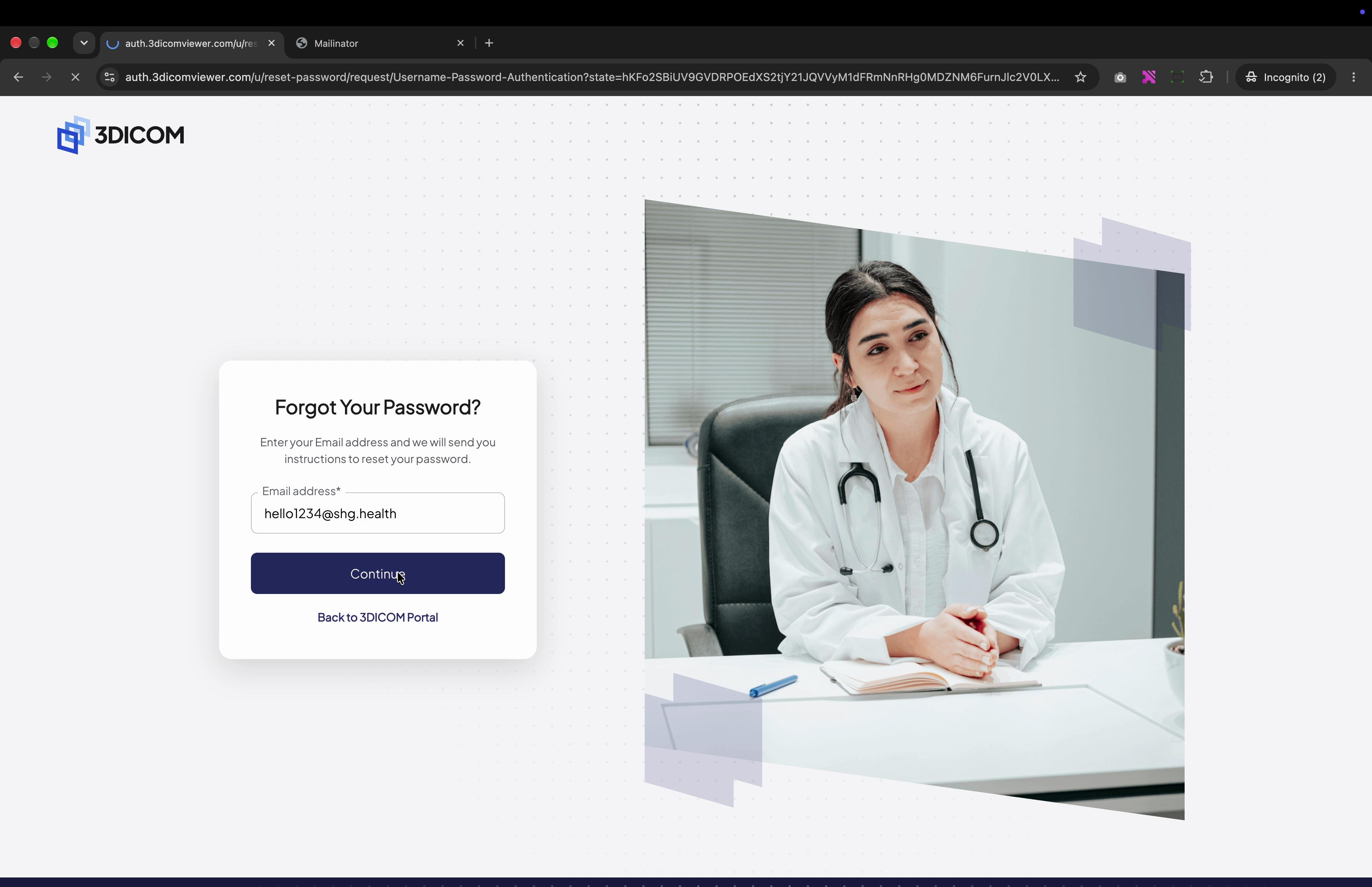
Step 6. A six-digit verification code is now sent to your email address.
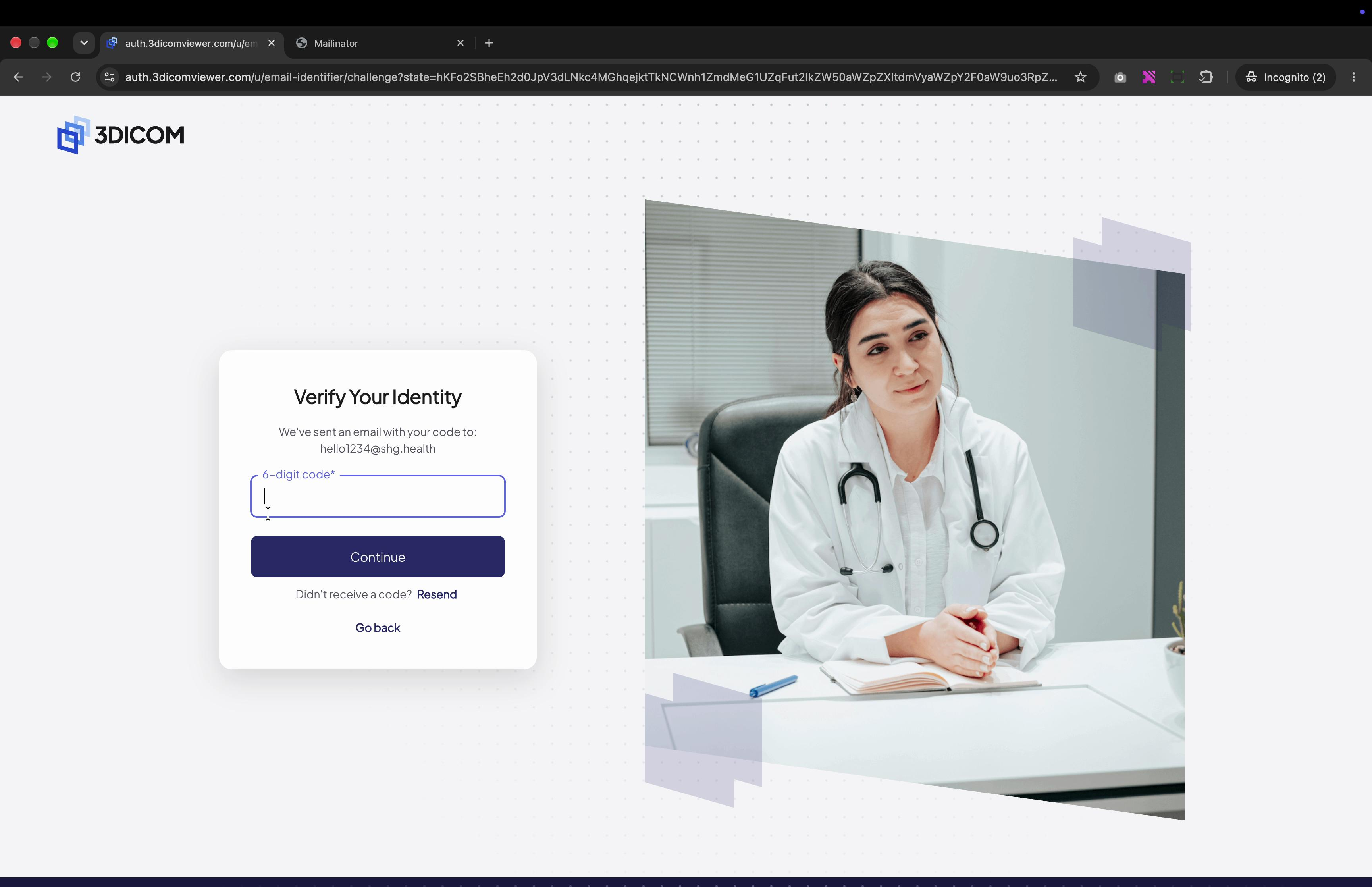
Verify your identity
Get the verification code from your email
Step 7. Check your inbox for the confirmation email containing the six-digit verification code.
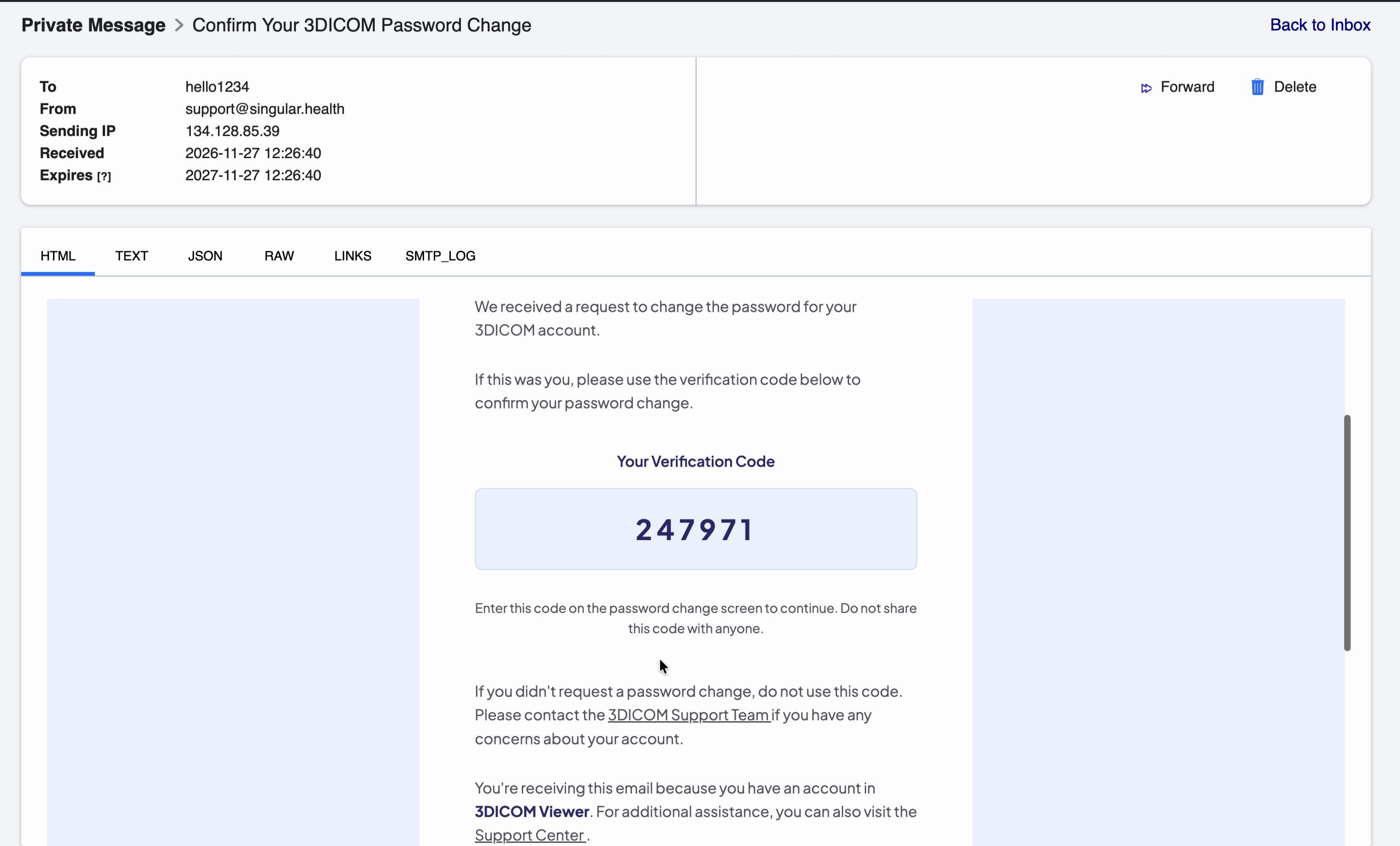
Step 8. Copy the verification code from the email.
Step 9. Return to 3DICOM and enter the code.
Set a new password
Enter and confirm your new password
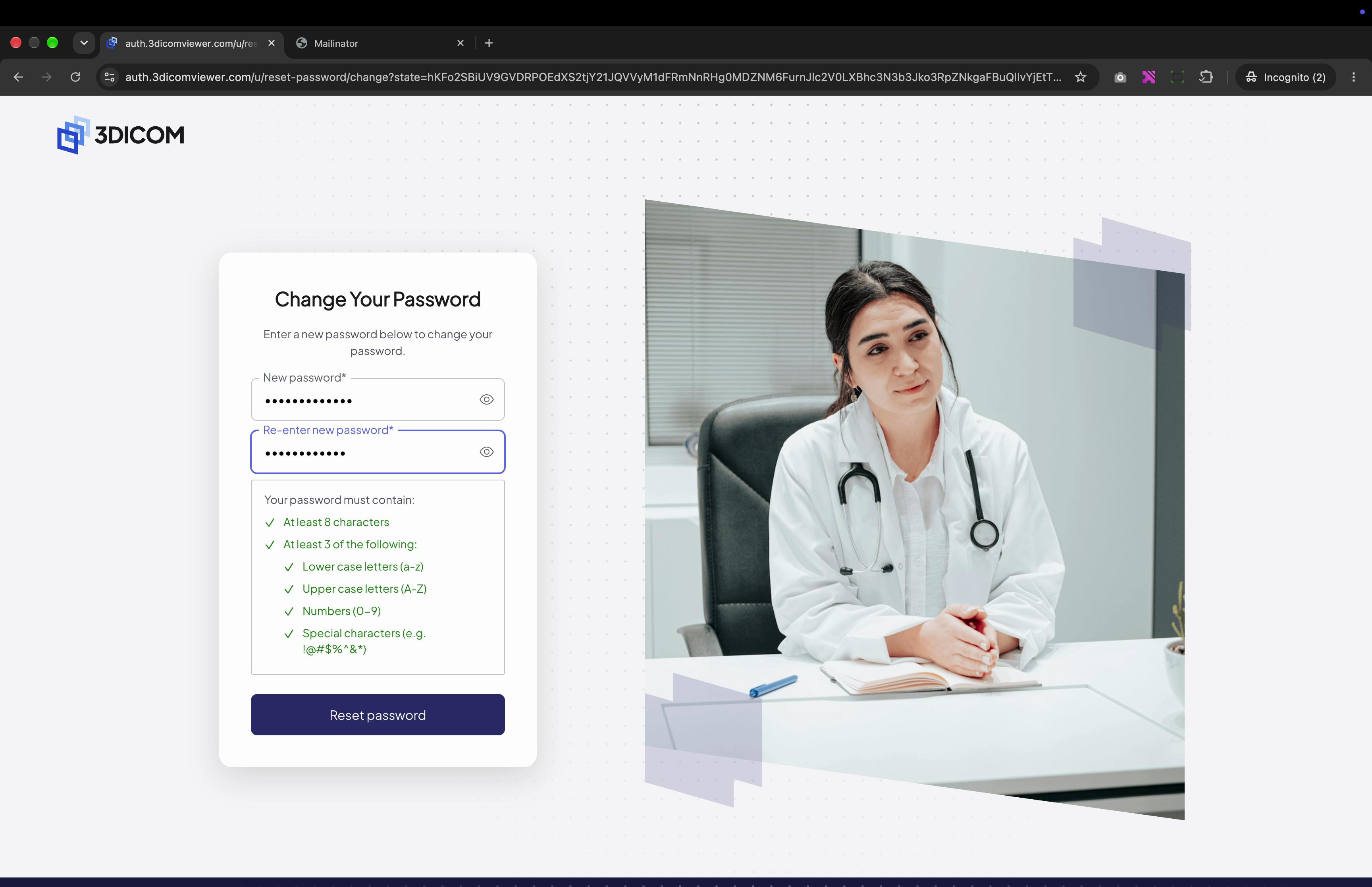
Step 10. On the Change Your Password page, enter your new password.
Step 11. Re-enter your password to confirm it.
Step 12. As you type, check that each password requirement turns green as its condition is met.
Step 13. Once all the requirements are satisfied, click Reset password.
Sign in with your new password
Log back in to 3DICOM
Step 14. Return to the login page.
Step 15. Enter your email address.
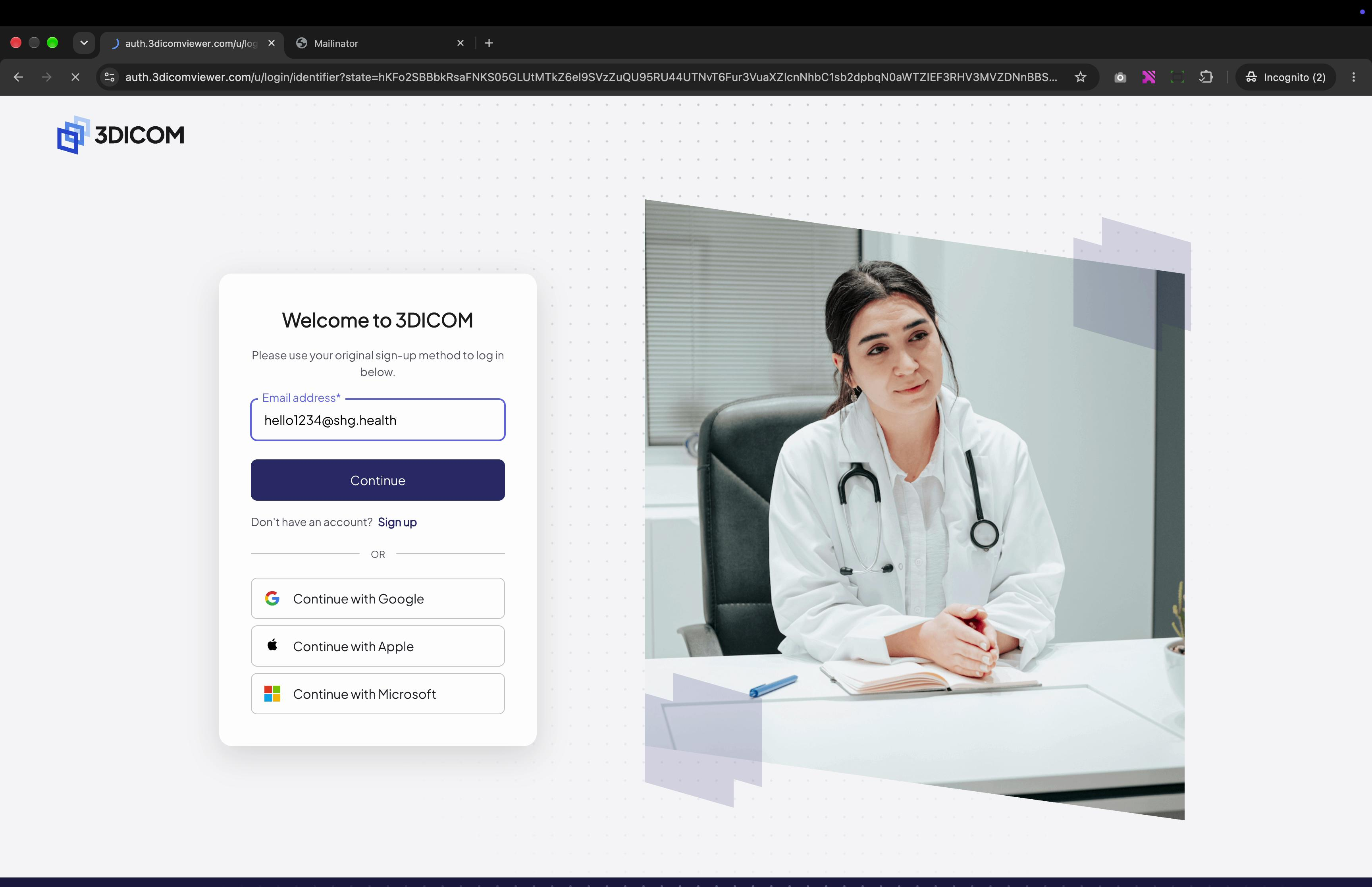
Step 16. Click Continue.
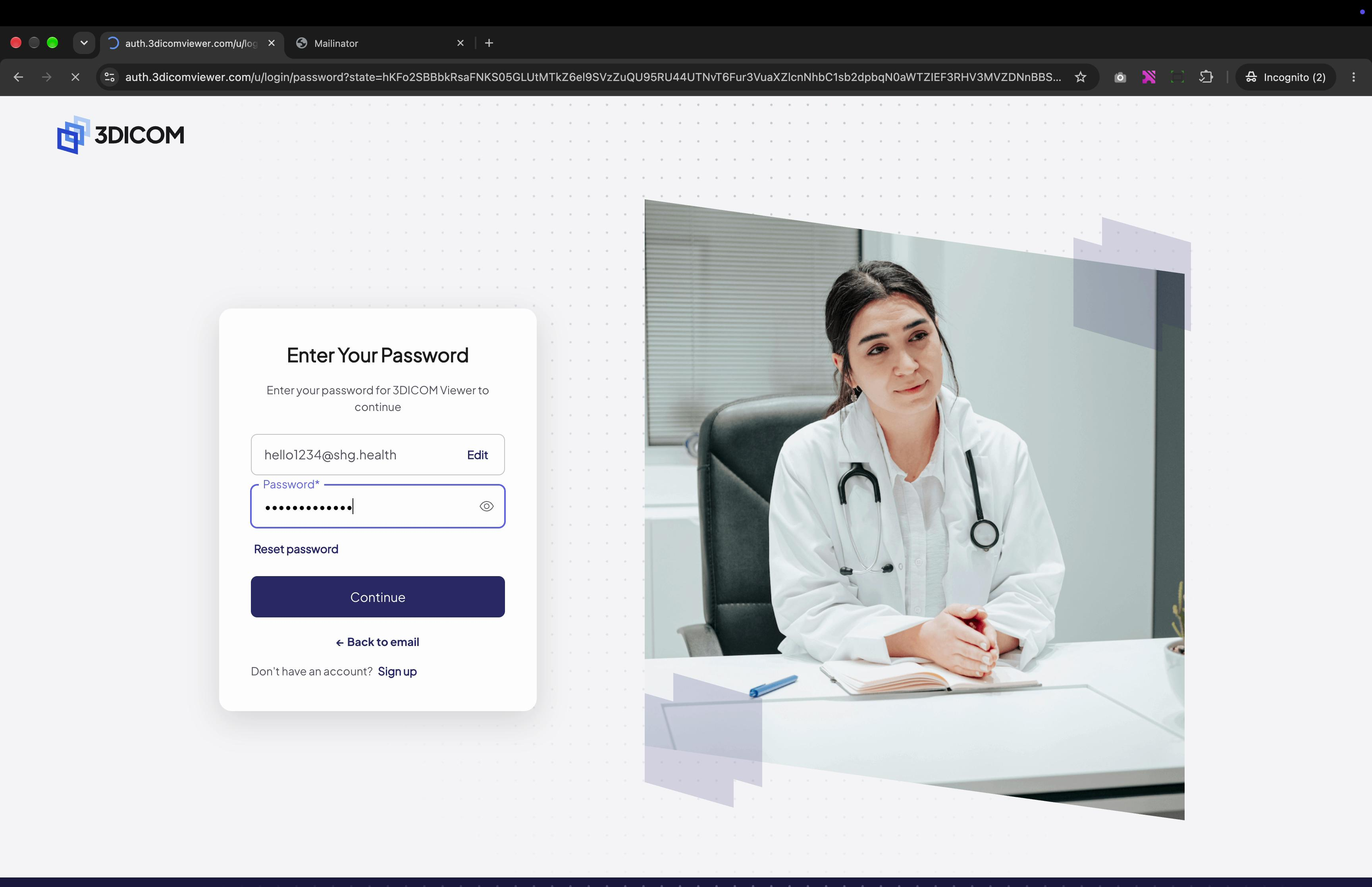
Step 17. Enter your new password to sign in.
Result
You’ve successfully reset your 3DICOM password and regained access to your account.