How to save measurements & annotations
Overview
This guide explains how to save your measurements and annotations as a DICOM Structured Report using the 3DICOM platform, following the exact steps demonstrated in the video tutorial.
Step-by-step instructions
Save your measurements as a DICOM Structured Report
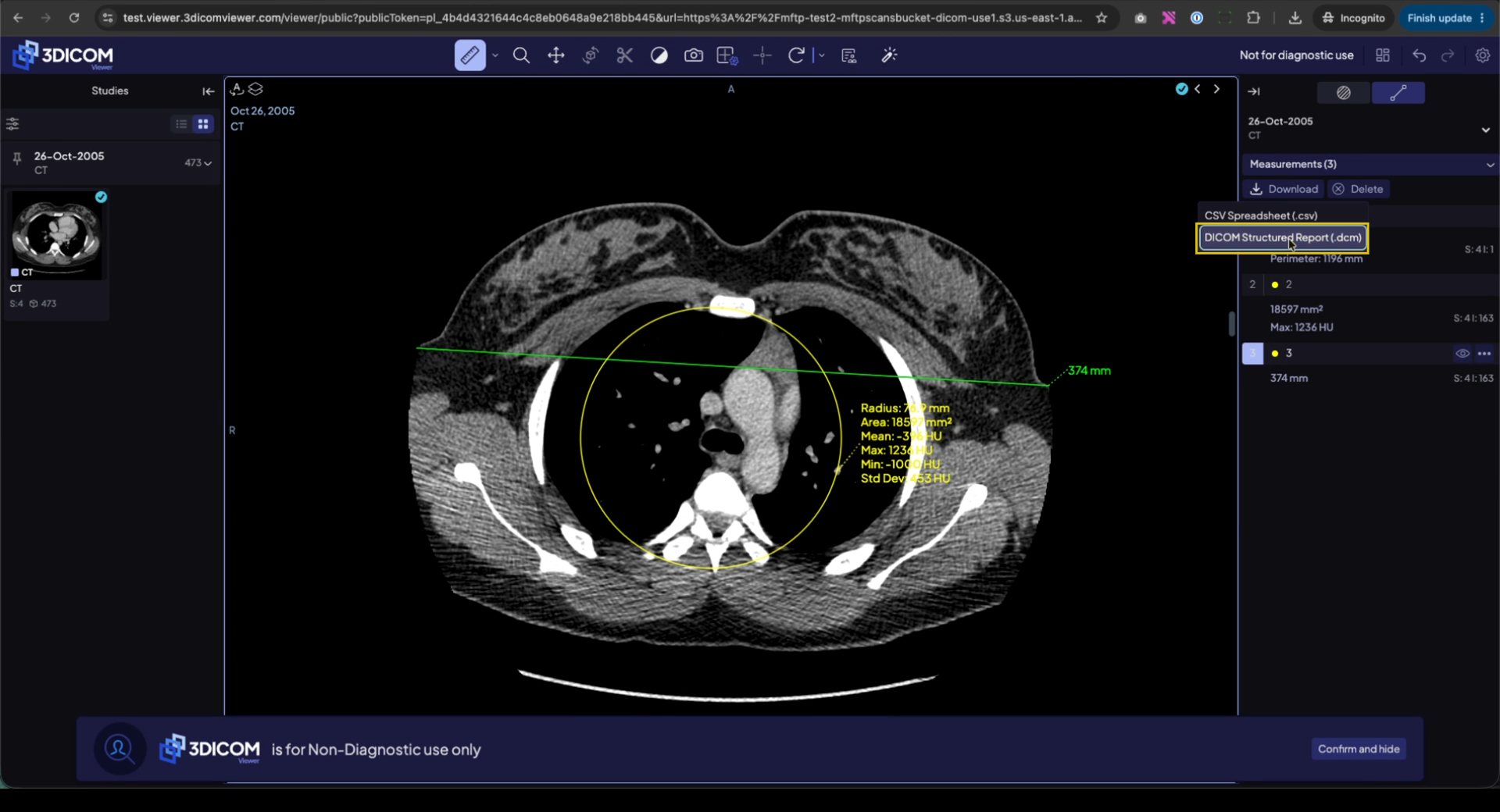
Step 1. In the Measurements panel on the right side of the screen, click the Download button.
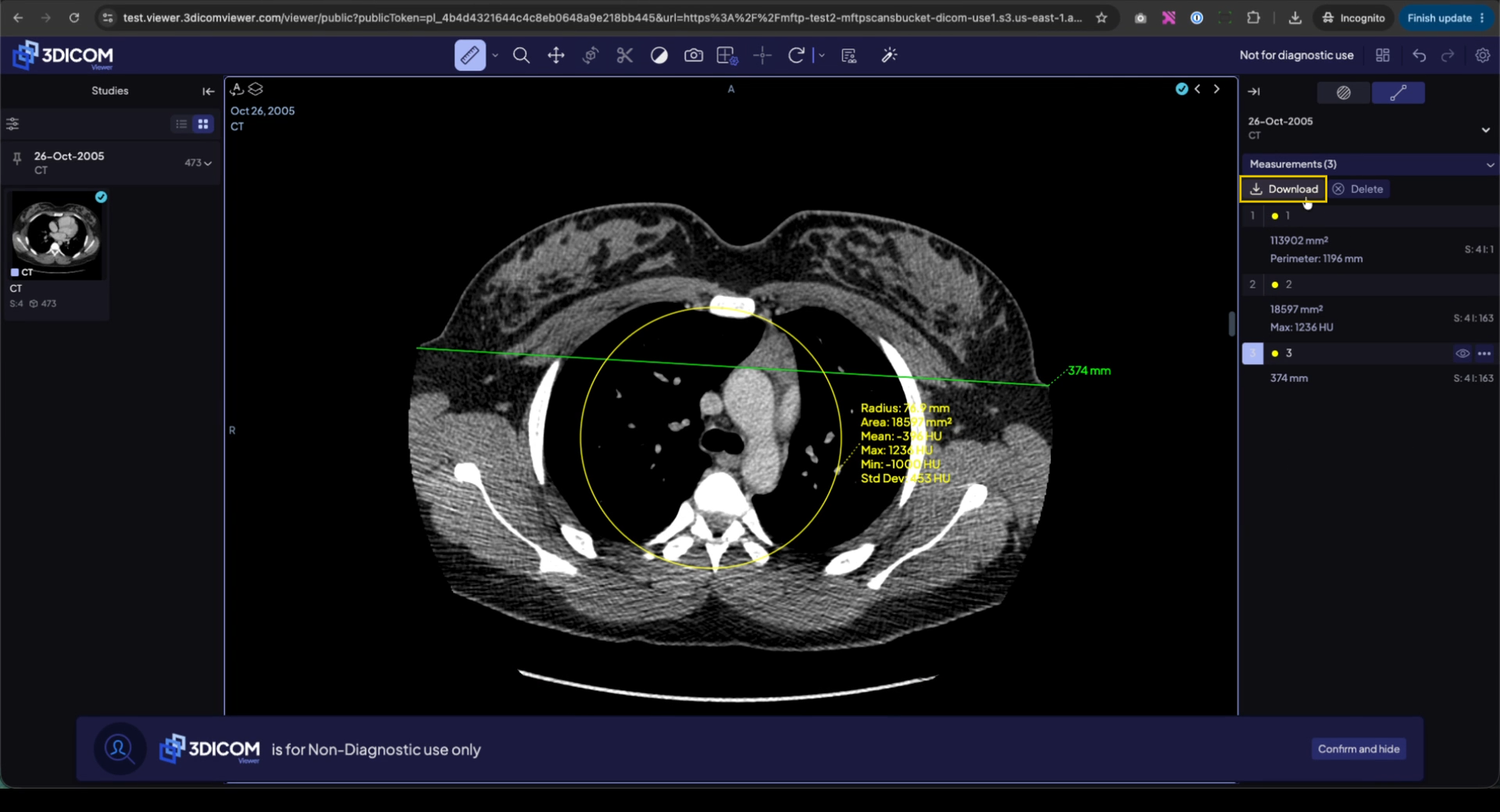
Step 2. From the dropdown menu, select DICOM Structured Report (dcm).
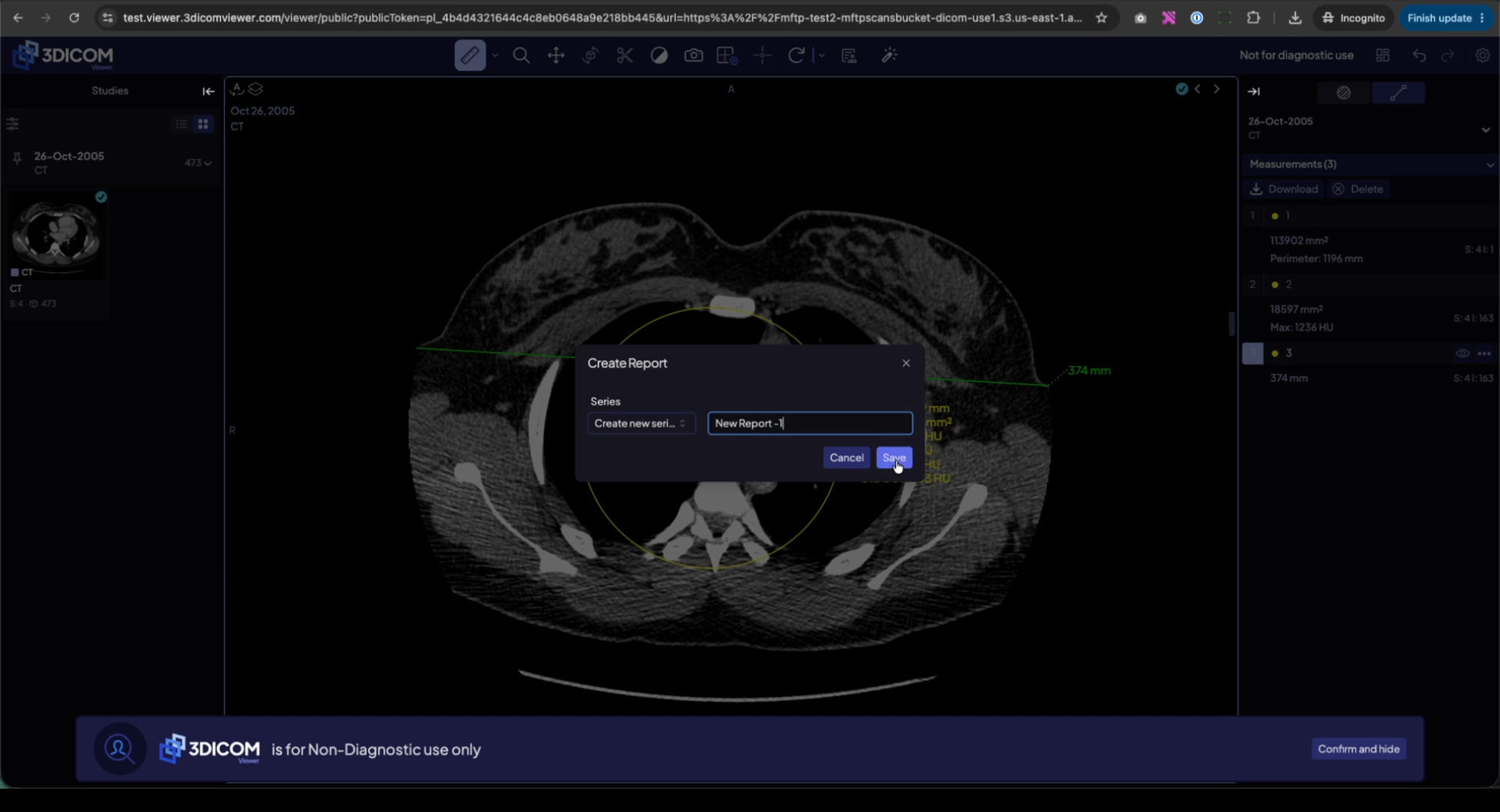
Step 3. In the dialog that appears, choose Create New Series to save your measurements as a new report.
Step 4. Enter a clear name for your report in the Series Name field and click Save.
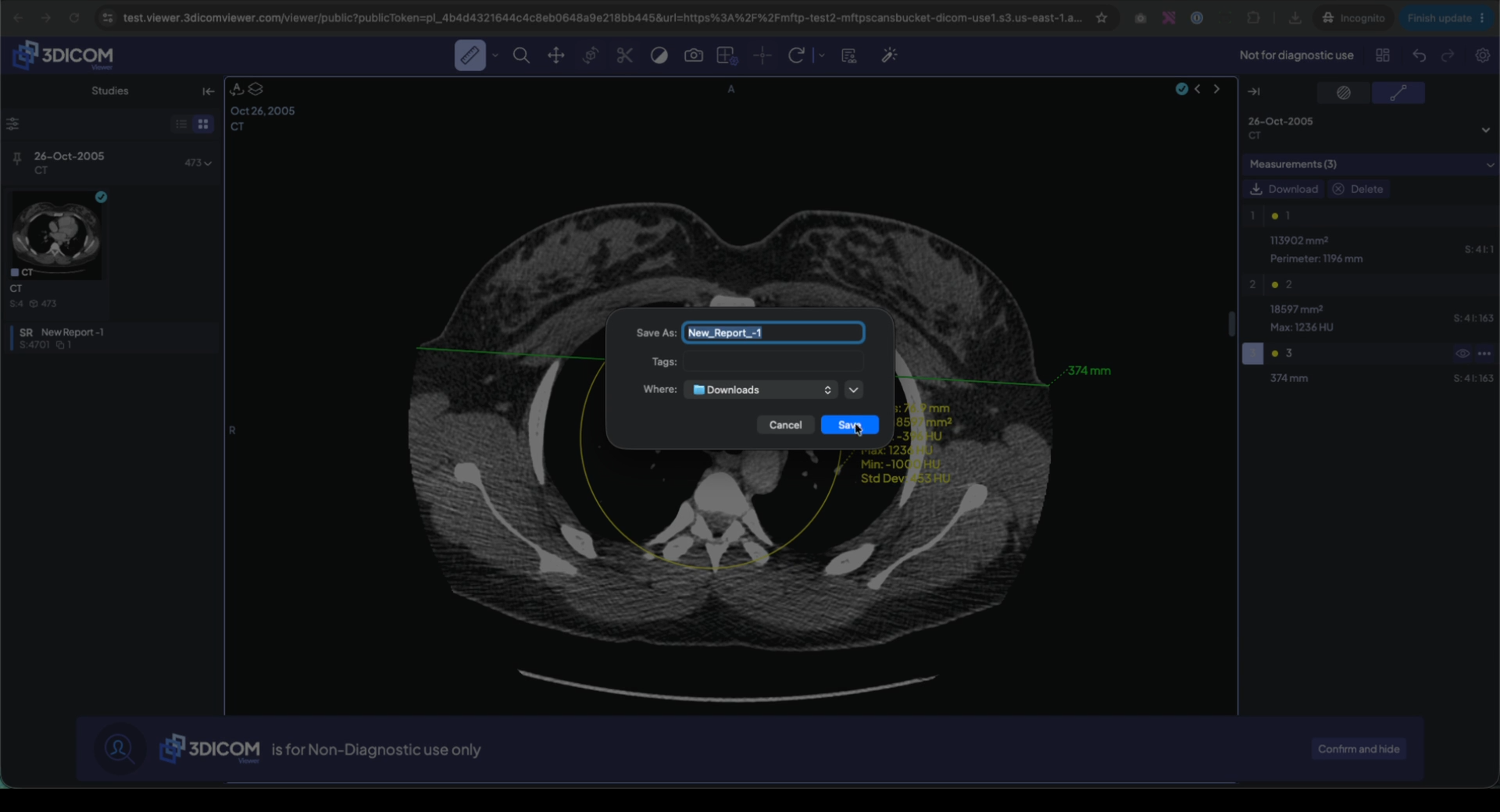
Step 5. In the file dialog, select a destination folder such as Desktop or Downloads to save your DICOM Structured Report and click Save again.
Step 8. Open your selected folder (e.g., Downloads) and locate the newly saved .dcm file.
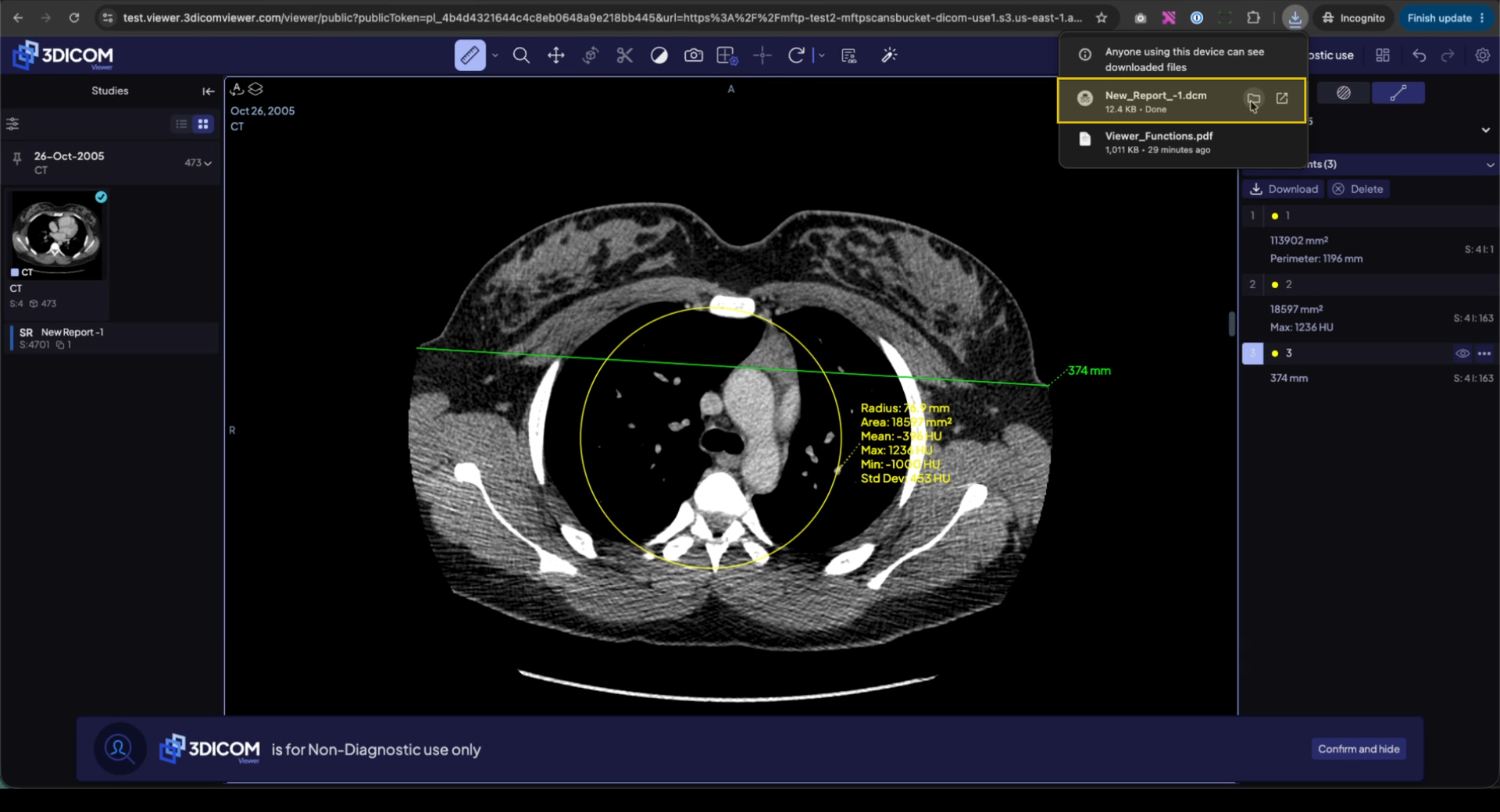
This file is your completed DICOM Structured Report containing all current measurements and annotations.
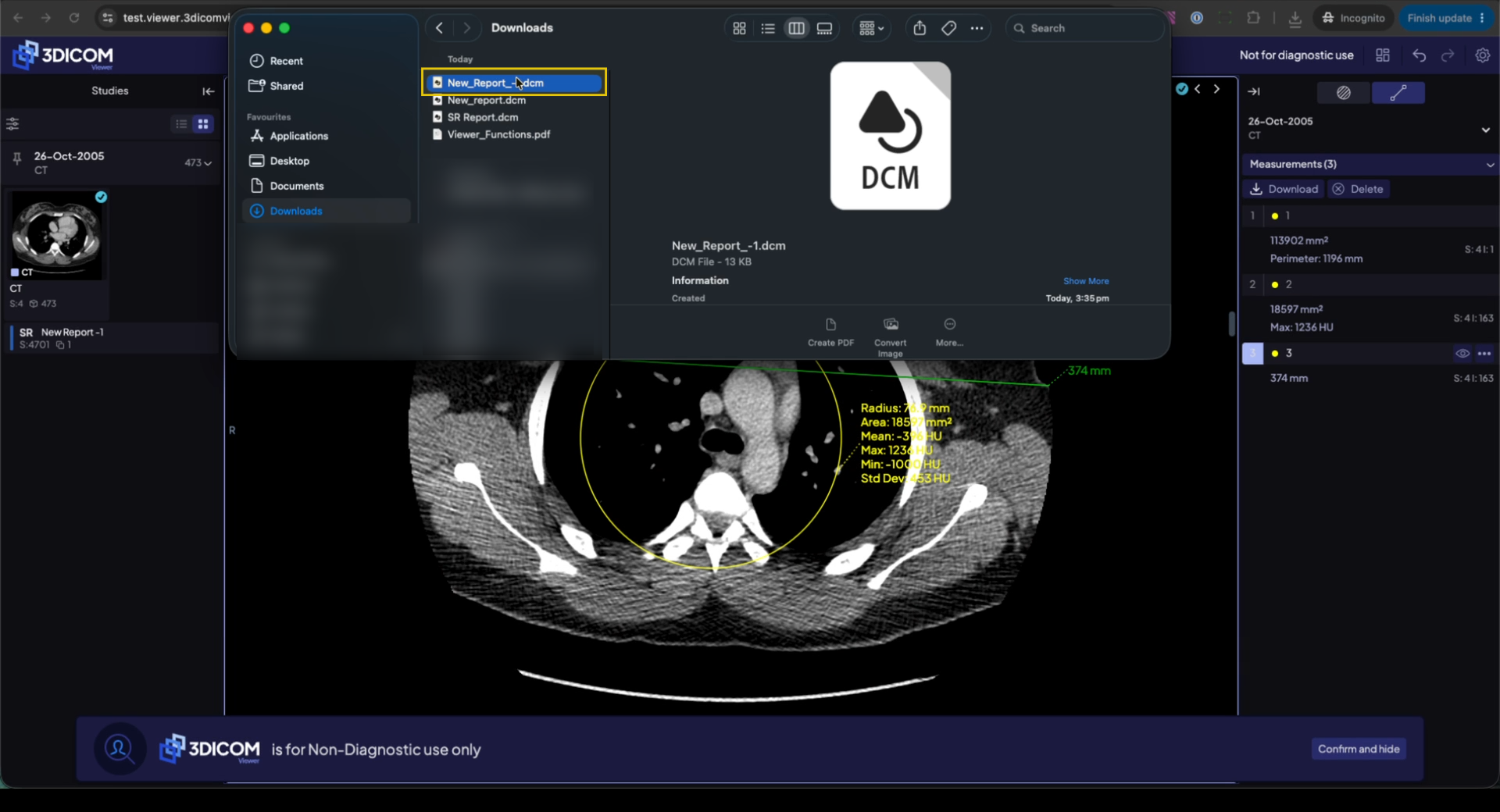
Result
After completing these steps, your measurements and annotations are saved in a DICOM Structured Report, ready to be shared or imported into other systems.